
Audience Sync Node
Sync audience data with Meta Ads
Beta featureThe audience sync node is a beta feature. Contact your customer success manager to learn more.
The audience sync node allows seamless synchronization of audience data across advertising platforms—particularly valuable in a cookieless environment, empowering marketers to leverage first-party data for more precise and effective targeting. Key benefits include:
- Retargeting: Utilize first-party data to retarget users across platforms, maintaining engagement and driving conversions even without cookies.
- Purchase suppression: Optimize ad spend by excluding users who have already made a purchase, ensuring ads are directed at potential new customers.
- Lookalike audiences: Create lookalike audiences to attract new users with similar characteristics to your existing high-value customers.
This guide contains the following topics:
- Audience sync node usage details: Specific details on prerequisites, behavioral notes, limitations, and suggested best practices
- Audience sync setup
- Adding Appier as a Meta business partner: Enable Appier's integration with Meta ads.
- Add an audience sync node in the journey: Set up an audience sync node in your journey map.
Audience sync node usage details
Notes and limitations
- When you make a major journey structure change (e.g. remove node), the performance of the journey node will be affected as well. The new number will be based on the state of the journey, not all the data points from the beginning journey.
- Users sent to the ads platform do not persist in AIQUA's or AIRIS's database, and are not available as segments.
- If there are network or connection issues with the connected ads platform, the audience sync node will be skipped, and the user will automatically be moved to the next node.
- If the ads platform connection is deleted, the audience sync node will be skipped. The rest of the journey won't be affected.
Best practices
- Batch processing: For optimal performance, avoid passing large segments (greater than 10,000 users) of users to the journey node at once.
- Privacy compliance: When building audiences, include or exclude users based on preferences and privacy laws. Implement relevant filters for users' eligibility with user segmentation.
- Understand the customer journey: Understanding the customer journey is essential for creating an effective journey map. Identify key touchpoints and interactions to align your audience sync strategy with the customer lifecycle. This alignment ensures your synced audience matches your marketing funnel, delivering the right message at the right time and enhancing the overall customer experience.
Audience sync setup
1. Add Appier as a Meta business partner
Follow these steps to add Appier as a Business Partner in your Meta Business Suite account or your Meta Business Manager account.
- Log in to your Meta Business Suite account or Meta Business Manager account.
- Go to the Business Settings page.
- If you are using Meta Business Suite, click Settings in the left menu, and select More business settings.
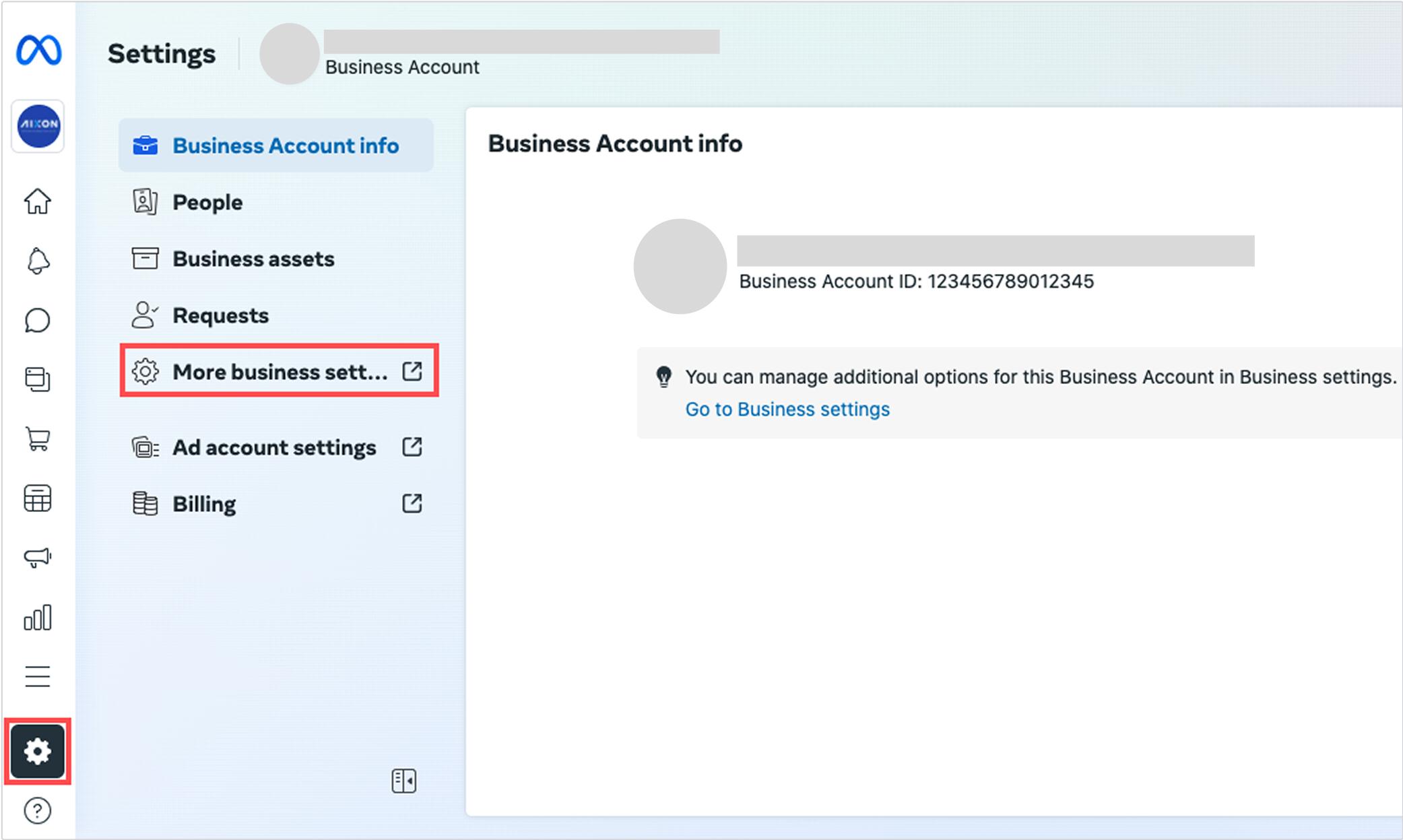
- If you are using Meta Business Manager, click the Business Tools icon and select Business settings.

- In the left menu of the Business Settings page, select Ad Accounts.
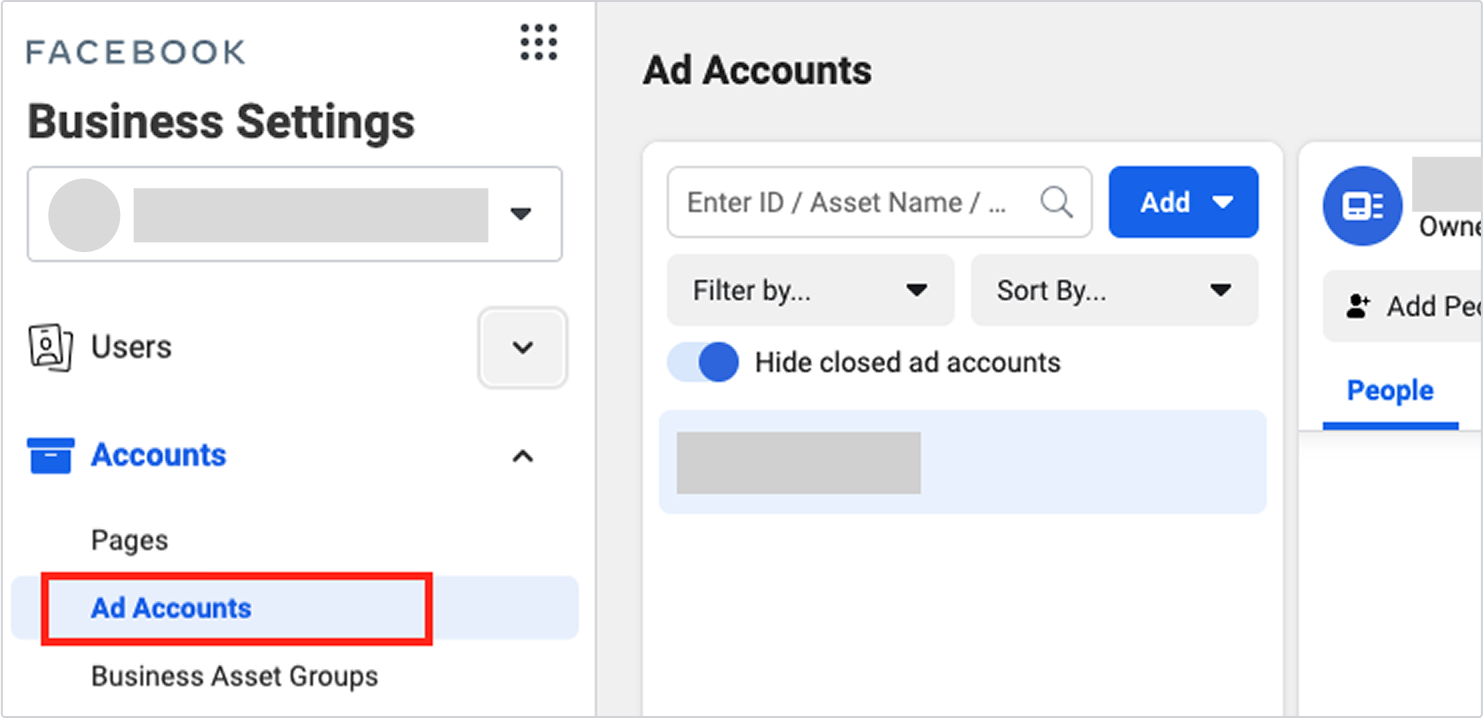
- Select the ad account you want to export to, and click the Assign Partners button.
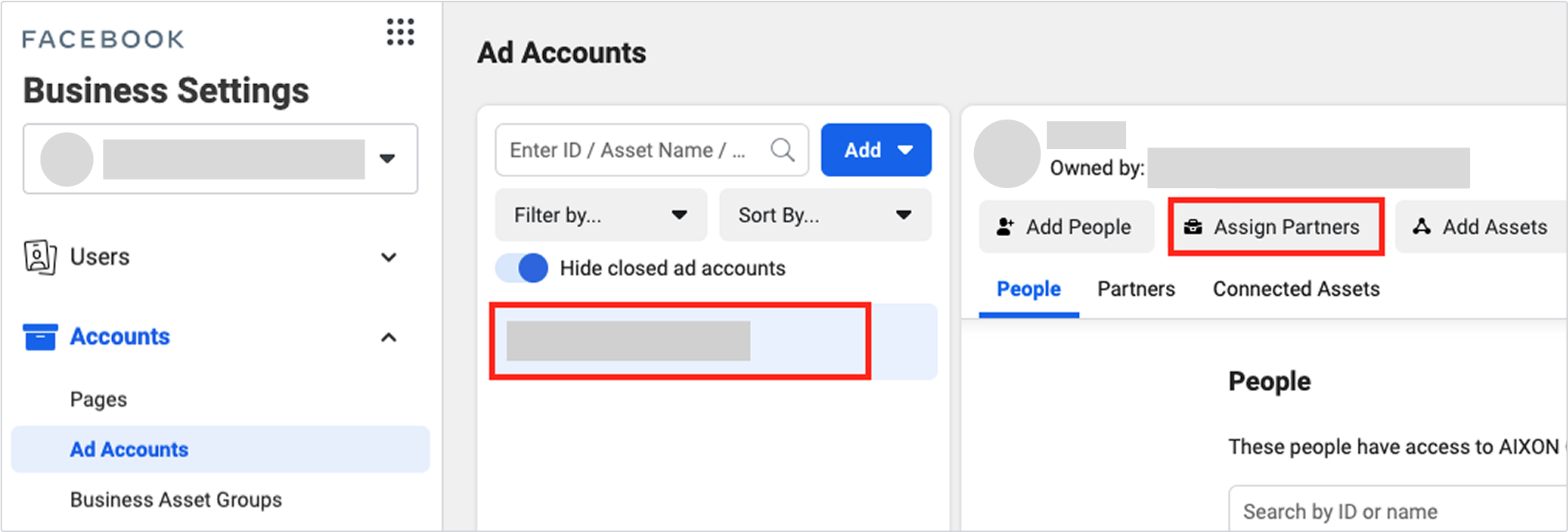
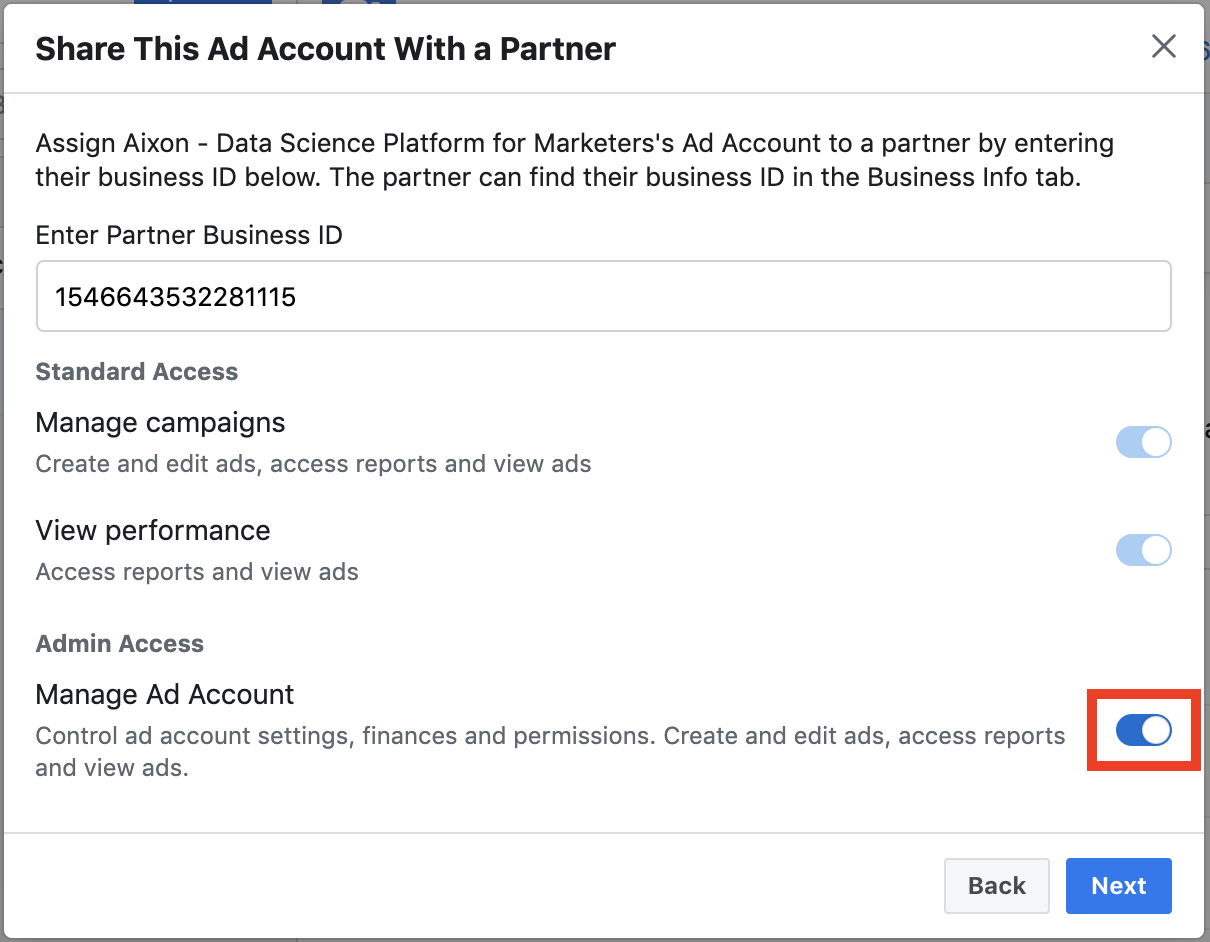
- Select Business ID and enter Appier's business ID: 1546643532281115.
- Under Admin Access, allow access to Manage Ad Account and click Next.
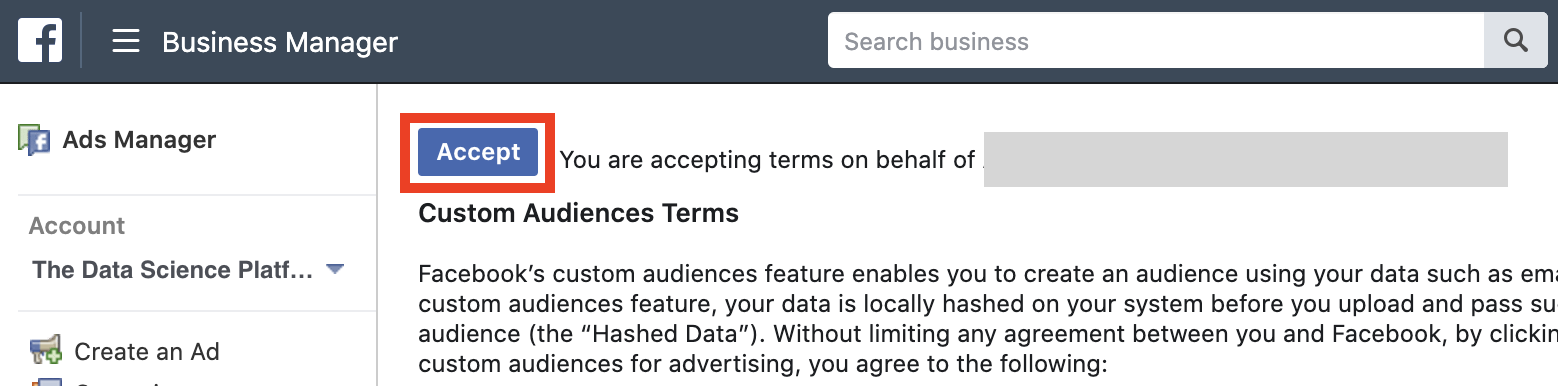
- Go to Meta's Custom Audiences Terms page via the link below and click Accept.
Change [Ad_Account_ID] to the actual account ID of your ad account:www.facebook.com/ads/manage/customaudiences/tos/?act=[Ad_Account_ID]
2. Add a Meta Ads connection in the Appier console
-
Form the project launcher in the top left of the navigation bar, go to Common settings, then go to Ad platforms. Under Meta Ads, click Connect an account.

-
Authorize Appier to access the ad accounts you'd like to sync audiences for. You can select multiple ad accounts.
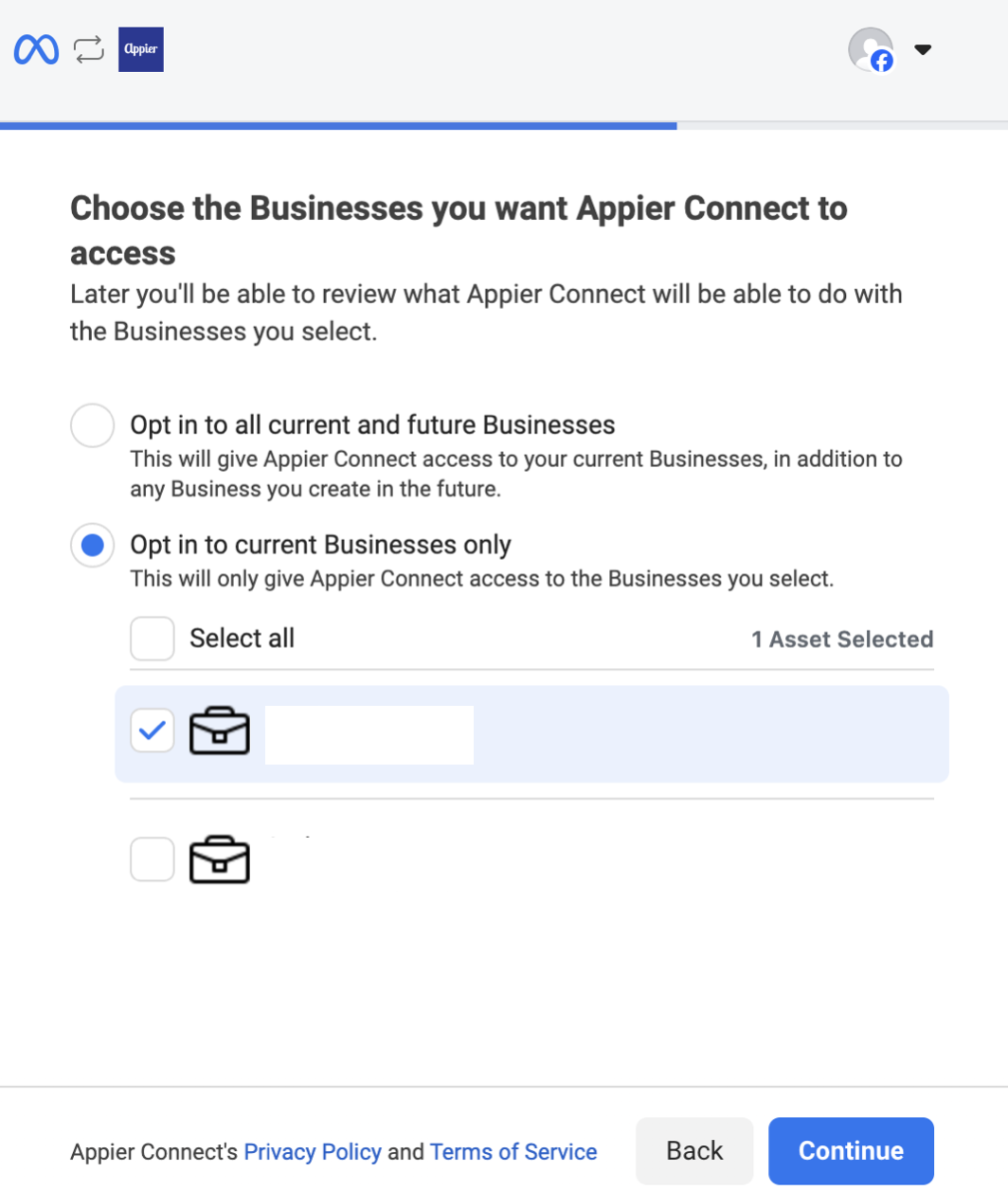
After completing the authorization process, you'll be able to see the connected account in the Appier console under Integrated accounts.

3. Add an audience sync node in the journey
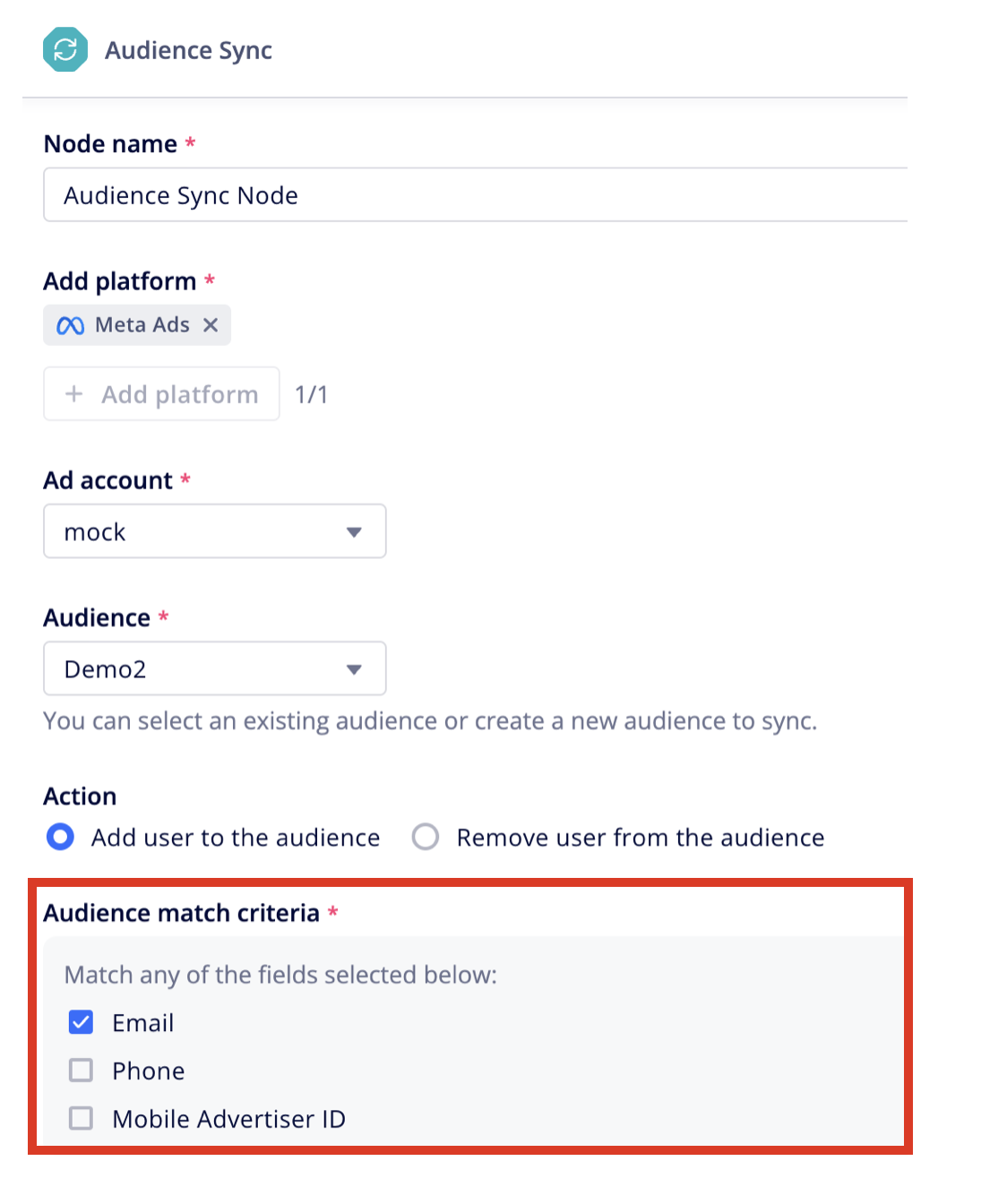
- In the journey map, add an audience sync node. Click on any + button, then click Audience sync.

- Click + Add platform and select the ad platforms you'd like to sync audiences for.

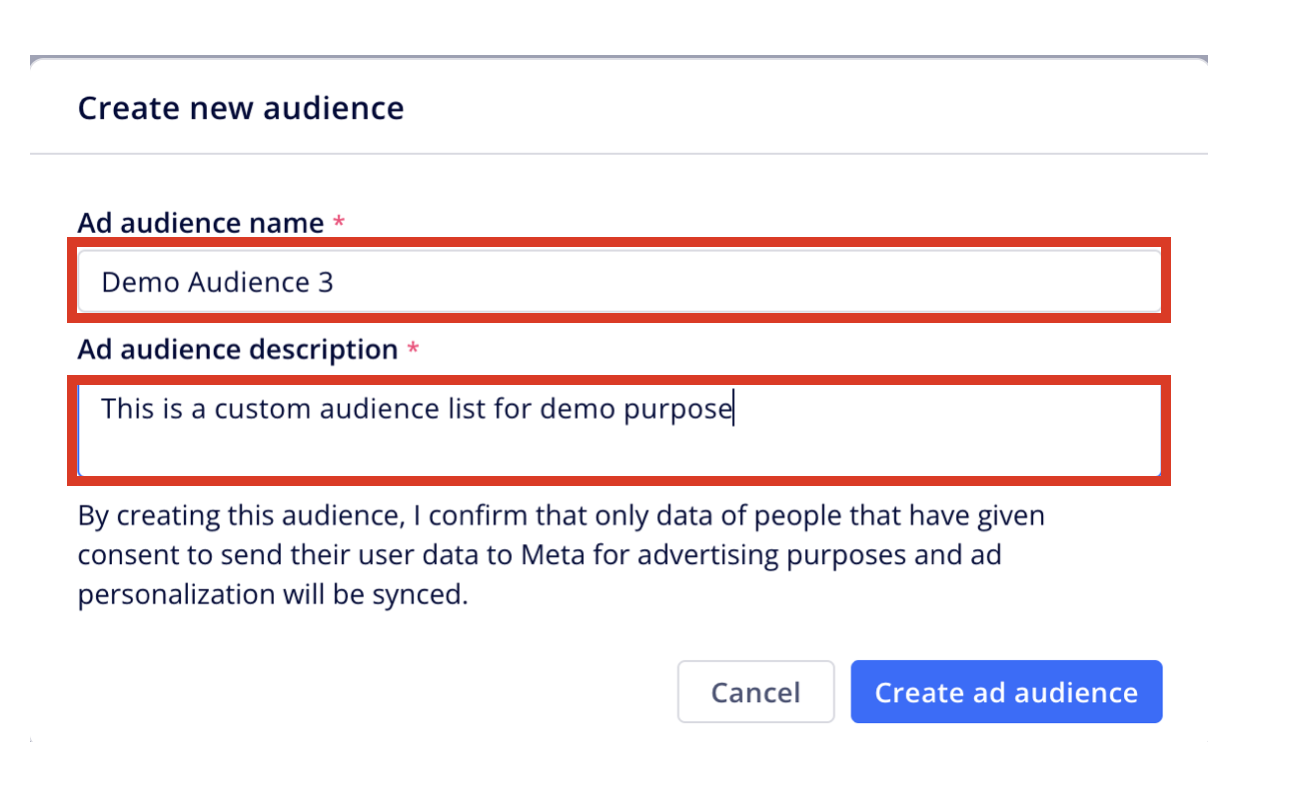
- Click the dropdown under Audience and choose whether you'd like to create a new audience list or reuse an existing one.

To create a new custom audience list, enter a name and description, then click Create ad audience.
- Under Action, choose whether this node should add or remove users from the audience list.
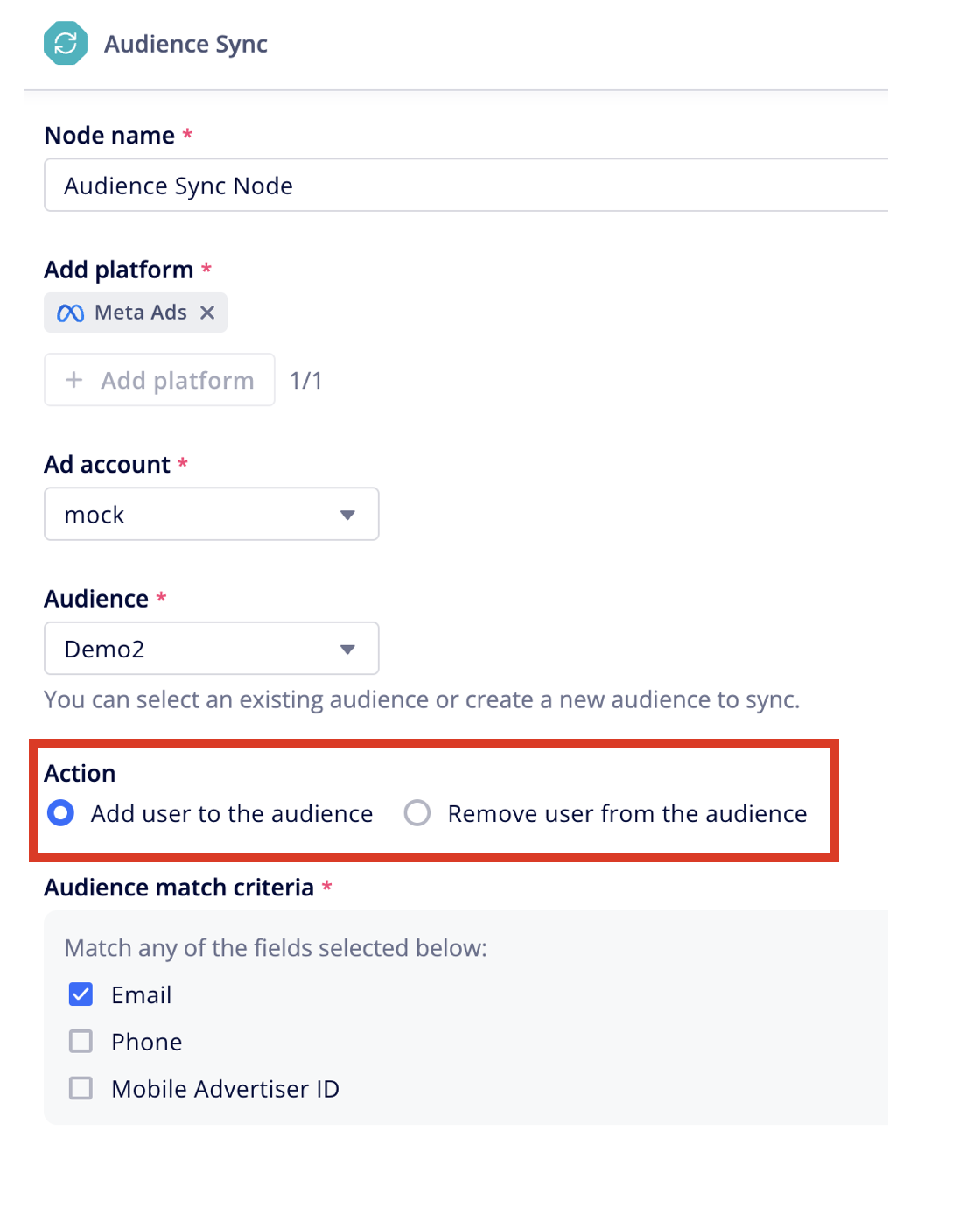
- Under Audience match criteria, select one ore more unique identifiers that should be used to match users with.
- For instance, if you opt for both Email and Phone, the system will send both identifiers to the ad platform for user matching. The user is added to the custom audience list on the ad platform if any of these identifiers match.
To ensure data security, Appier only transmits hashed phone numbers and emails to connected ads platform.
4. Review audience sync performance
Once the journey map is published, you can review the performance of each node, including the audience sync node by clicking on the node. From the node status, you can see how many users have entered the node, as well as how many users have been successfully added to the custom audience list in the connected ad platform.
Note that the number of users displayed as Added or Removed in the audience sync node might not match the number on the connected ad platform exactly. This is because Added and Removed counts represent the number of users successfully matched from the connected ad platform, not the current custom audience size on the ads platform.
NoteThe Added or Removed count won't always update immediately, and may require some time to sync with the data from the ads platform.

You can also see the daily audience sync trend from the Node stats tab:

Updated 7 months ago