

Manage segments
View details and perform segment operations
Create a segment by specifying user attribute and event conditions.
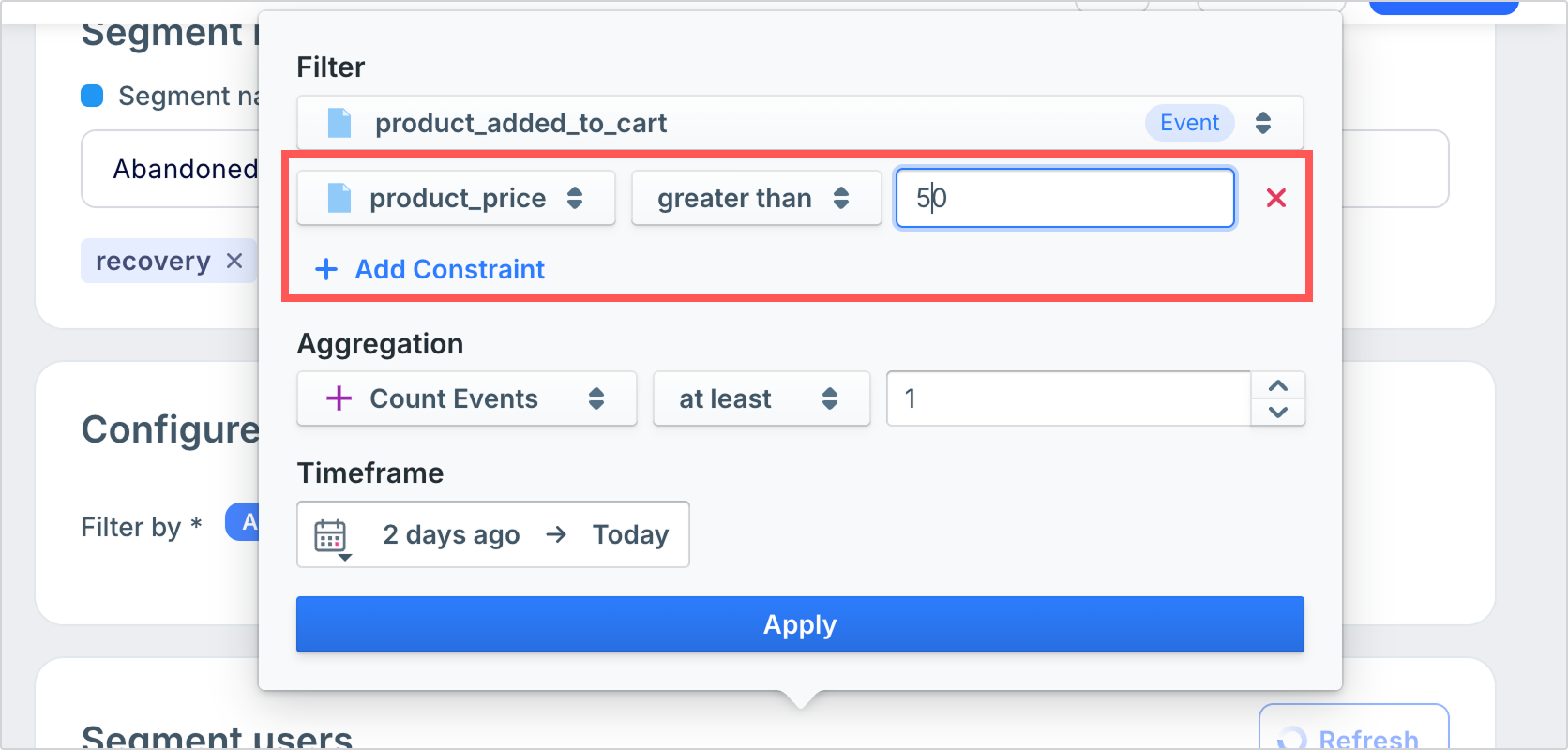
To create a segment using user attribute and event conditions, go to Segments and click + Create segment > Conditions.
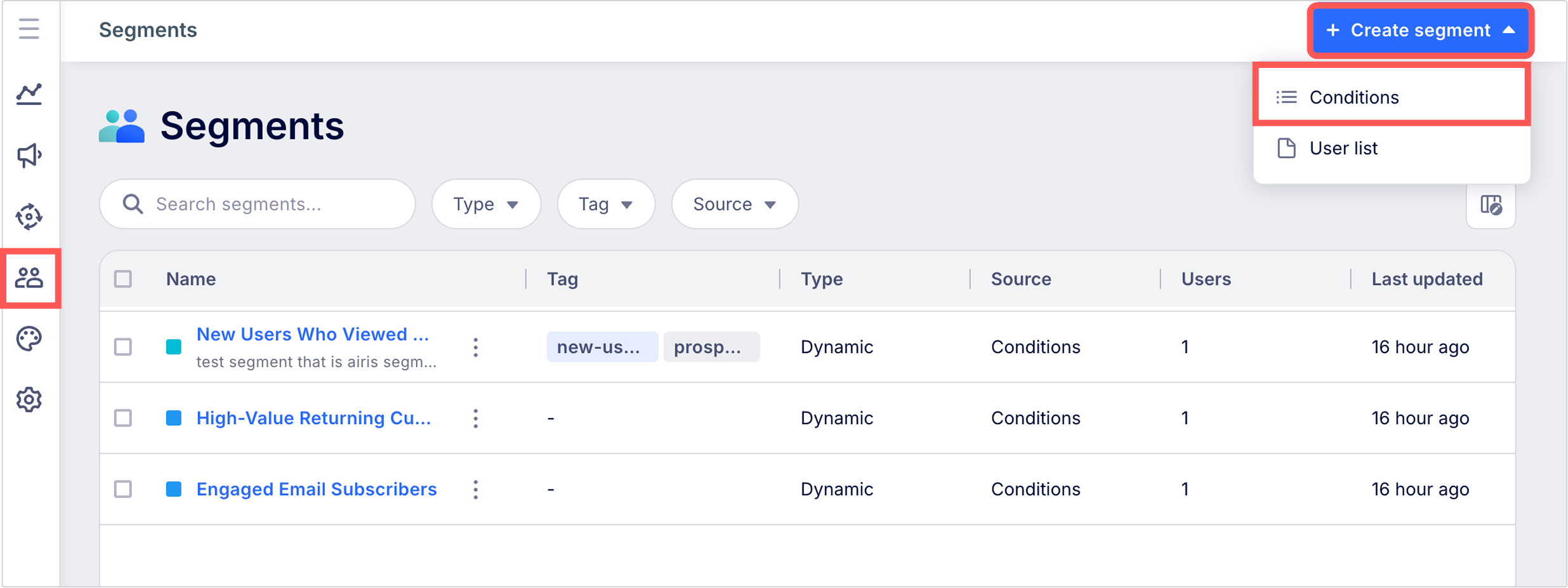
Under Segment info, enter a name, an optional description, and optional tags.
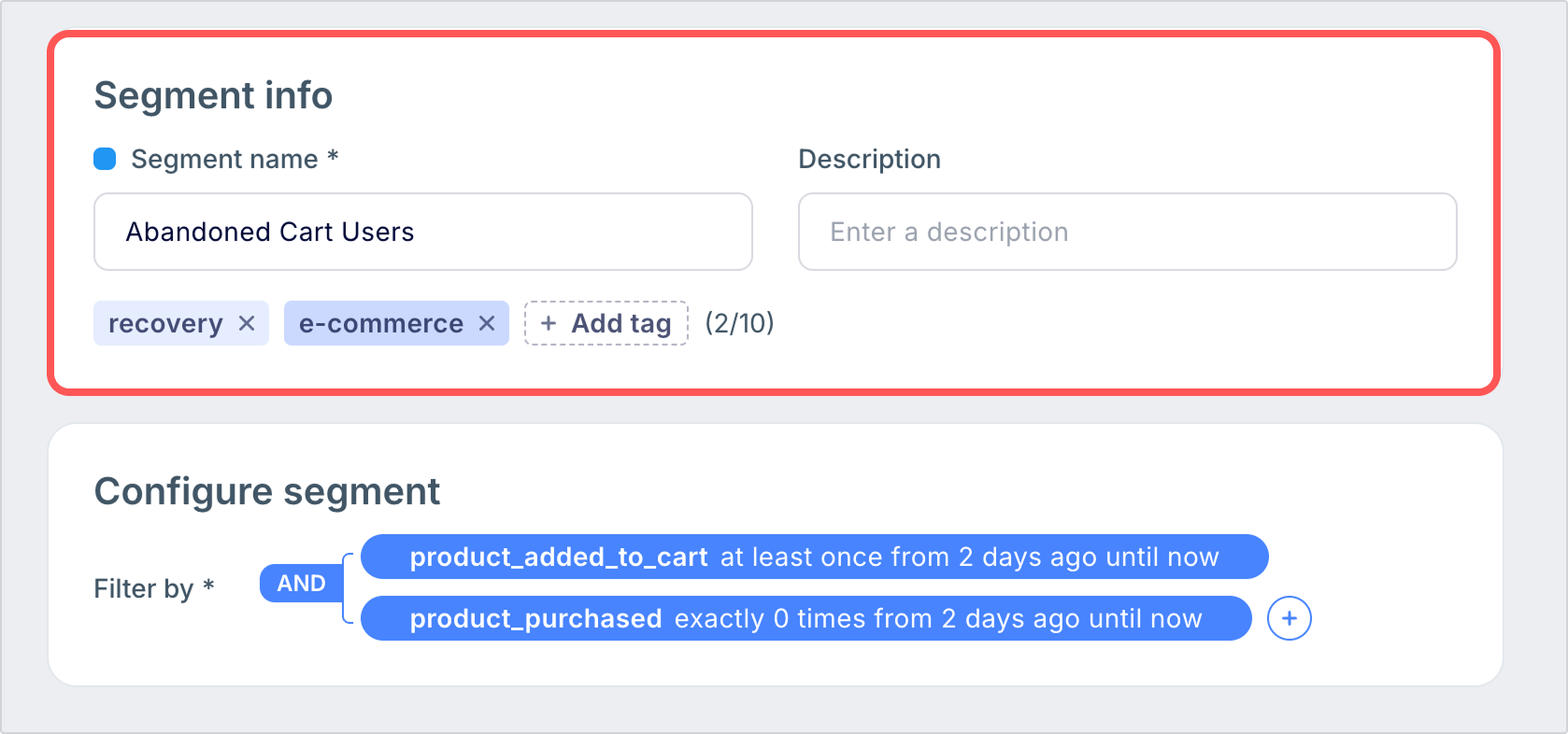
Under Configure segment, click + and select an event or attribute to segment users by. Complex segmentation conditions can be combined into condition groups.
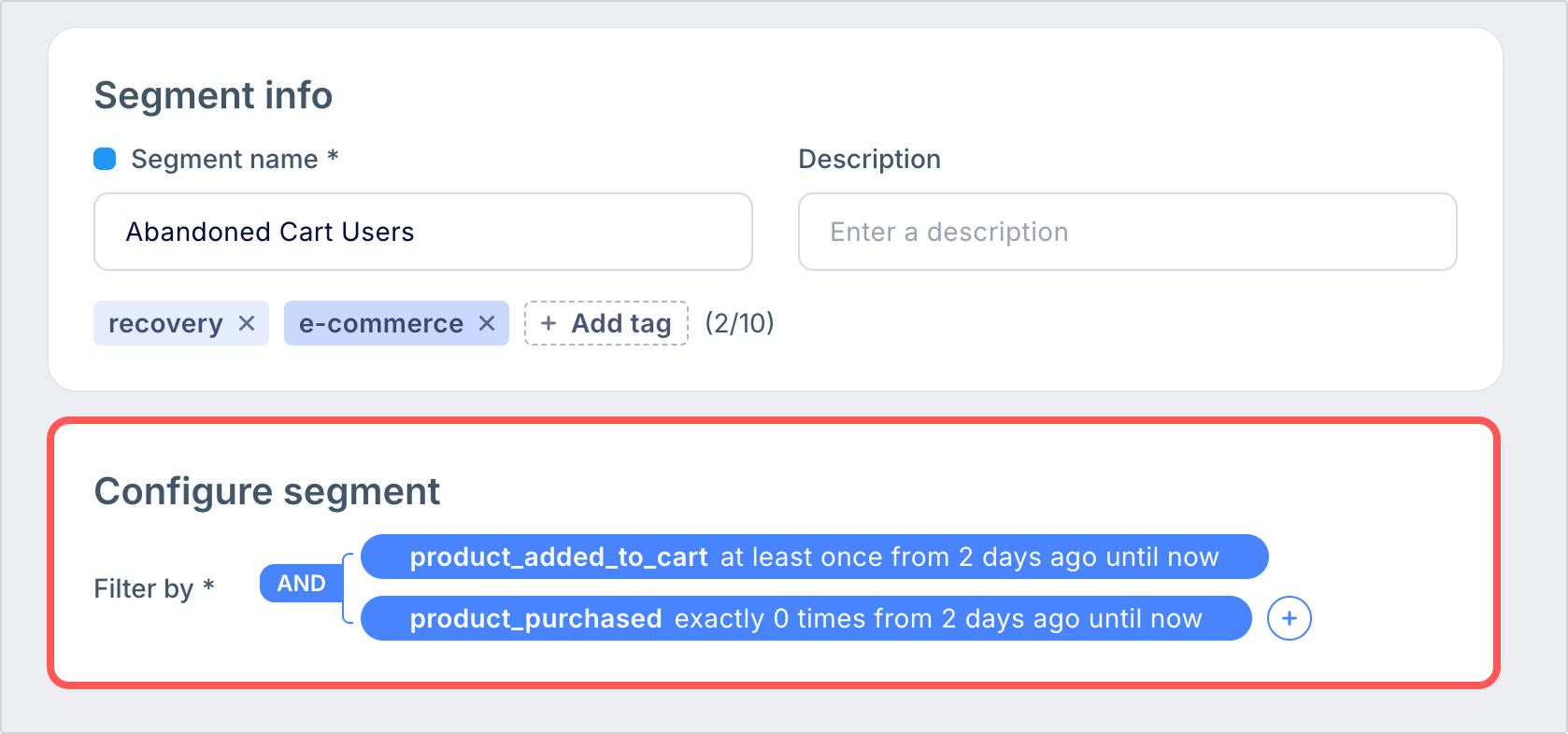
Event conditions include additional settings for event properties, aggregations (how events are counted), and the timeframe of events to consider.
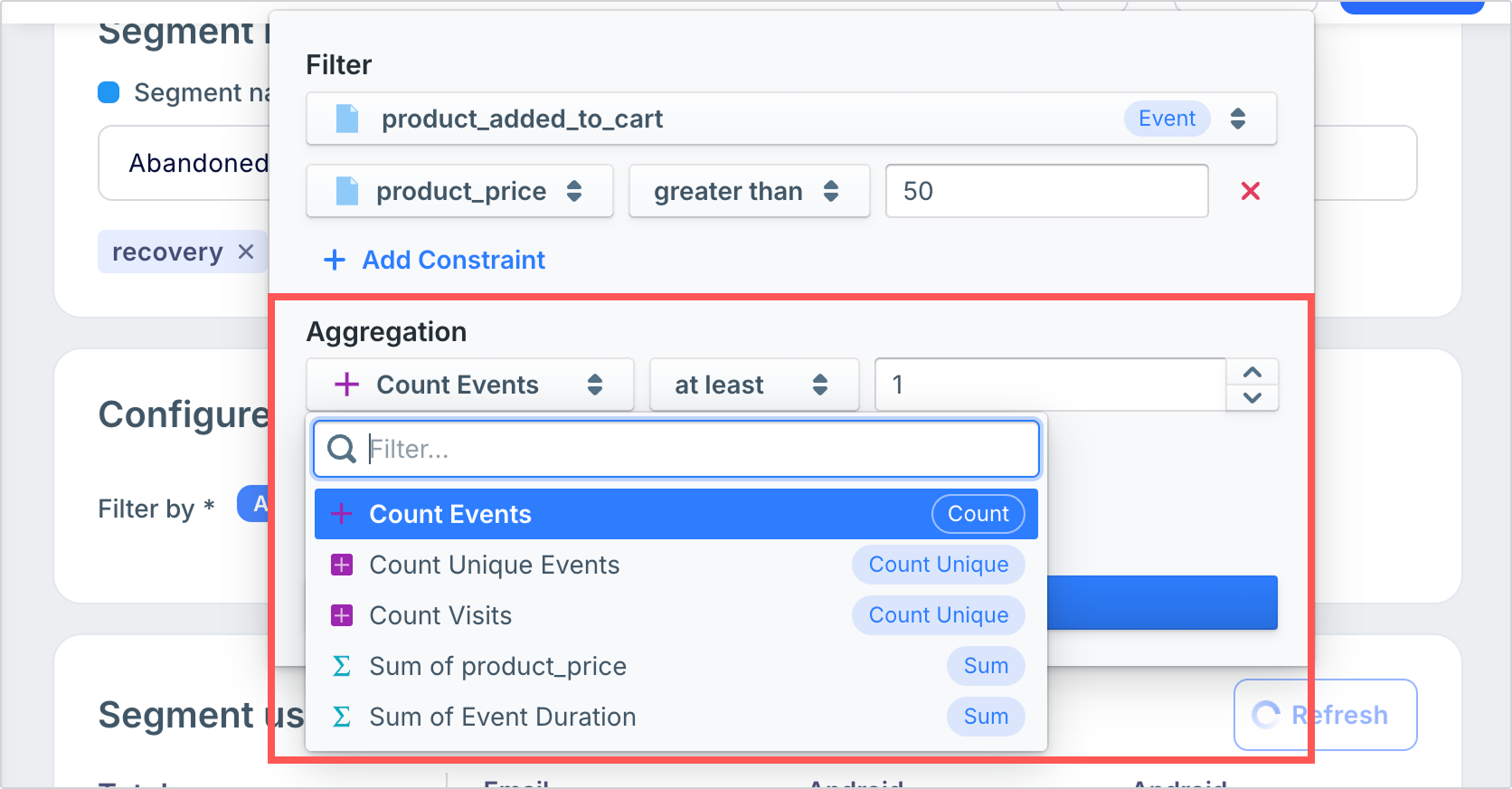
| Setting | Description |
|---|---|
| Constraints | Constraints are filters for individual event properties. Select an event property from the dropdown, select an operation, and enter the comparison value. The available comparison operators will differ depending on the event property's data type.
|
| Aggregation | The aggregation type determines how events are counted. Select one of the following aggregation types, select an operation, then enter a comparison value. • Count: Evaluate the number of times the user has performed the selected event.
|
| Timeframe | Set the range of data that should be used when evaluating this condition. There are three ways to select a timeframe: • Absolute: Select a specific date, such as "January 1st, 2023". |
Adding multiple conditions within the same level will create a condition group. The following example shows a segment containing users who satisfy both Condition group A and Condition group B, where:
product_added_to_cart) or viewed a page (page_viewed) at least four times in the past two days.product_purchased) in the past two days.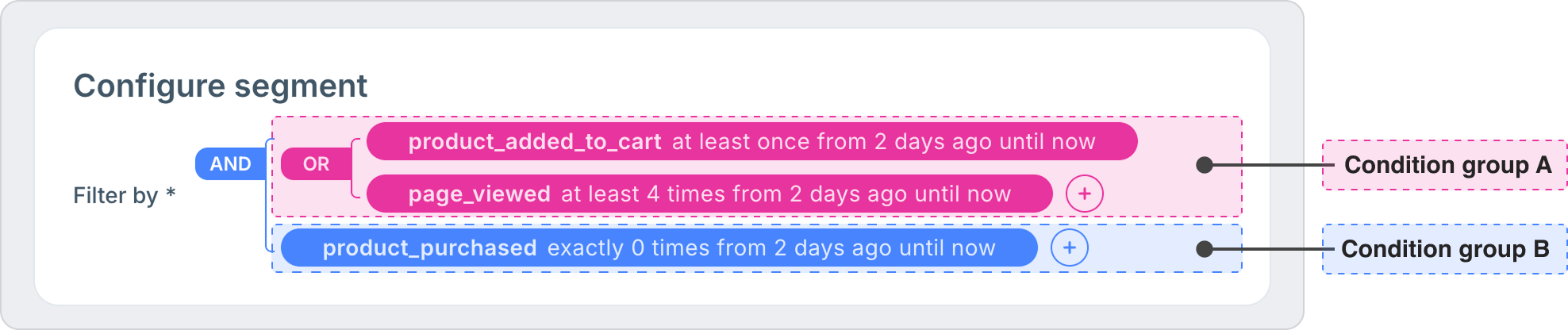
You can perform the different operations to edit segmentation condition groups.
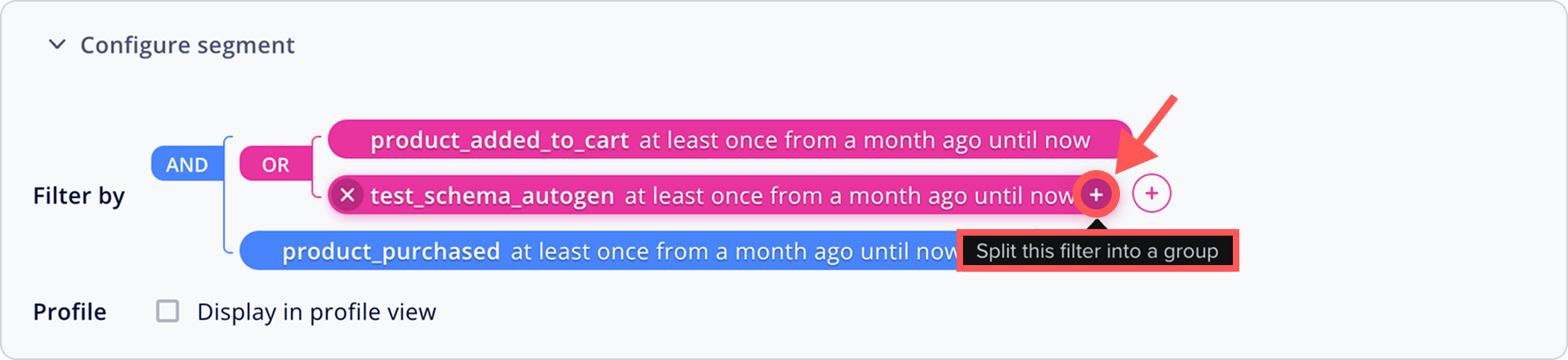
Hover over the condition and click the + button that appears inside the condition block.
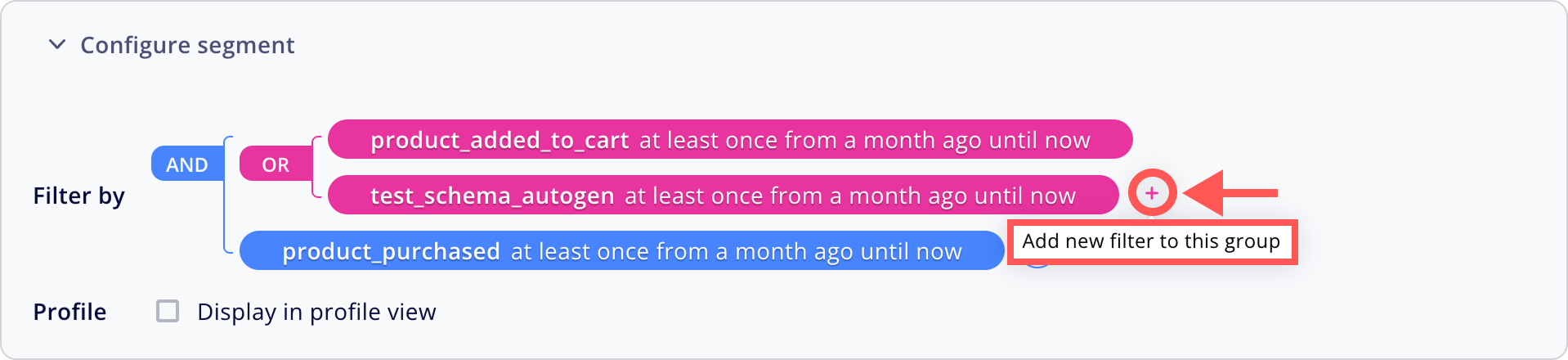
Click the + button that appears at the end of the condition block.
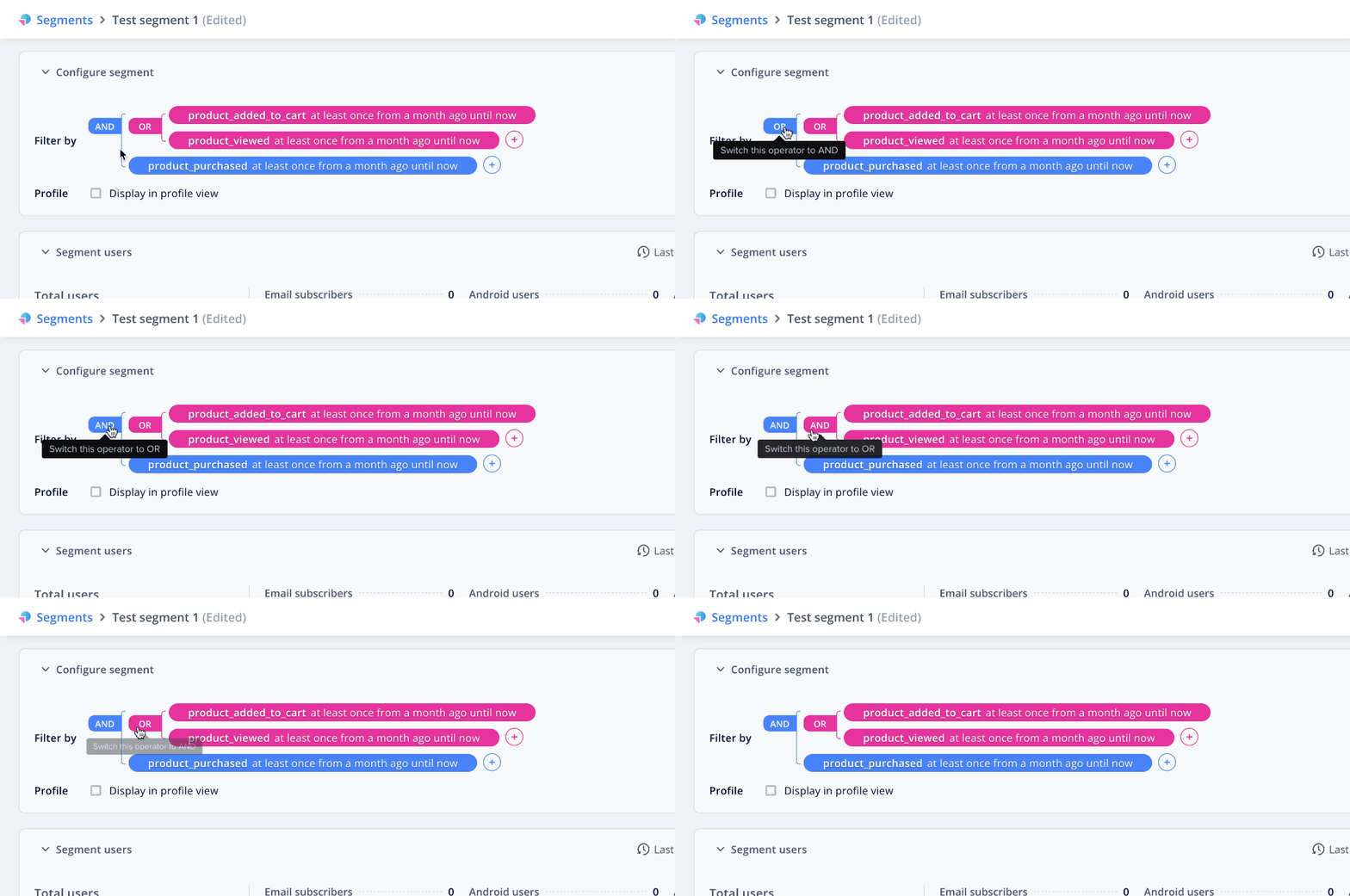
Condition groups are evaluated using the operator specified in the previous (outer) level. Click the operator to switch between AND and OR.
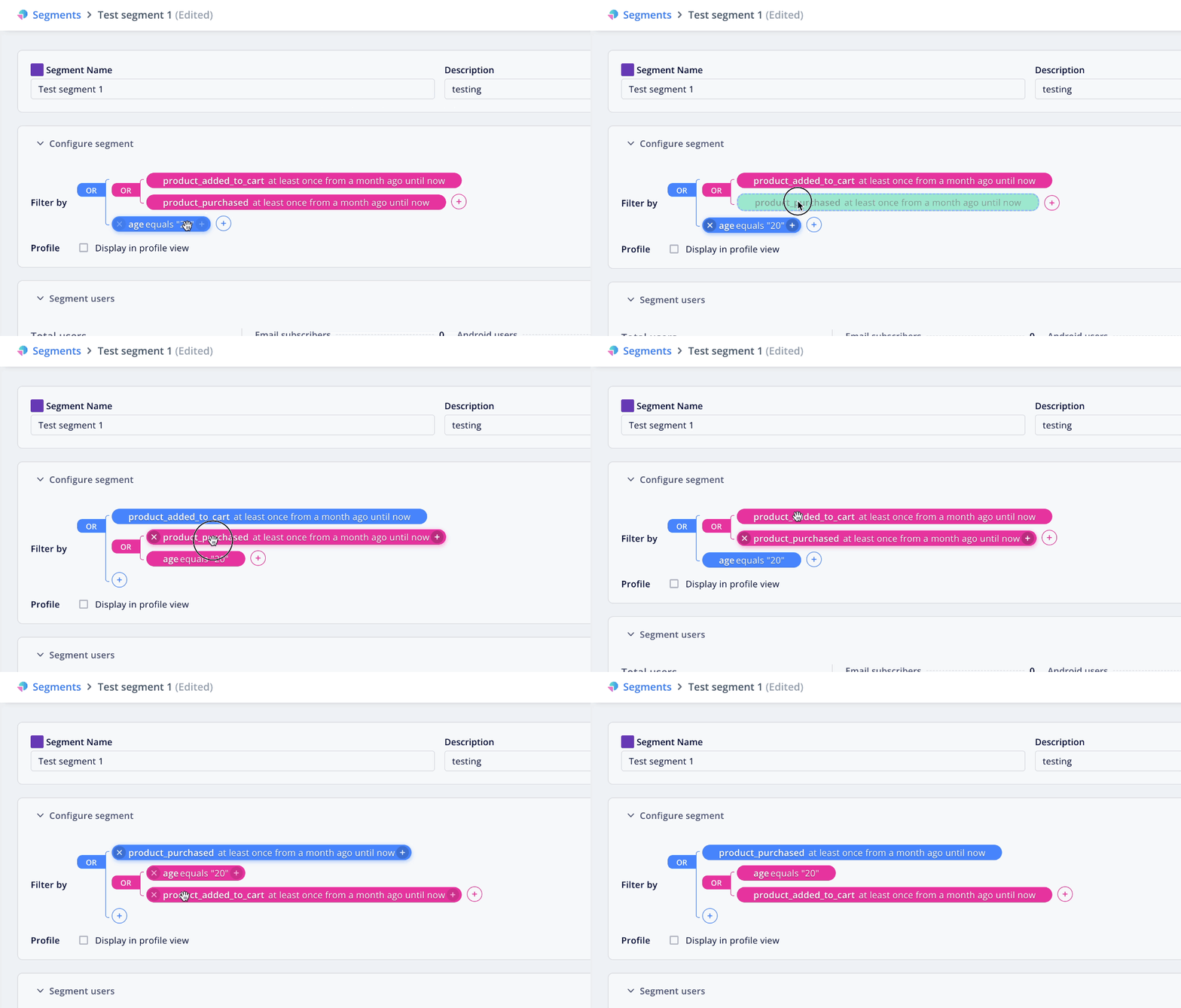
Drag and drop individual conditions into the desired condition group.
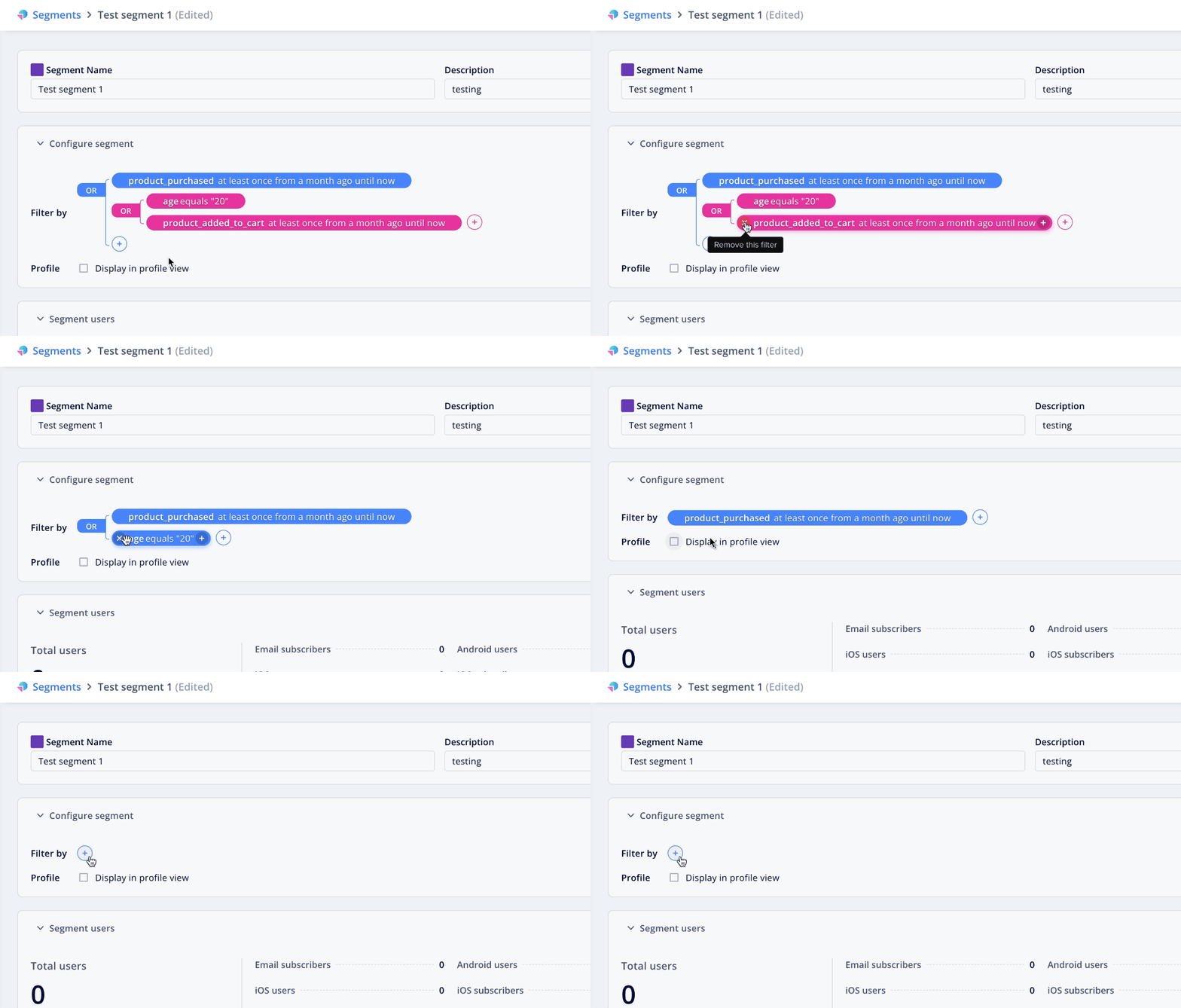
Hover over the condition and click X.
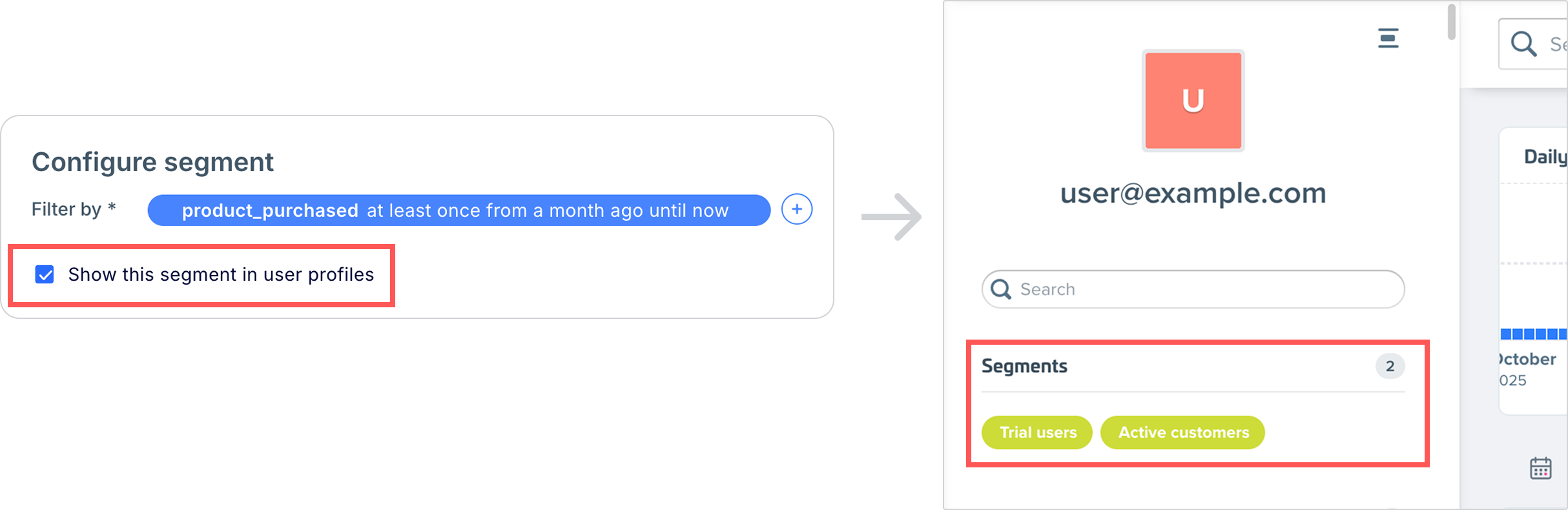
Profile view settings are only available for accounts with AIRIS enabled.
Check Show this segment in user profiles to see the segment name under the Segments section of the user's profile for users in this segment.
Reachable user counts are only available for accounts with AIQUA enabled.
Under Segment users, you can review the segment's reachable user count broken down by channel.
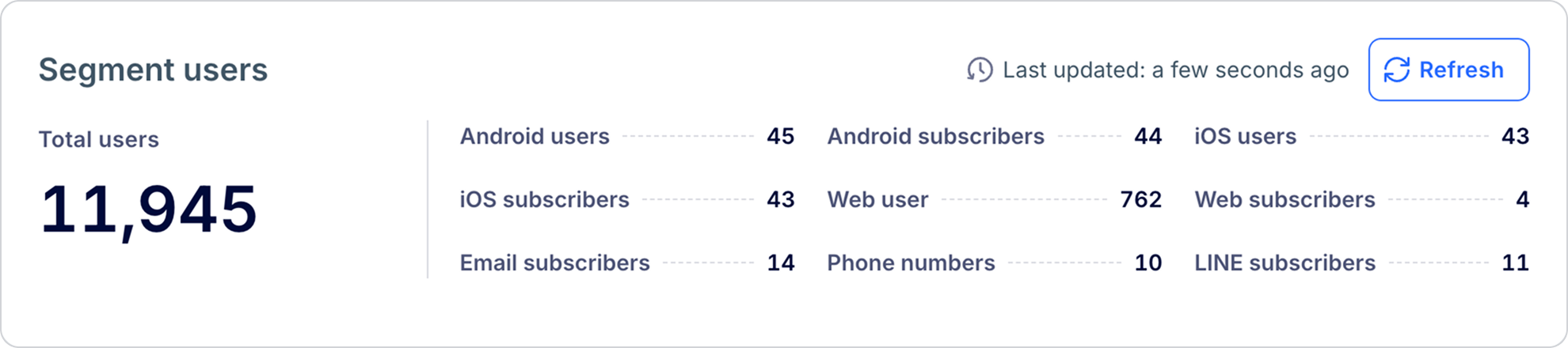
Click Create to save the segment. Next, learn how to manage your segment and sync it to a third-party ad platform.
Different comparison operators are available depending on the data type of the user attribute or event property.
Compare the boolean attribute value directly. The condition evaluates to true when the attribute matches the selected value (true or false).
| Operator | Description |
|---|---|
equals | Evaluates to true if the number matches the specified value. |
greater than | Evaluates to true if the number is greater than the specified value. |
less than | Evaluates to true if the number is less than the specified value. |
greater than or equals | Evaluates to true if the number is greater than or equal to the specified value. |
less than or equals | Evaluates to true if the number is less than or equal to the specified value. |
does not equal | Evaluates to true if the number doesn't match the specified value. |
| Operator | Description |
|---|---|
is | Evaluates to true if the text exactly matches the specified string (case-sensitive). |
contains | Evaluates to true if the text includes the specified substring. |
exists | Evaluates to true if the attribute has any non-empty value. |
starts with | Evaluates to true if the text begins with the specified string. |
ends with | Evaluates to true if the text ends with the specified string. |
is not | Evaluates to true if the text doesn't exactly match the specified string. |
There are several types of timestamp data, each with different operators.
| Timestamp type | Description |
|---|---|
| Timestamp | Supports standard numerical comparisons. |
| Absolute date | Supports comparisons based on an absolute date. Supports the Ignore year option. |
| Relative date | Supports comparisons relative to the current date. Supports the Ignore year option. |
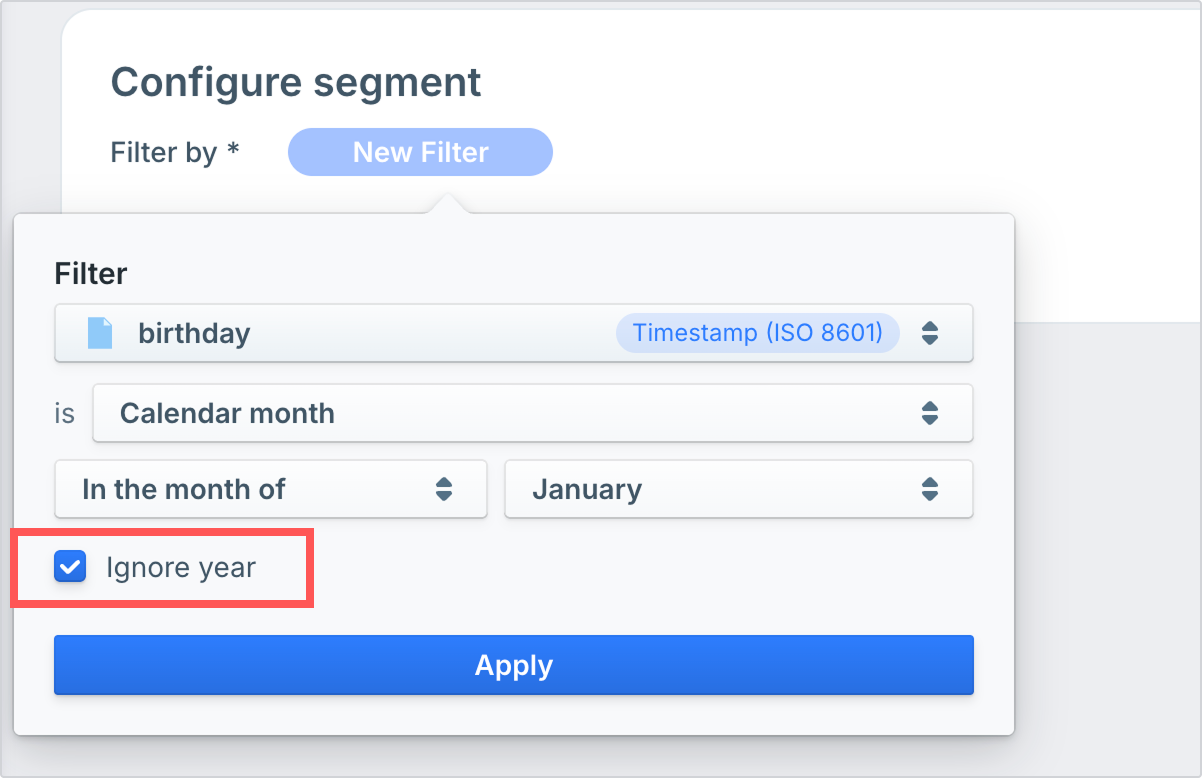
| Calendar month | Supports comparisons based on the month. Supports the Ignore year option. |
| Operator | Description |
|---|---|
after | Evaluates to true if the timestamp occurs after the specified date and time. |
before | Evaluates to true if the timestamp occurs before the specified date and time. |
on or after | Evaluates to true if the timestamp occurs on or after the specified date and time. |
on or before | Evaluates to true if the timestamp occurs on or before the specified date and time. |
exists | Evaluates to true if the timestamp attribute has any recorded value. |
does not exist | Evaluates to true if the timestamp attribute has no recorded value. |
| Operator | Description |
|---|---|
on | Evaluates to true if the timestamp occurs any time on the specified calendar date. |
on or before | Evaluates to true if the timestamp occurs on or before the specified calendar date. |
on or after | Evaluates to true if the timestamp occurs on or after the specified calendar date. |
between | Evaluates to true if the timestamp falls within the specified date range, inclusive of both start and end dates. |
| Operator | Description |
|---|---|
Today | Evaluates to true if the timestamp falls on the current calendar day. |
In the last | Evaluates to true if the timestamp occurred within the specified number of days/weeks/months before the current date. |
In the next | Evaluates to true if the timestamp occurs within the specified number of days/weeks/months from the current date. |
More than ... ago | Evaluates to true if the timestamp occurred more than the specified time period before the current date. |
More than ... later | Evaluates to true if the timestamp occurs more than the specified time period after the current date. |
Exactly ... ago | Evaluates to true if the timestamp occurred at exactly the specified time period from the current date. |
Exactly ... later | Evaluates to true if the timestamp occurs at exactly the specified time period after the current date. |
| Operator | Description |
|---|---|
This month | Evaluates to true if the timestamp falls within the current calendar month. |
Last month | Evaluates to true if the timestamp falls within the previous calendar month. |
Next month | Evaluates to true if the timestamp falls within the next calendar month. |
In the month of | Evaluates to true if the timestamp falls within the specified month. |
Check the Ignore year option to capture annually recurring events, such as birthdays or membership anniversaries. This option is available for the following timestamp types:
Updated 3 days ago