
Managing Segments
The Segments page displays all the segments in your project. From here, you can view segment details and manage your segments.
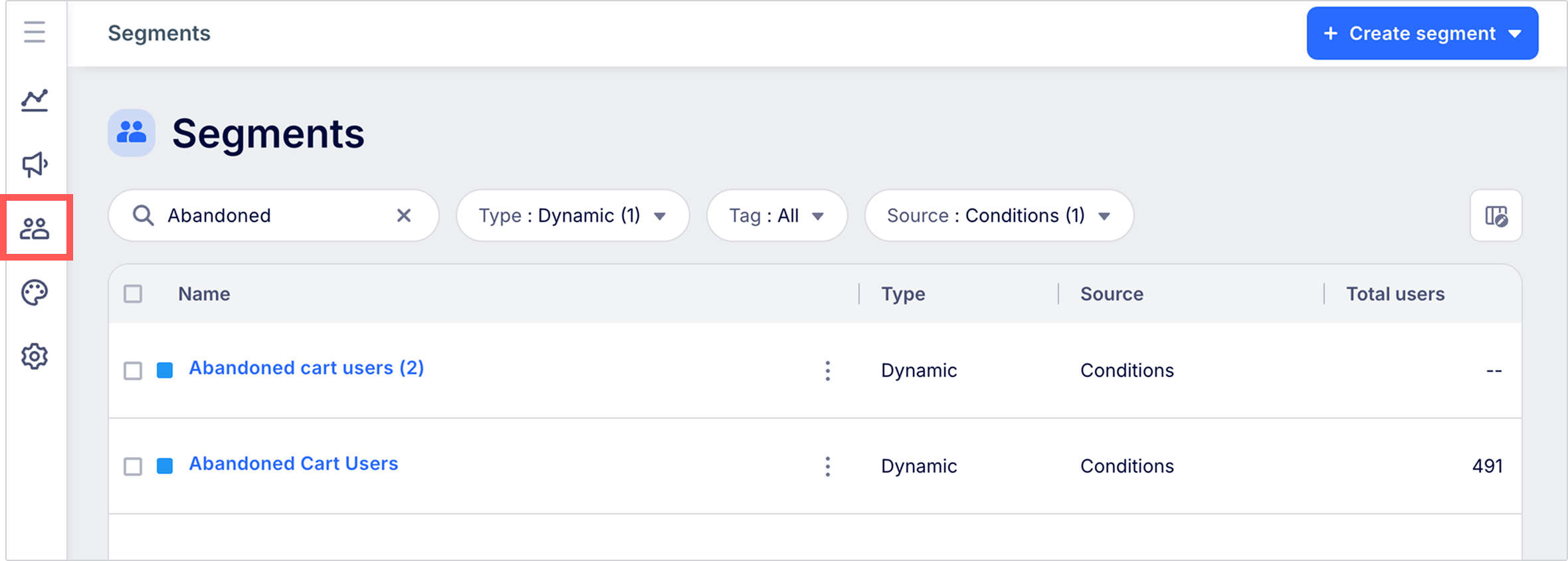
Creating and syncing segmentsRefer to the following guides to learn about creating and syncing segments:
View segment details
- Click a segment's name to view its details.
- Customize segment list columns to ensure the segment list only displays the most relevant information.
- Search and filter segments to find segments quickly.
Customize segment list columns
Click  to add, remove, and reorder the columns displayed in the segment list.
to add, remove, and reorder the columns displayed in the segment list.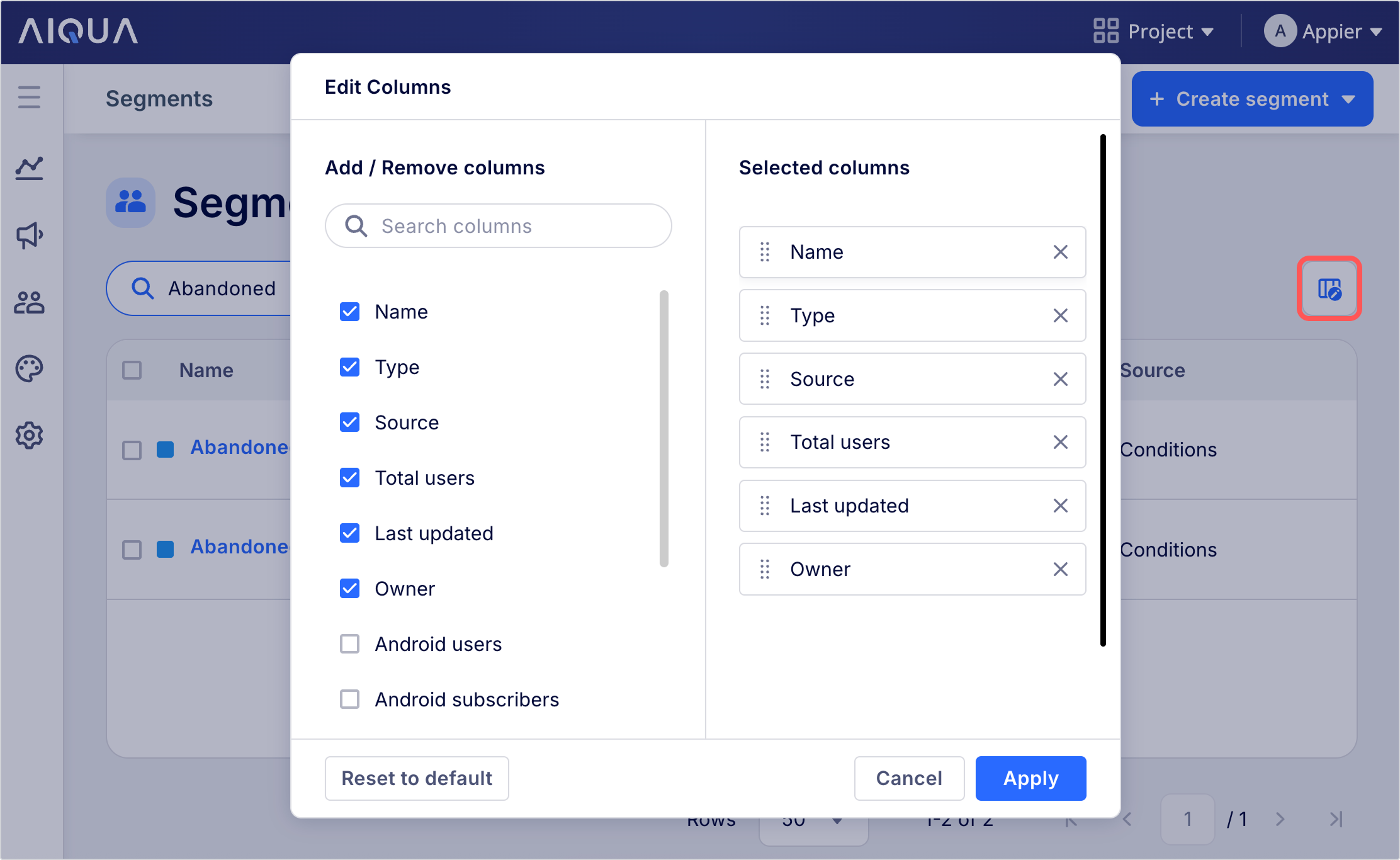
| Operation | Instructions |
|---|---|
| Add columns | Under Add / Remove columns, check the columns to display. |
| Remove columns | • Under Add / Remove columns, uncheck the columns to hide. • Under Selected columns, click X to hide the column. |
| Reorder columns | Under Selected columns, drag each column to your preferred position. |
Search and filter segments
Enter a keyword in the search box to search segments by name.
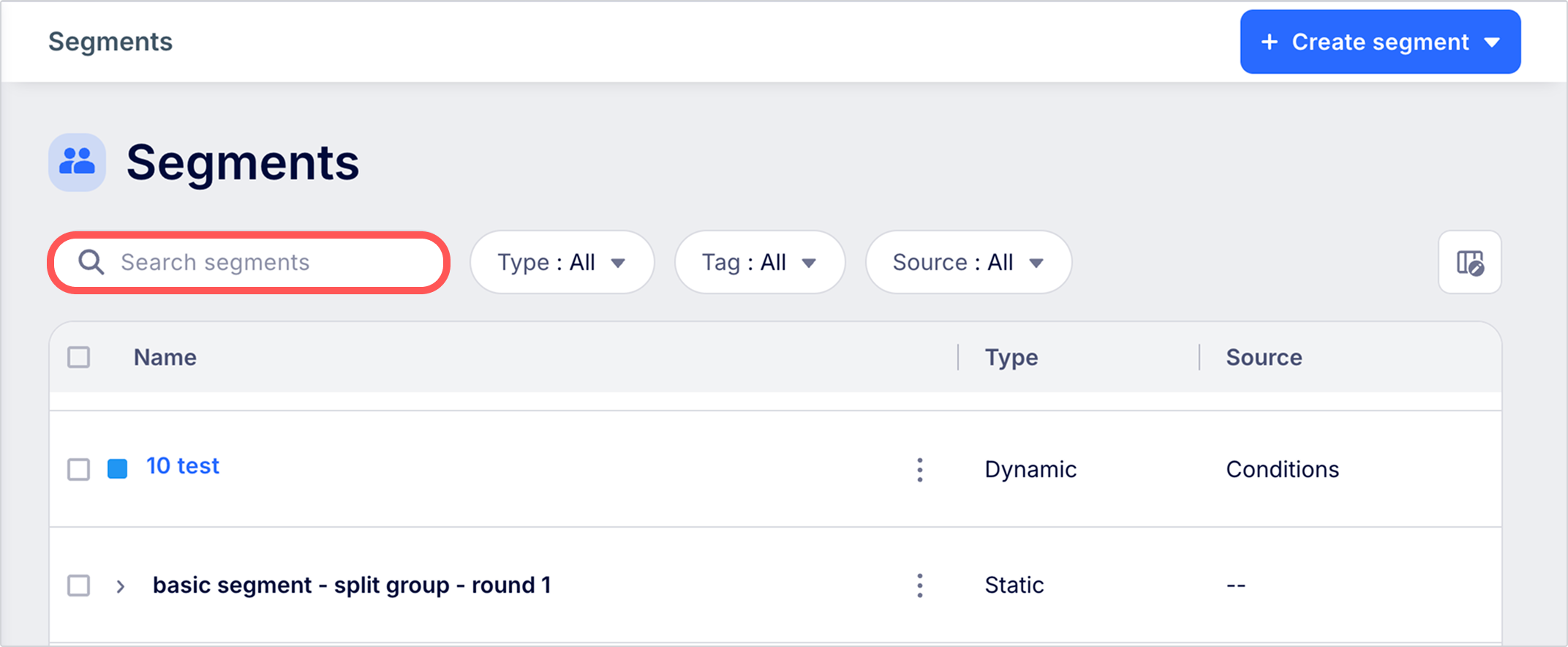
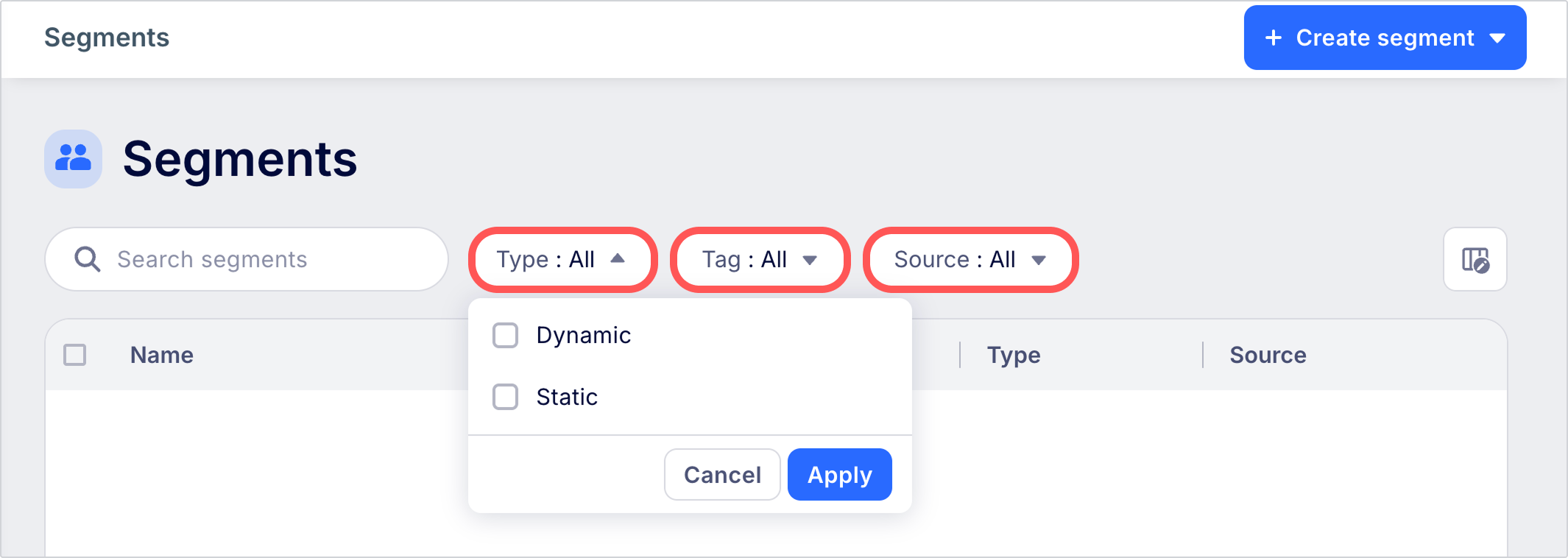
Use the filter dropdown menus to further filter segment list results by type, tag, and source.
Delete segments
Click  and select Delete.
and select Delete.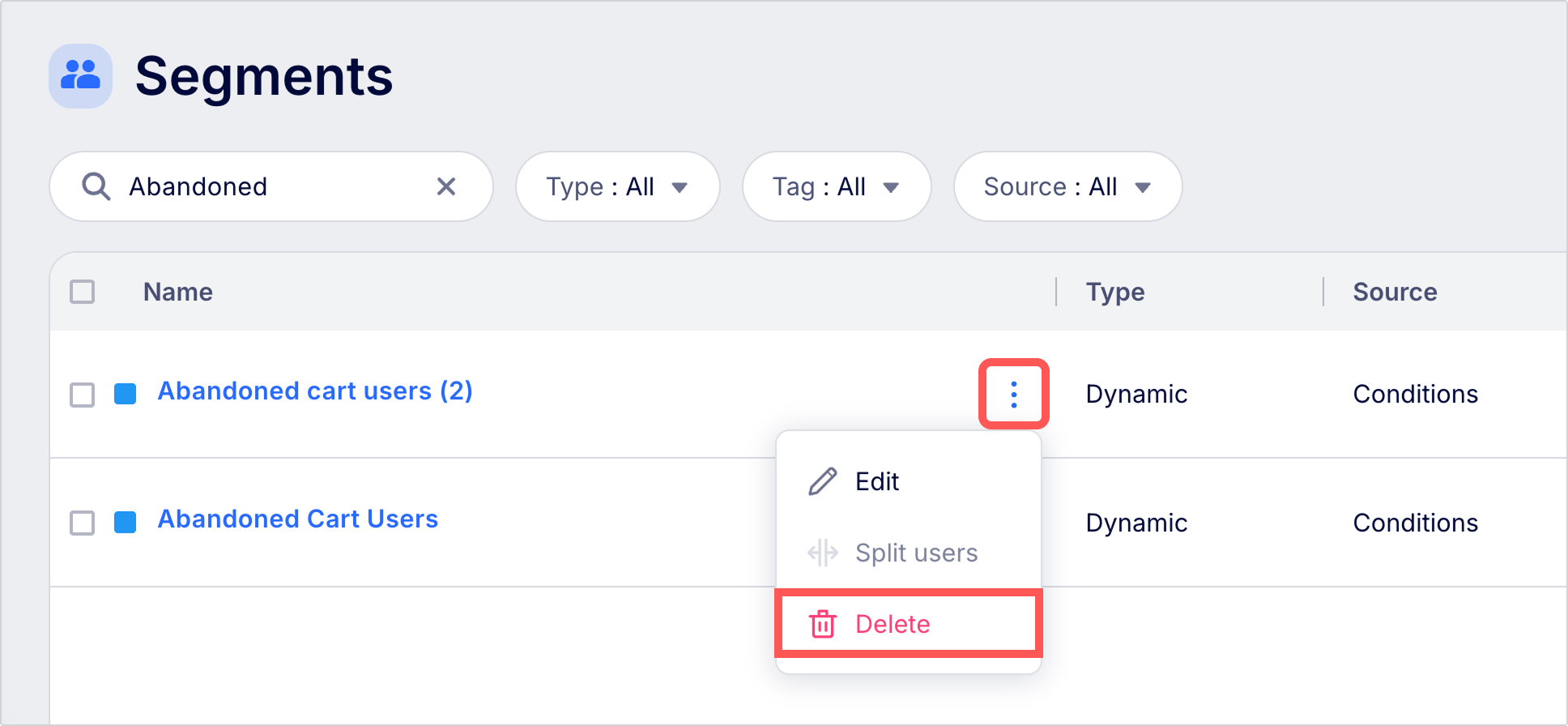
Duplicate segments
- Open the segment's edit screen.
- Click and select Copy JSON.
- Return to the segment list and paste the segment (
Command+Von macOS,CTRL+Von Windows).
Edit segments
Click the segment's name or click and select Edit.
and select Edit. 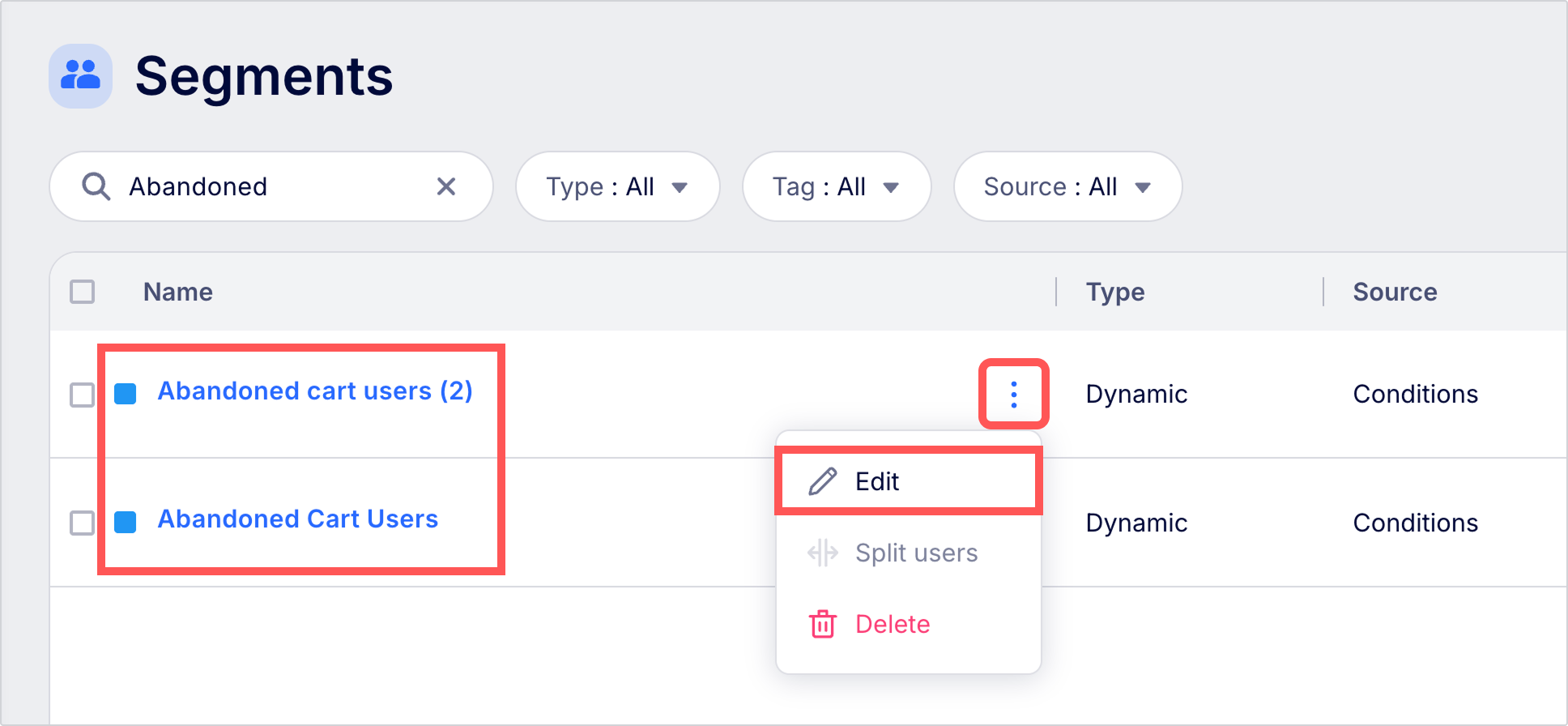
Export segments to CSV
Segment reports are CSV files containing user attributes, device attributes, and channel reachability for users in a segment.
-
Click and select Export to CSV.
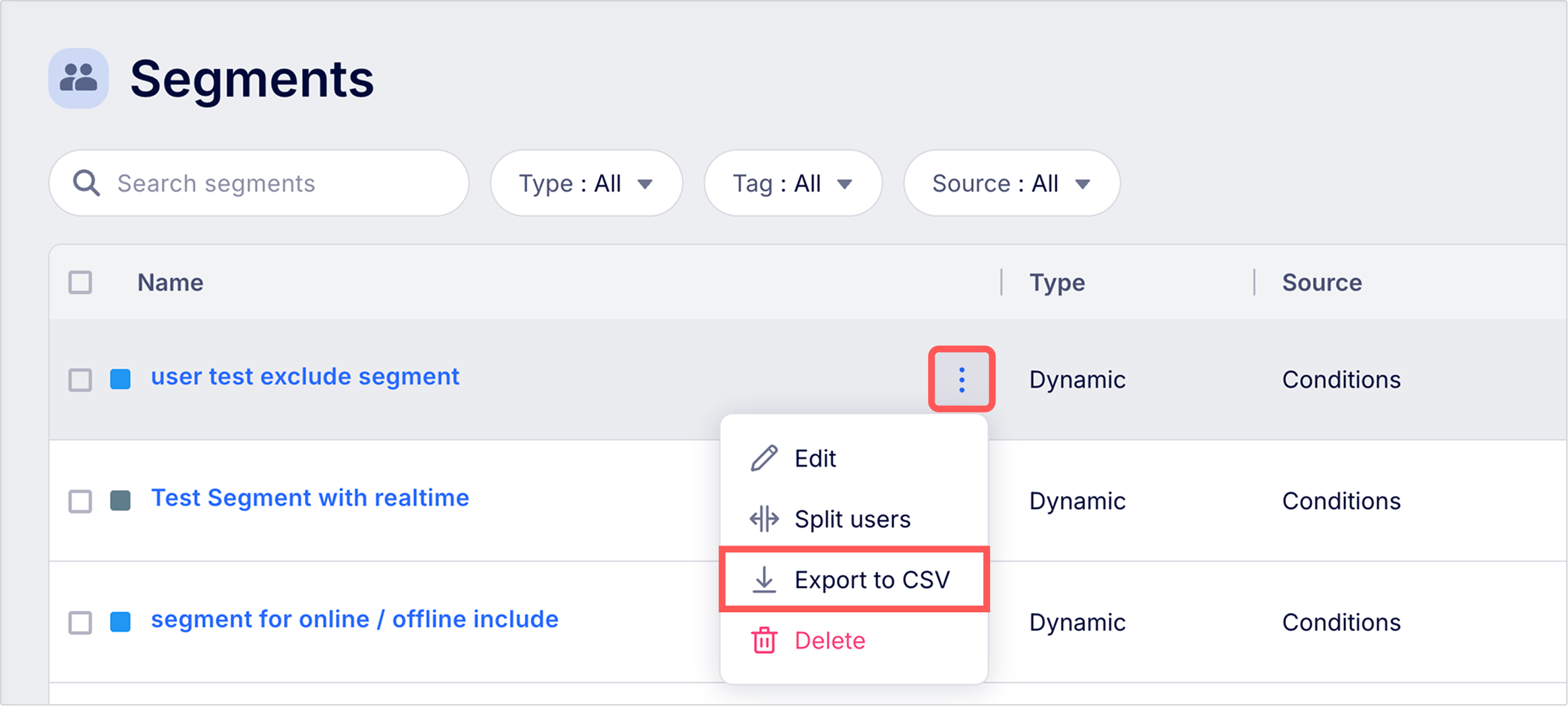
- Select user attributes and device attributes to include in the report.
- If you're only exporting user attributes, set the Data scope option to control how much historical data to include.
| Data scope | Description |
|---|---|
| Current snapshot | Exports the current (latest) user attribute values. |
| Full history | Exports all historical user attribute values. |
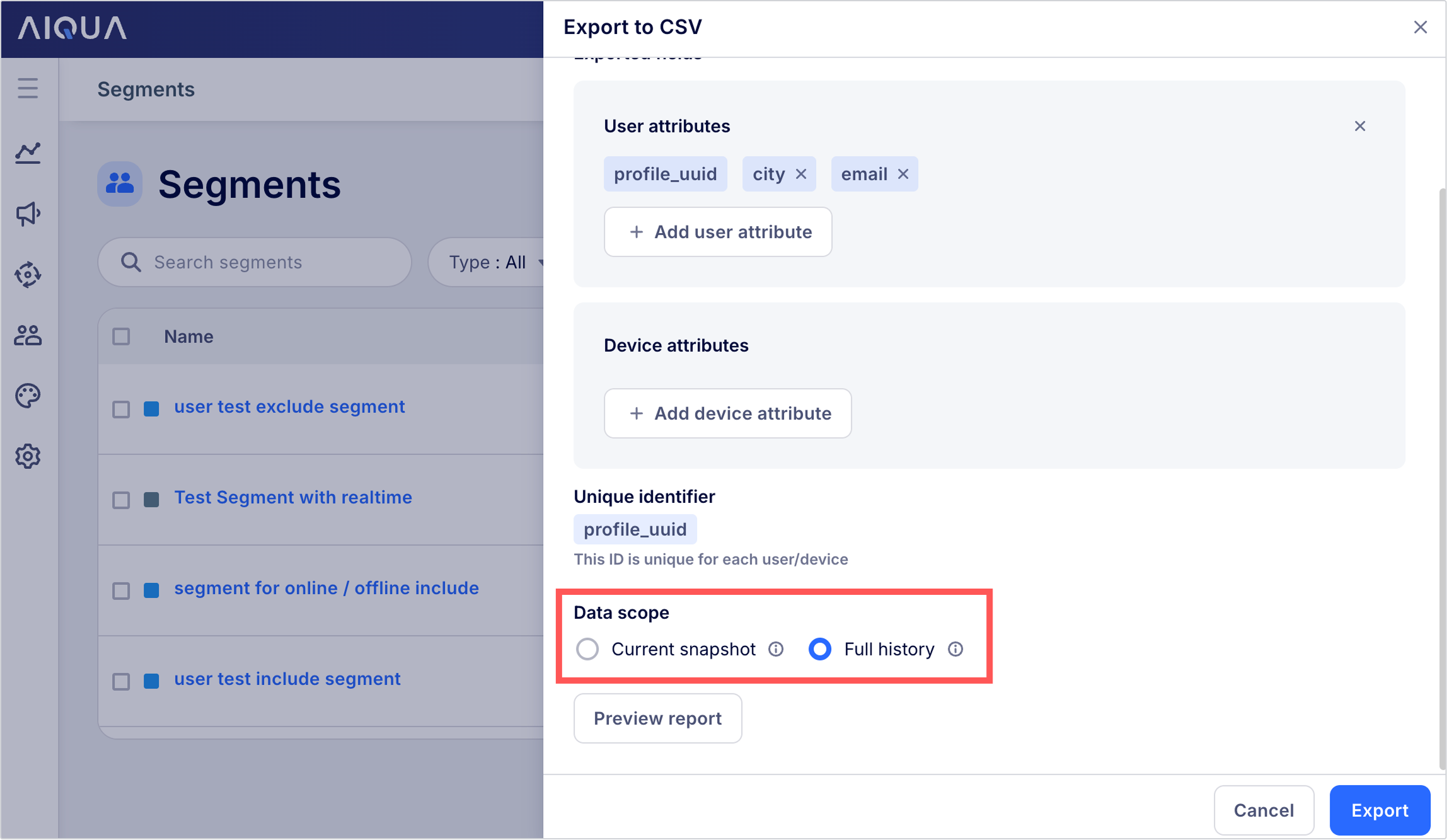
- Click Preview report to see how the report looks.
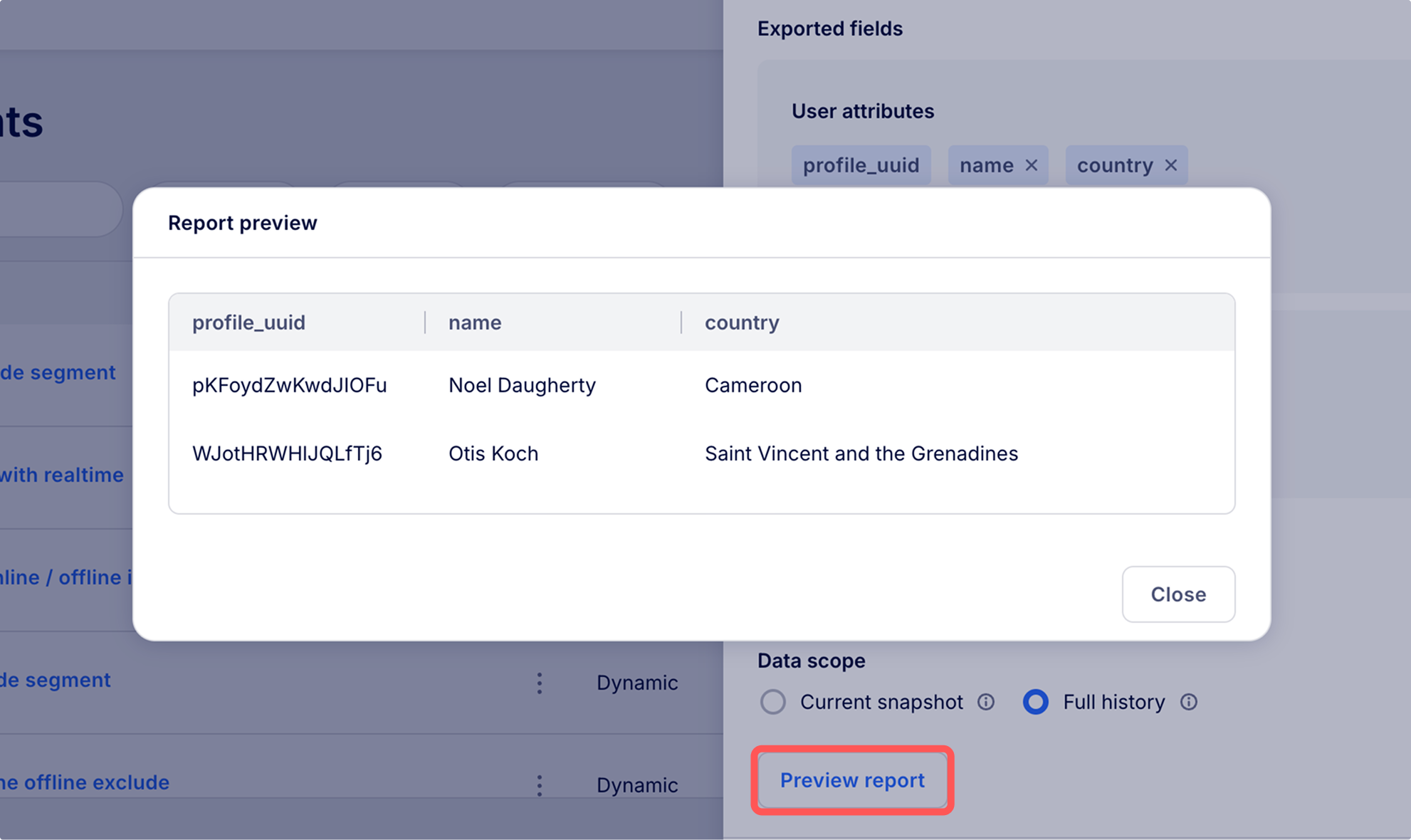
- After previewing the report, click Export to generate the report. When the report is ready, you'll receive an email containing a download link.
Updated 3 days ago
Did this page help you?