
Account Security Center
Manage your account's login security settings.
The Account Security Center is a central hub where you can manage your account's sign-in security settings, reset your password, and view security-related activity.
Security best practiceFor stronger sign-in security, we recommend enabling MFA using an authenticator app.
Accessing the Account Security Center
From the top-right corner, click your email, then click My account.
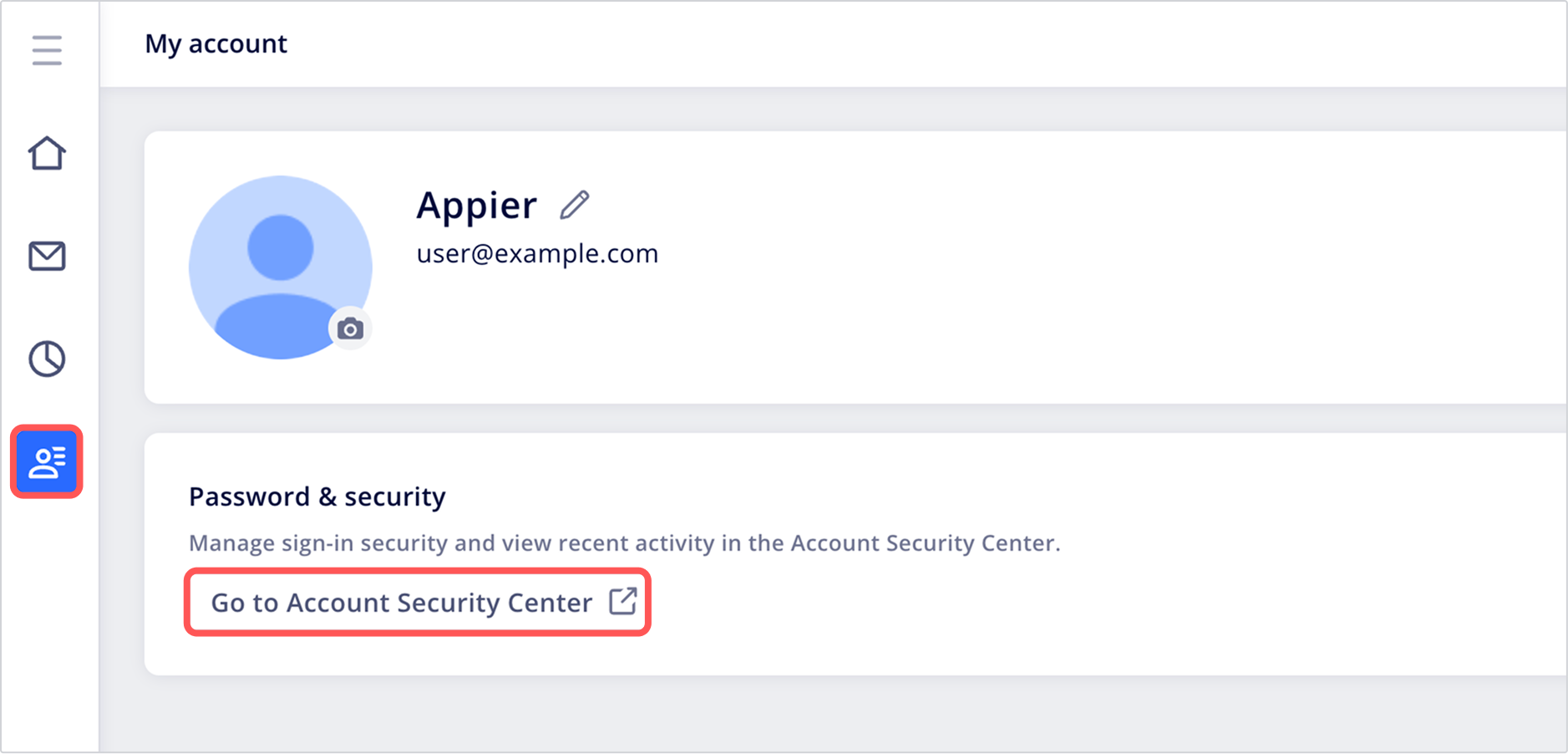
In the Account Security Center, you'll see three tabs where you can view and manage your account's security details.
-
Overview: View sign-in details for your current session and initiate the password reset process.
-
Security: Manage your account's multi-factor authentication settings.
-
Activity: View your account's login methods and security activity log.
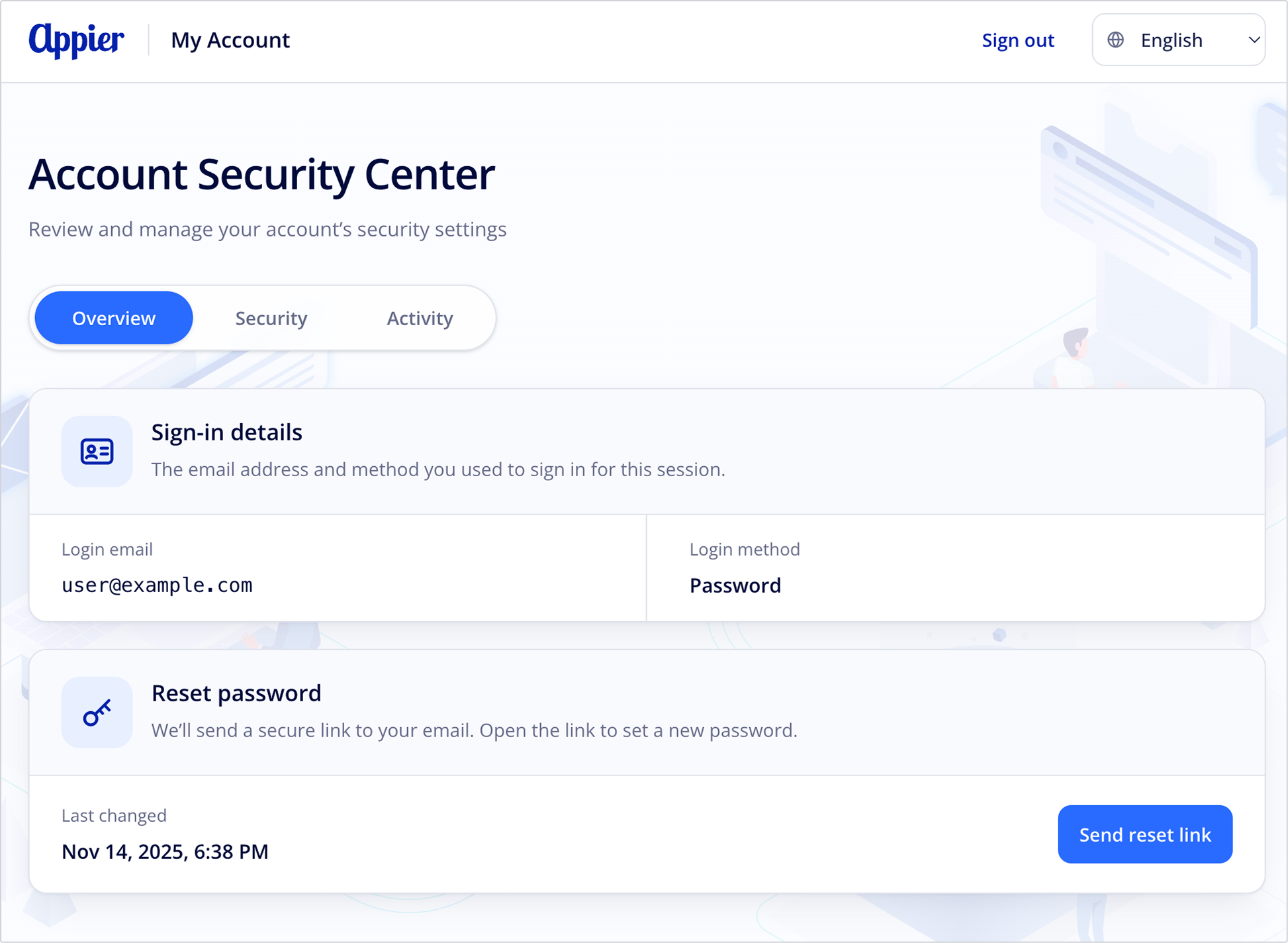
Overview
The Overview tab shows your sign-in details and lets you reset your password.
- Sign-in details: The email address and login method (Password or Single Sign-On (SSO)) used for your current session.
- Reset password: Sends a secure reset link to your login email. Click Send reset link, then open the link in the email to set a new password. This section also shows when your password was last changed, and confirms once a reset email has been sent.
Security
The Security tab lets you manage multi-factor authentication (MFA) for your account.
- Email verification codes: Always on and can't be turned off here. A one-time code is sent to your login email each time you sign in. For additional setup details, see Multi-Factor Authentication.
- Authenticator app: Set up an authenticator app to require a changing code (time-based one-time password, or TOTP) at sign-in, in addition to your password. When both email codes and the authenticator app are set up, logins require the authenticator app code.
MFA authenticator app supportMFA via authenticator app is only supported when signing in with your email and password. If you sign in using SSO (for example, using Google or Facebook), you'll continue to receive verification codes by email only.
Set up an authenticator app
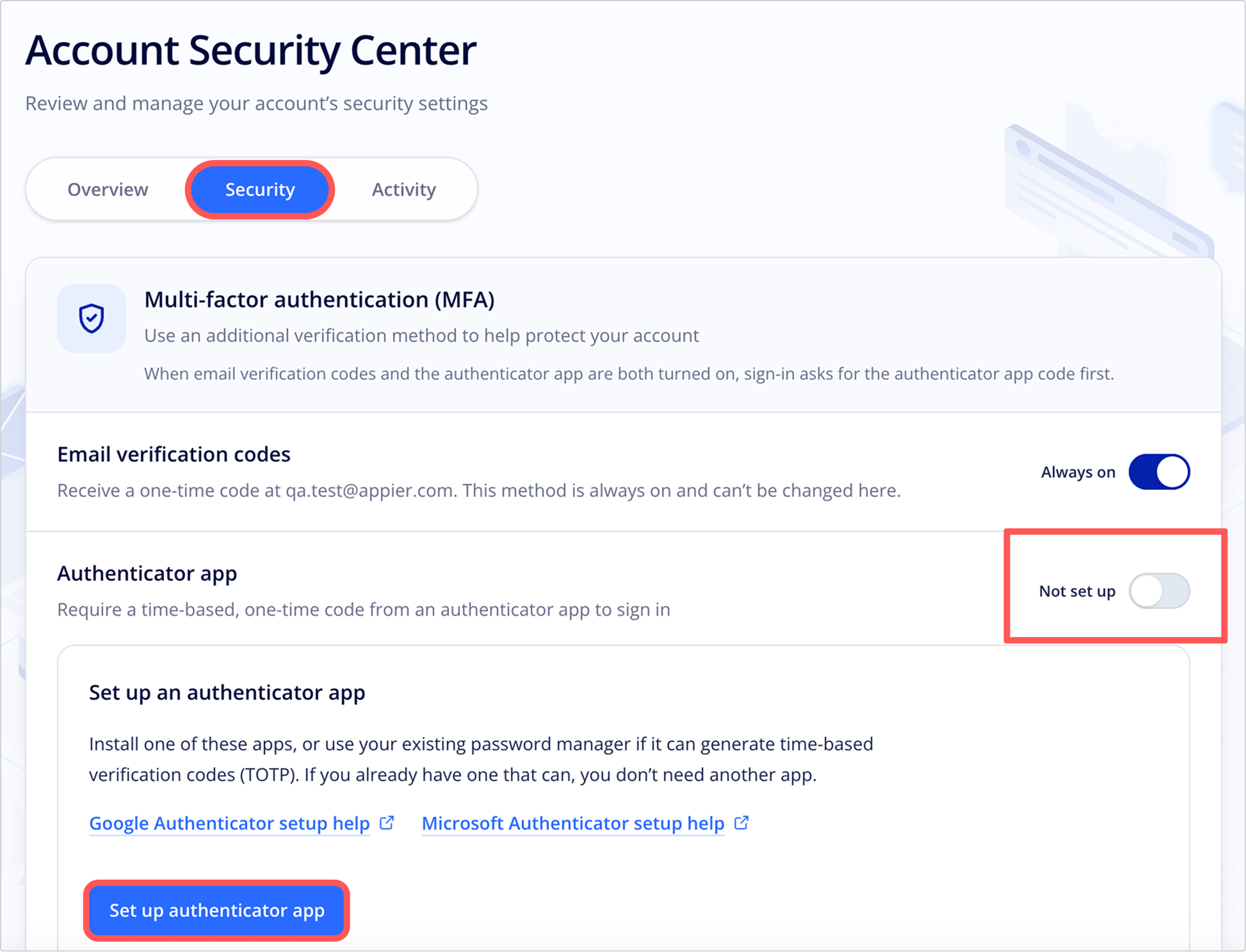
- Install an authenticator app that supports TOTP, such as Google Authenticator or Microsoft Authenticator, or use a password manager that can generate TOTP codes. If you already have one, you don't need another app.
- Click the Authenticator app toggle, then click Set up authenticator app. You'll be prompted to sign in again.
- Open your authenticator app and scan the QR code shown on screen. If you can't scan the QR code, you can enter the setup key instead.
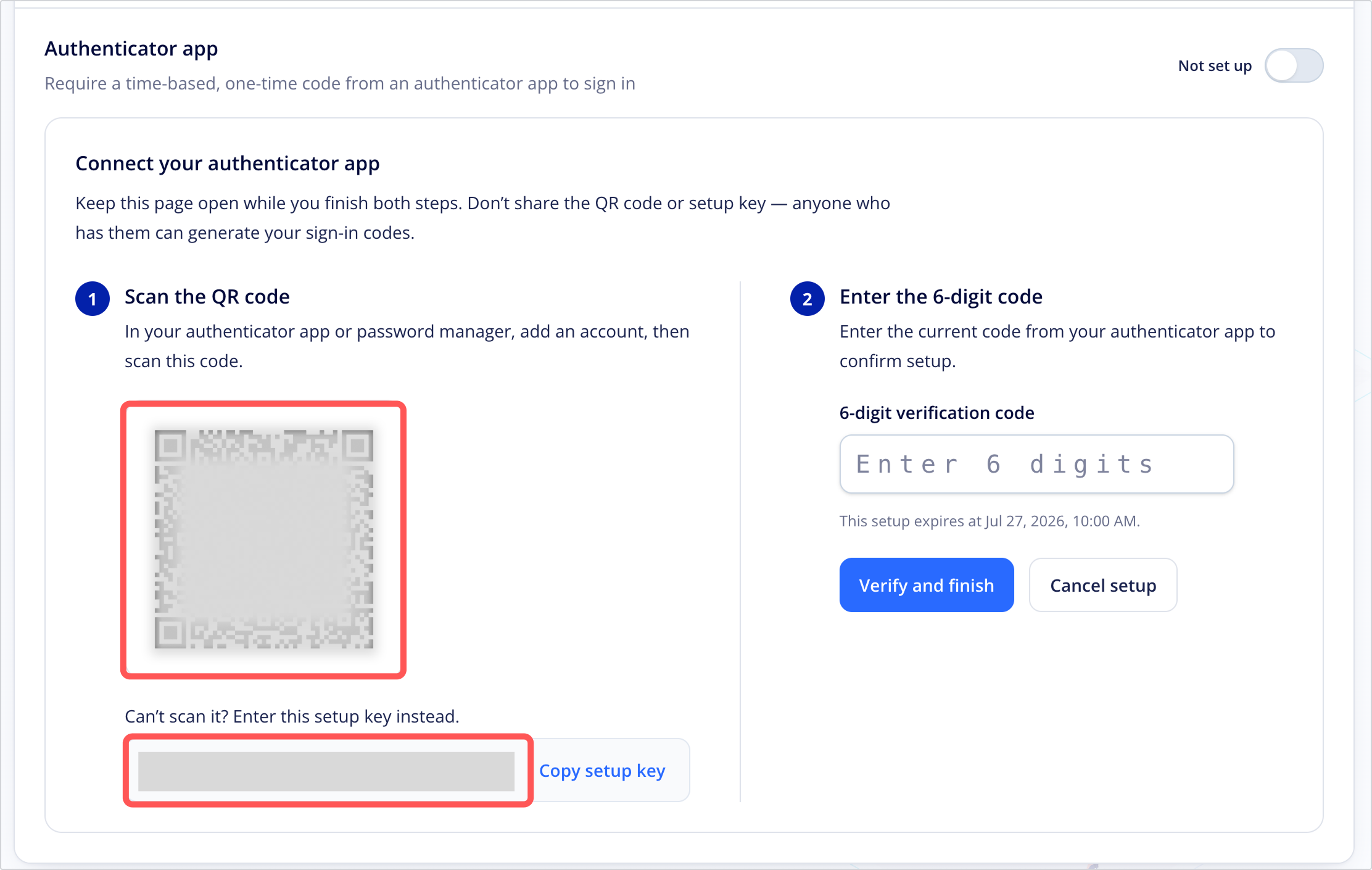
- Enter the 6-digit code currently shown in your app, then click Verify and finish to complete the setup.
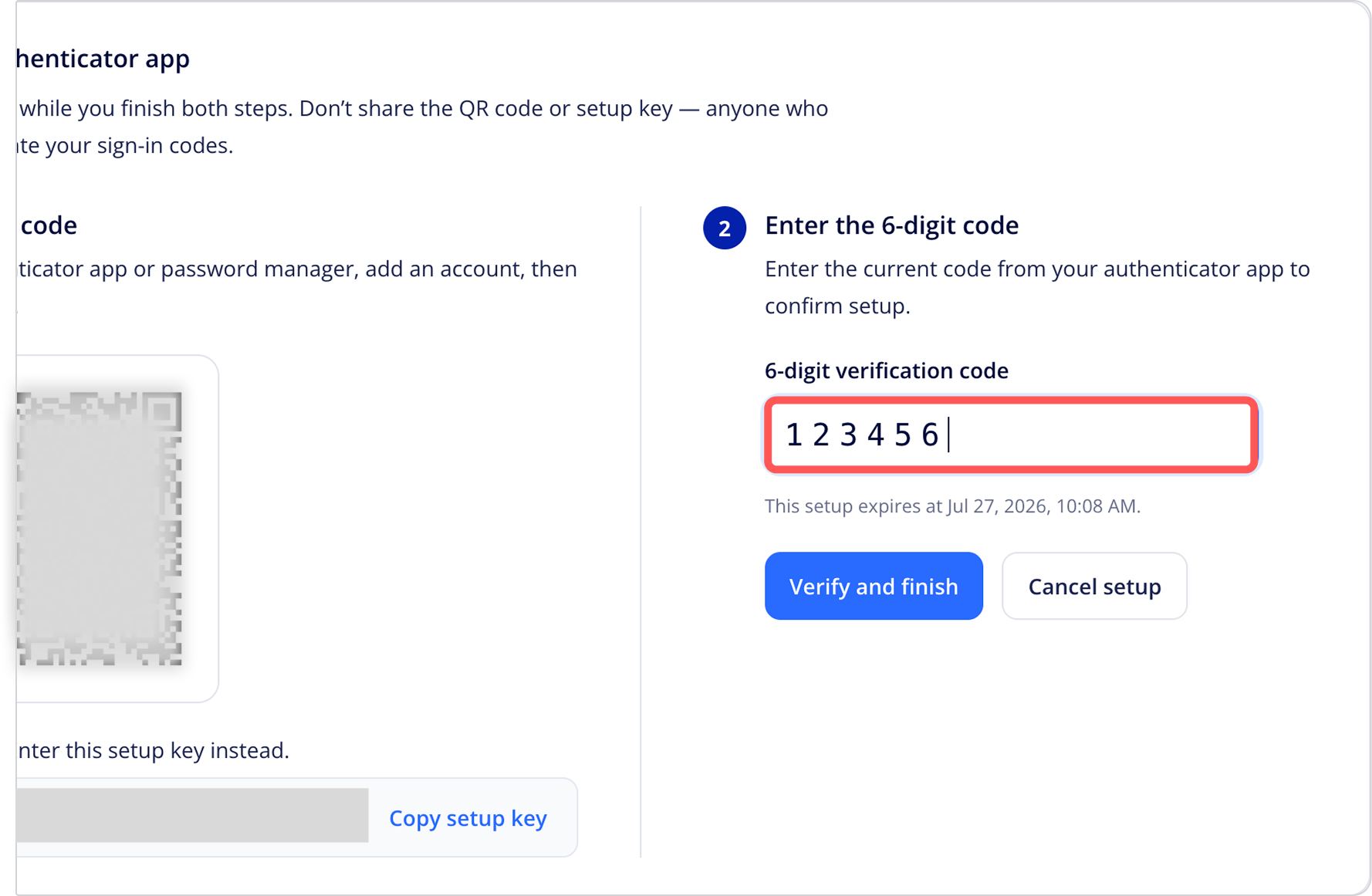
- Save your recovery code somewhere safe. Recovery codes let you get back into your account if you ever lose access to your app, for example, if you switch to a new device.
Tips
If you change devices, make sure to transfer your authenticator app before wiping your old one.
Keep your recovery codes somewhere safe, but separate from the app itself. A password manager works well for storing recovery codes.
Activity
The Activity tab shows your sign-in methods and recent account activity.
- Sign-in methods: Lists each method used to sign in to your account, for example, password or SSO, along with the date and time of its most recent login.
- Recent account activity: A log of sign-in and security events for your account. Each entry shows the event, the date and time, and the IP address, approximate location, and time zone.
Updated about 1 month ago