
Set Up a Cart Abandonment Journey
AvailabilityIf Cart Abandonment (basic) is enabled for your project, it's the only template you can select when creating a journey map. Contact your customer success manager to check availability for your project. If you have full access to journey maps, see Getting Started with Journey Maps instead.
Cart Abandonment (basic) is the only journey map template available in your plan. It automatically reminds users who add an item to cart but don't complete checkout. Set it up by selecting a channel, confirming your events, and writing a message. Refer to the sections below.
Limitations
- Start from scratch isn't available. Use the Cart Abandonment (basic) template instead.
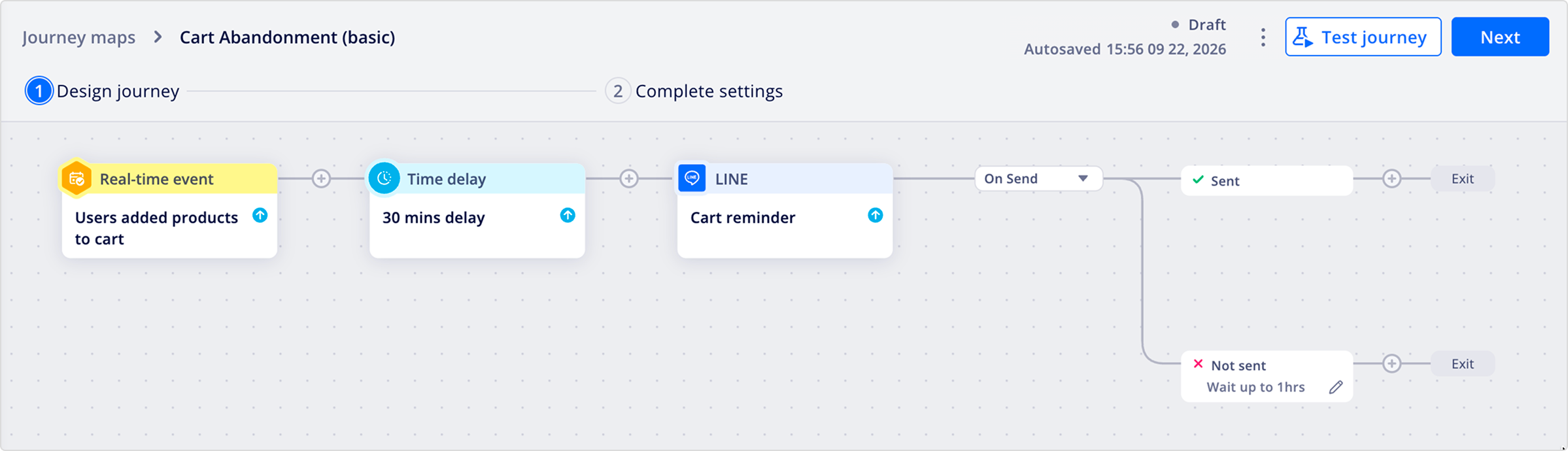
- Only message nodes can be added, so multi-step sequences, branching, conditional logic, and A/B testing aren't supported.
- You can't delete, copy, or switch the entry trigger or wait node to a different type. Only the message node can be copied or deleted.
- Trigger, goal, and exit events can't be configured directly in Appier Enterprise Console, but Appier Support can add your event format to your project's allow list on request.
- You can have one active Cart Abandonment (basic) journey at a time.
Upgrade your planOther journey map templates are visible for preview but require an upgrade to use. Upgrading gives you full access to journey maps, including every template and Start from scratch. Contact your customer success manager to upgrade.
Requirements
Before using the Cart Abandonment (basic) template, make sure your tracked events match Appier's default trigger, goal conversion, and exit event format below. If they don't match, contact Appier Support to add your event format to your project's allow list.
| Criteria | Supported standard events |
|---|---|
| Entry/trigger event | product_added_to_cart, lead_initiated |
| Goal conversion | product_added_to_cart, lead_submitted, checkout_completed |
| Exit criteria | checkout_completed, lead_submitted |
How many events are configured determines what you see during setup:
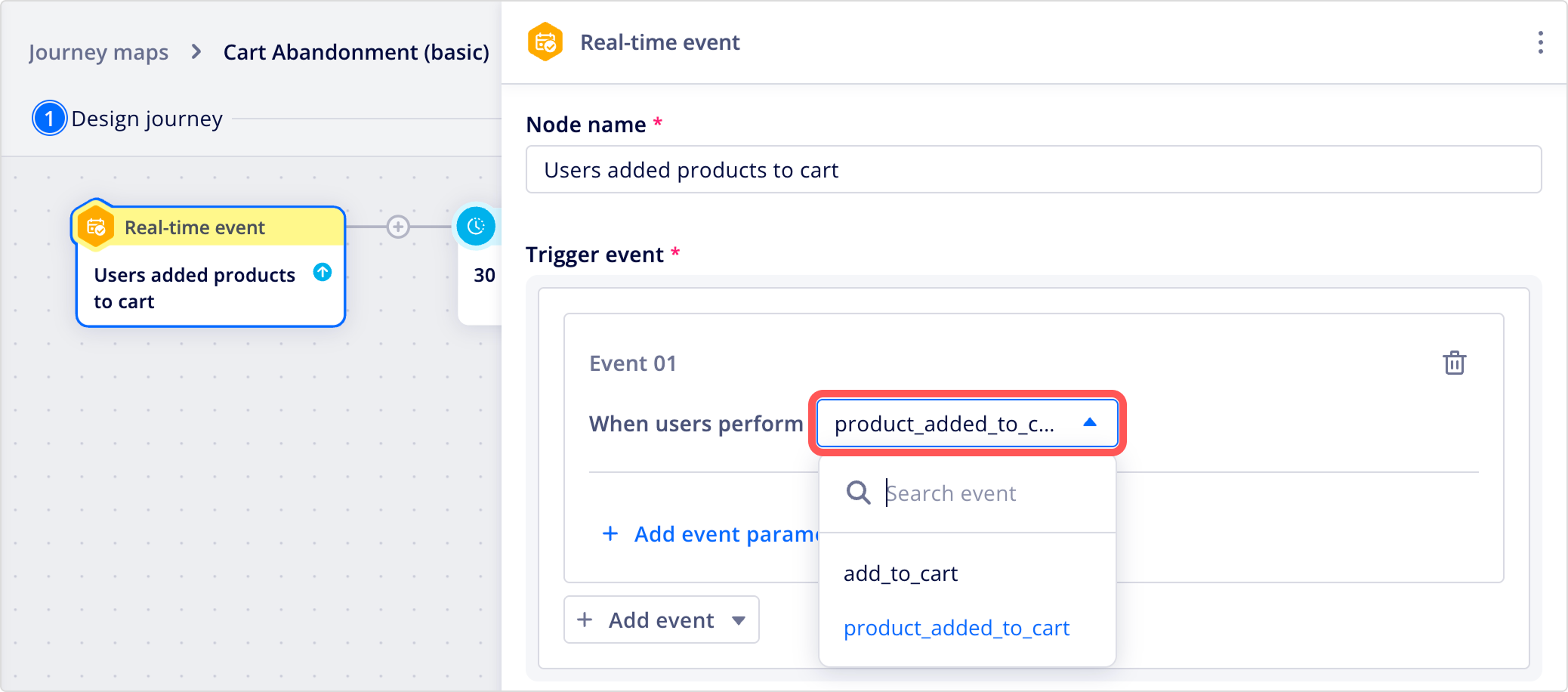
- One event configured: The field is auto-filled for you. No selection needed.
- Multiple events configured: Select the event from the dropdown. The first option is pre-selected.
- No events configured: The field is empty with no options, and you can't proceed. Contact Appier Support to complete the event setup for your project.
Create a cart abandonment journey
From Journey maps, click + Create journey map.
- Under Available in your plan, select the Cart Abandonment (basic) card, click Use this template, confirm or change the default channel, and click Continue.
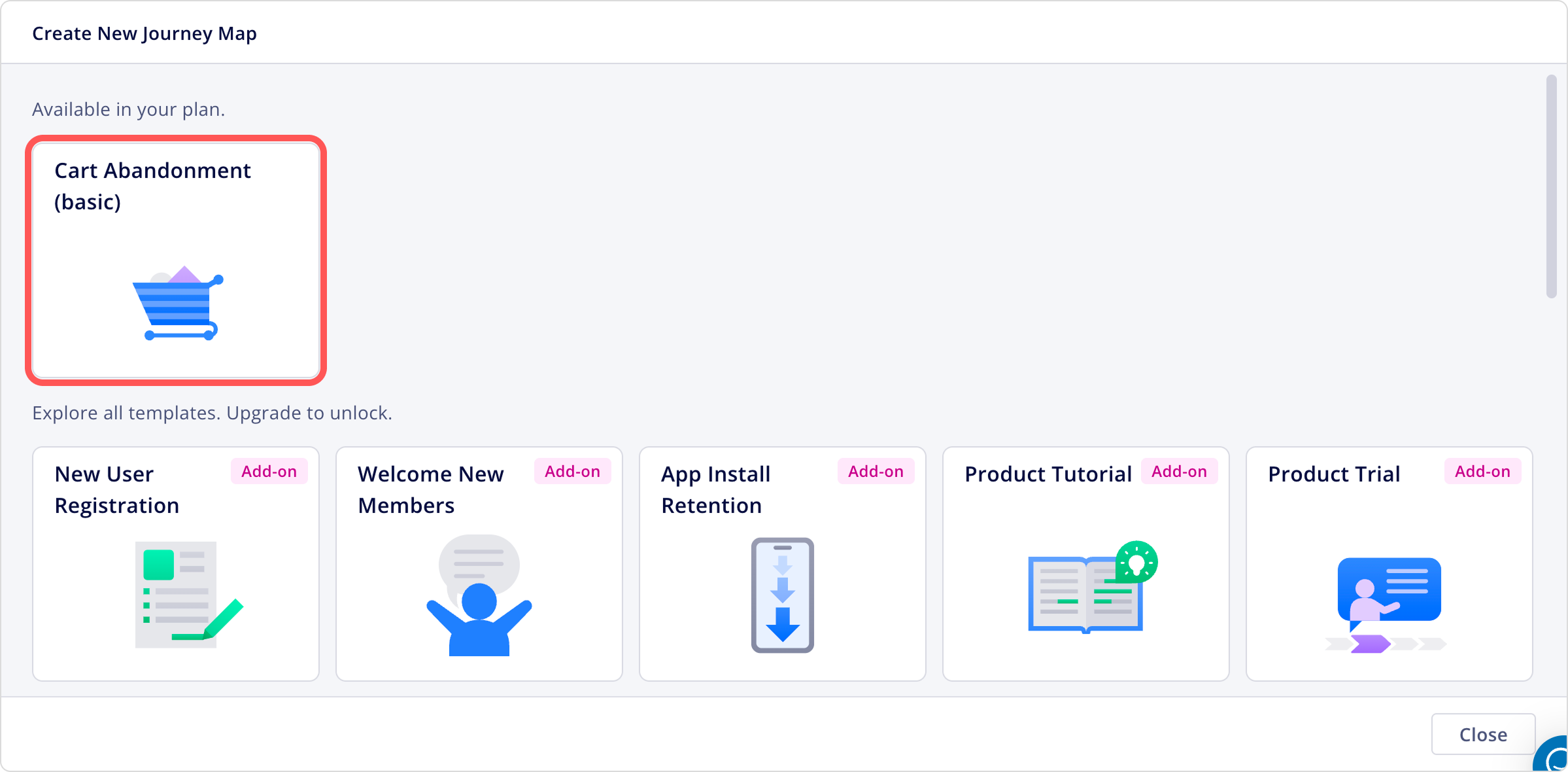
- The journey opens with a fixed structure already in place: an entry trigger node, a wait node, and a message node, with editing restricted per Limitations.
- Depending on how many events are configured for each criteria, review the auto-filled event or select one from the dropdown.
-
Open the wait node and set how long to wait before sending the reminder.
-
Open the message node and write your reminder message.
TipAdd more than one message node for a fallback channel, for example, LINE as your primary channel with another supported channel as a fallback.
- Review and activate the journey.
To track how your journey performs after it's active, see Journey Performance and Analytics.
Updated 17 days ago