
Merge Paths
The merge paths feature allows you to reconnect split paths generated by message node back into a single path. By routing users from different paths (such as Sent or Not sent) to a shared next step, you can simplify your journey map and avoid creating duplicate nodes.
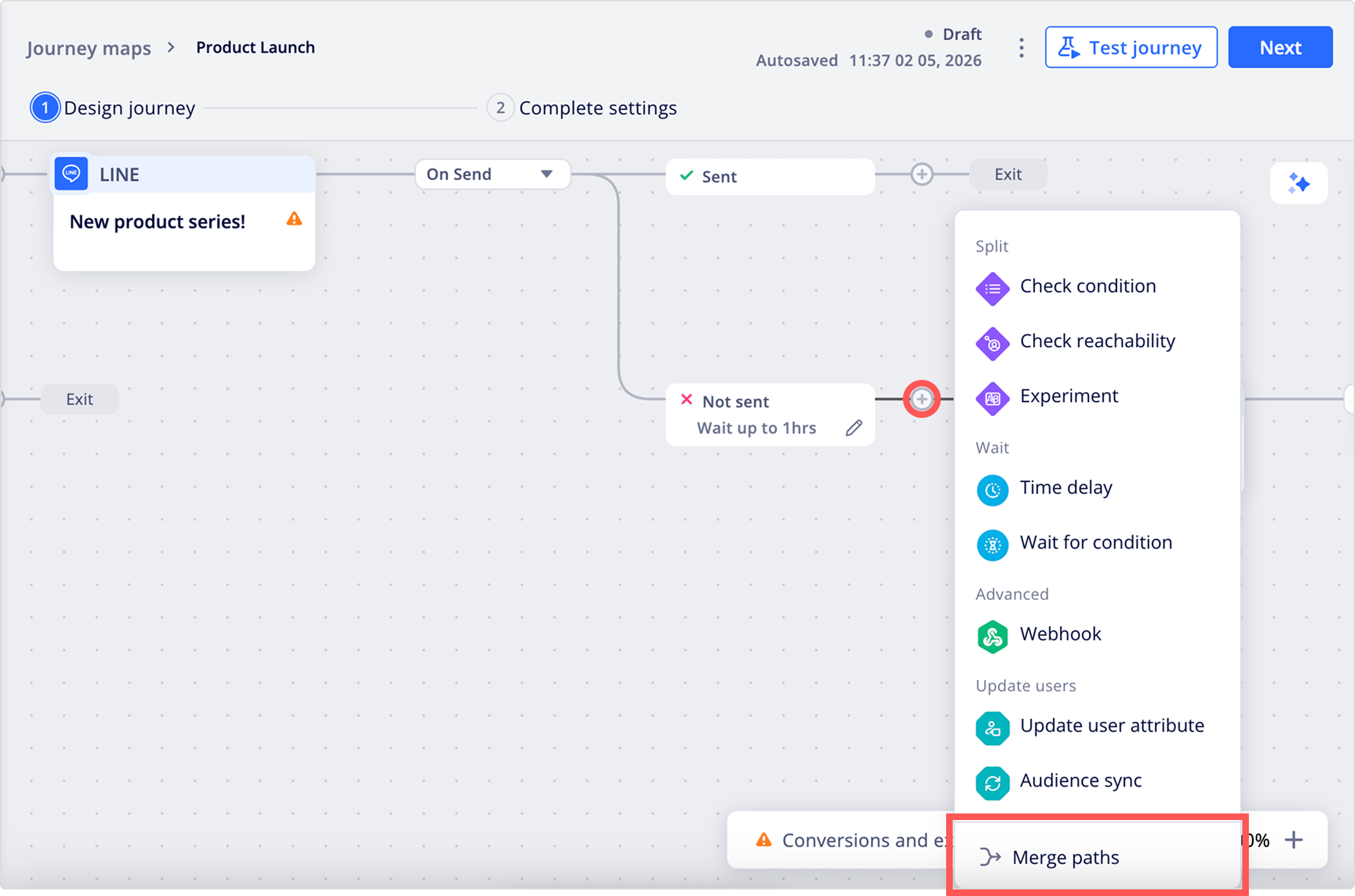
For example, use Merge paths to send a follow-up email to all users regardless of whether they opened the previous push notification.
Merge paths
You can merge the split paths generated by a message node. You can choose to merge specific paths or merge all available paths at once.
- Click on any + icon between nodes, then click Merge paths.
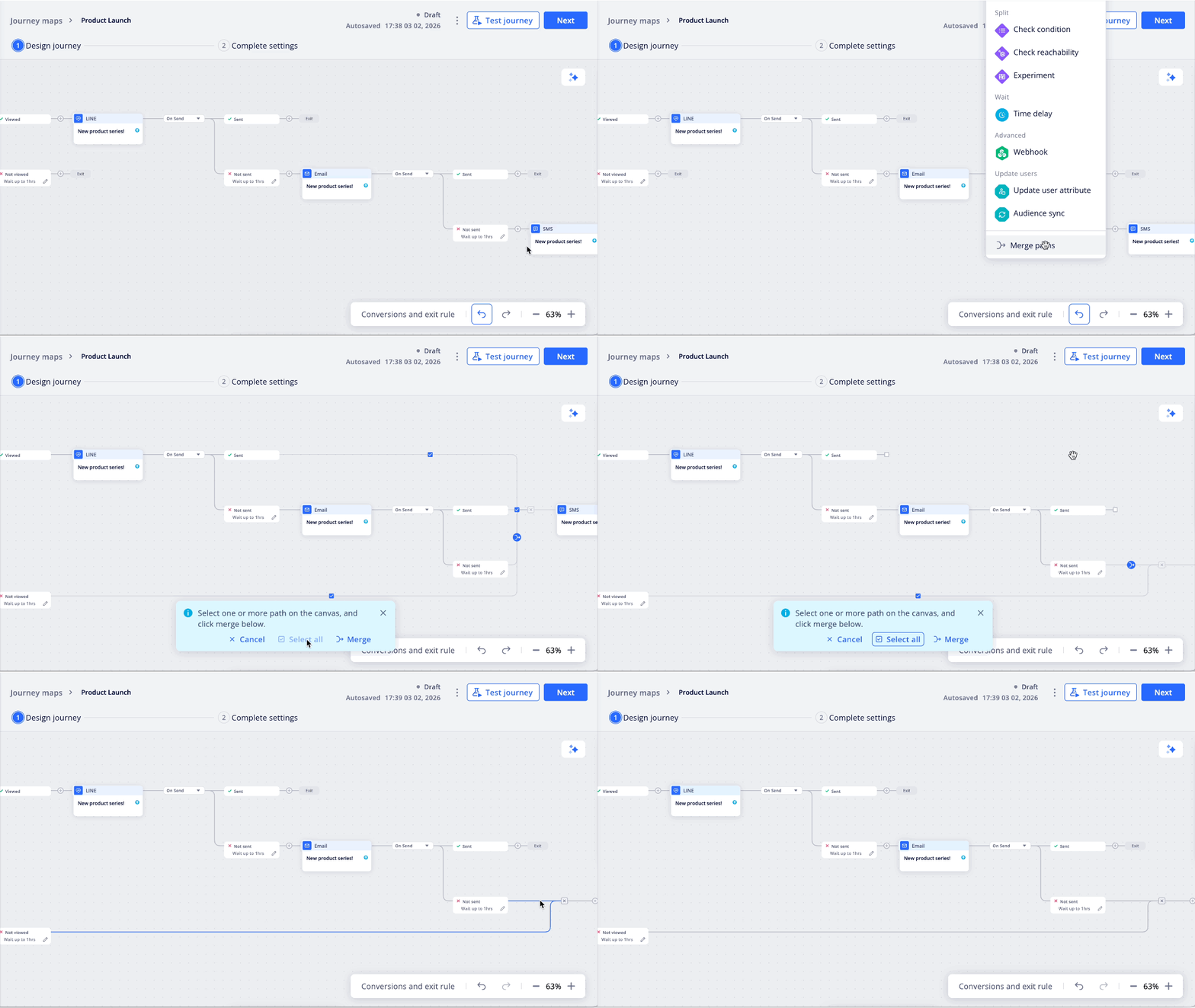
- Select specific paths: Check one or more boxes at the end of each path you want to merge.
- Select all paths: Click Select all in the blue floating menu at the bottom.
- Click Merge to combine selected paths.
Notes
- You can only select paths from the end of the current node's flow to merge.
- The merged path links directly to the next node. You can't insert additional actions inside the connection itself.
Disconnect merged paths
If you need to change your journey flow or separate the users again, you can break the merge connection.
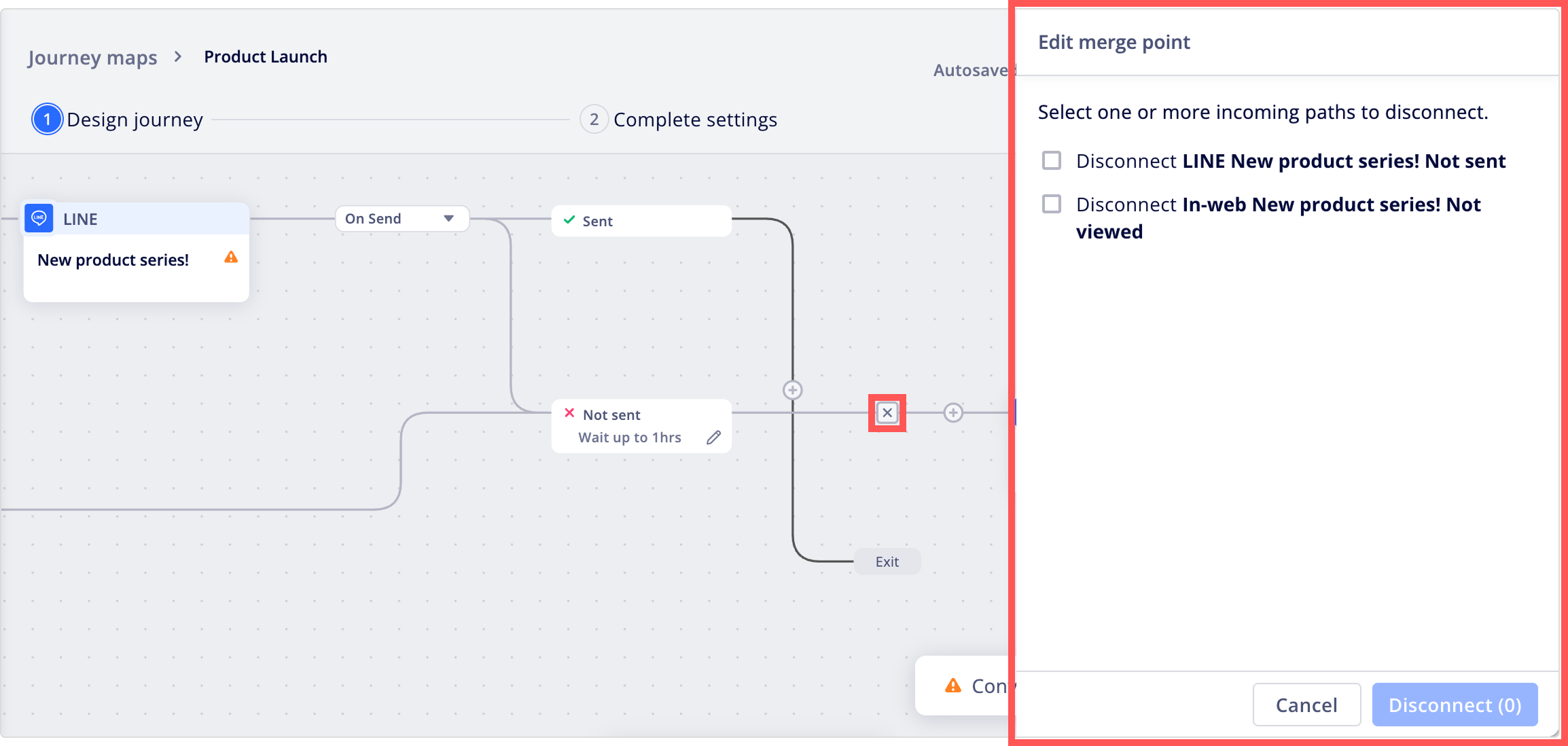
- Click the x icon on the merged path.
- In the Edit merge point panel, select one or more paths, then click Disconnect.
Updated 5 months ago
Did this page help you?