
Split Segment
Split an existing segment into smaller sub-segments.
NoteSplit segments are static and independent of their source segment.
- Once created, users can't be added to or removed from split segments.
- Split segments aren't affected by changes to their source segment.
- Select a source segment
- Choose how to divide users
- Add split segments and allocate users
- Finish creating the split segment group
1. Select a source segment
In the segment list, find the segment you want to split and click  > Split users.
> Split users.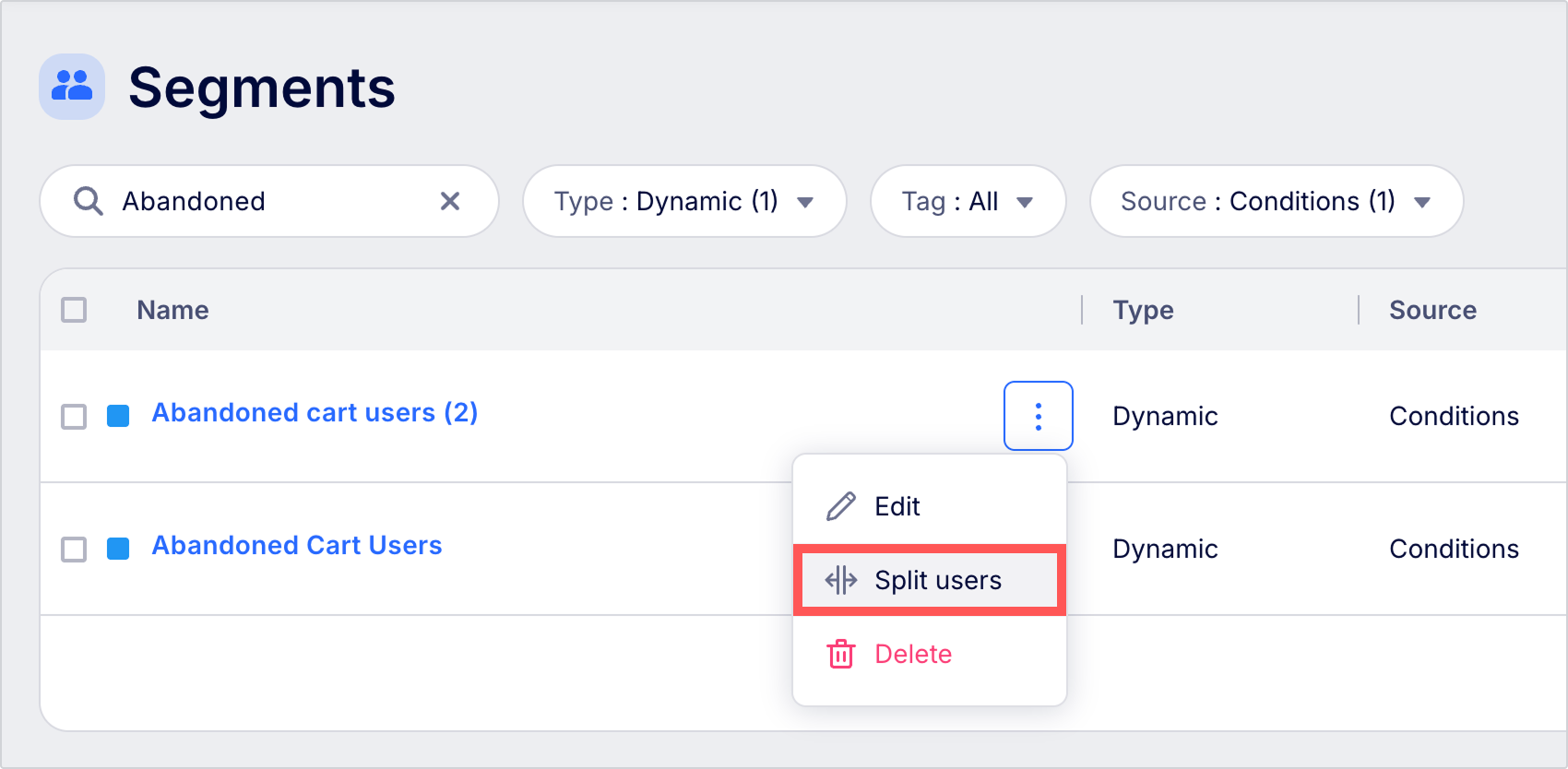
2. Choose how to divide users
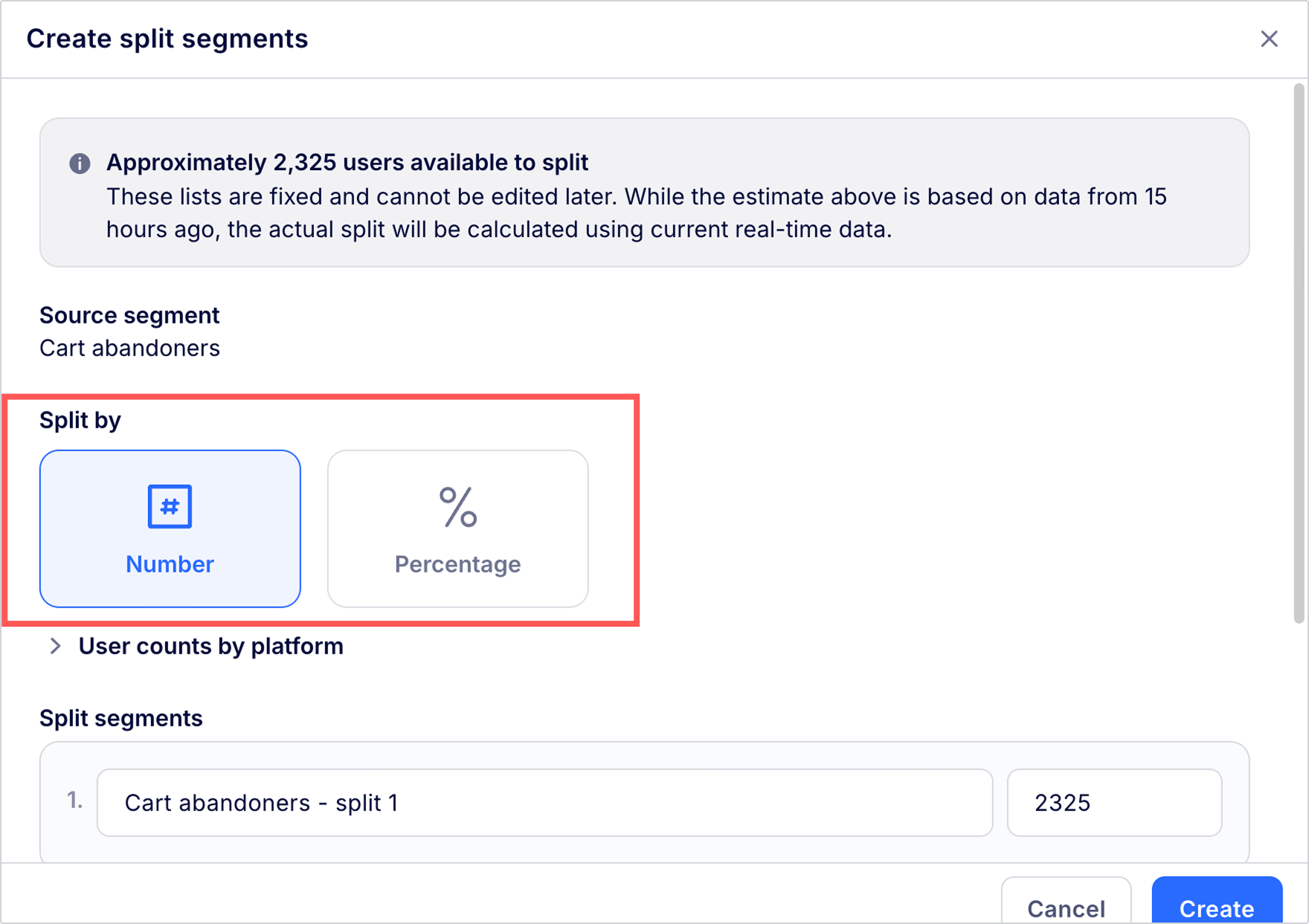
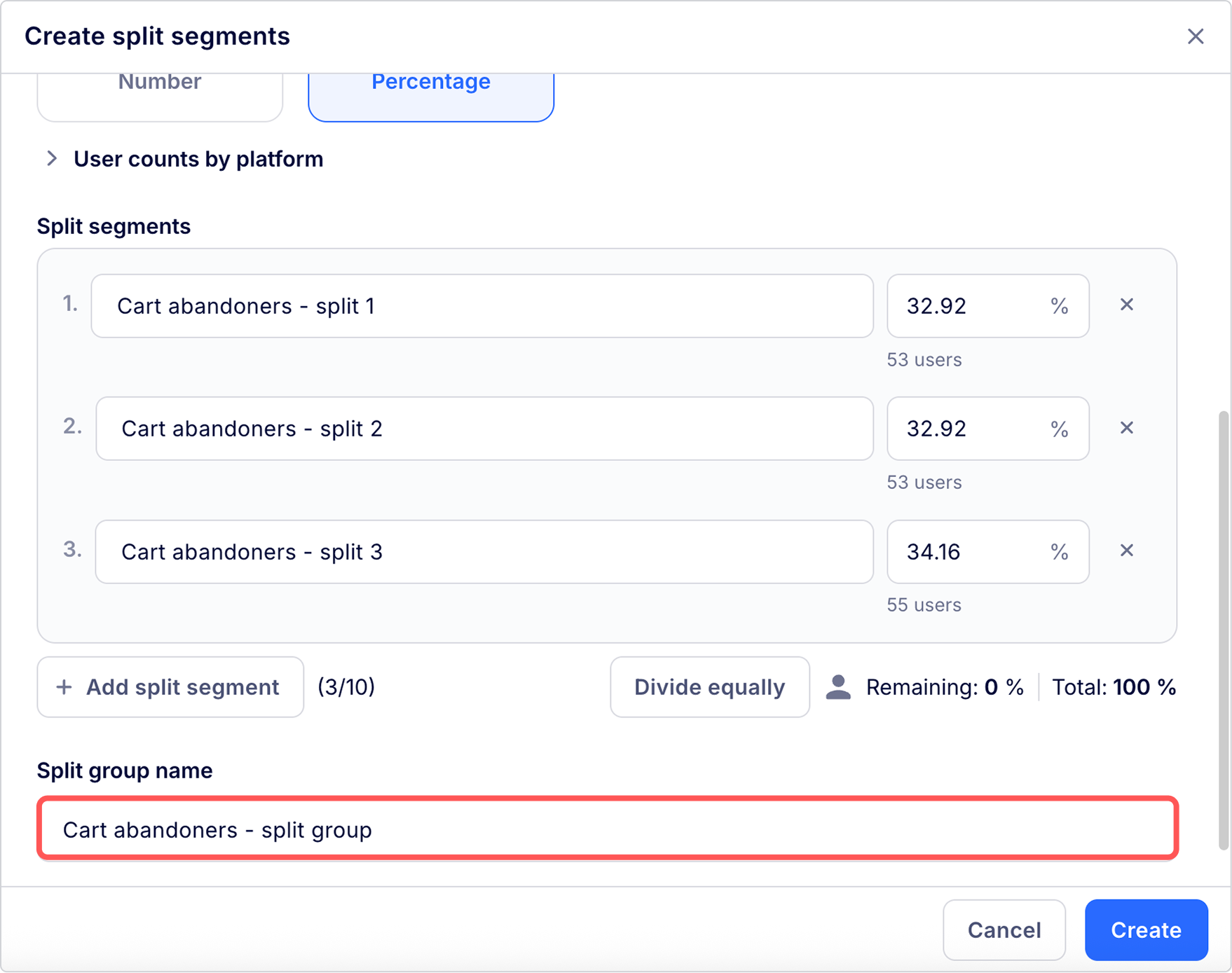
Choose how to divide users into each split segment.
- Number: Enter the number of users to add in each segment.
- Percentage: Enter the percentage of users from the source segment to add in each segment.
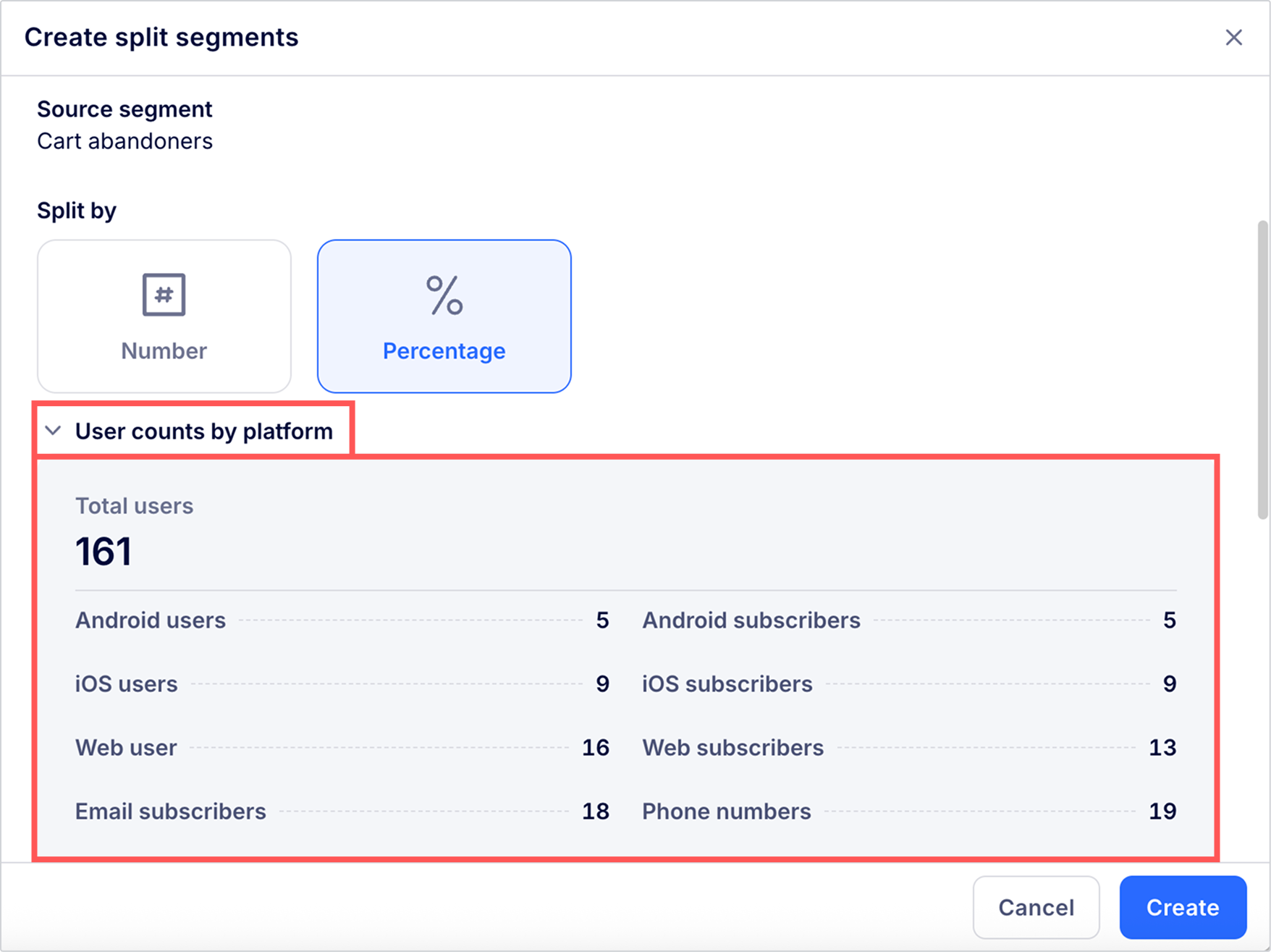
Review user countsClick User counts by platform to view the number of users in the source segment by platform.
3. Add split segments and allocate users
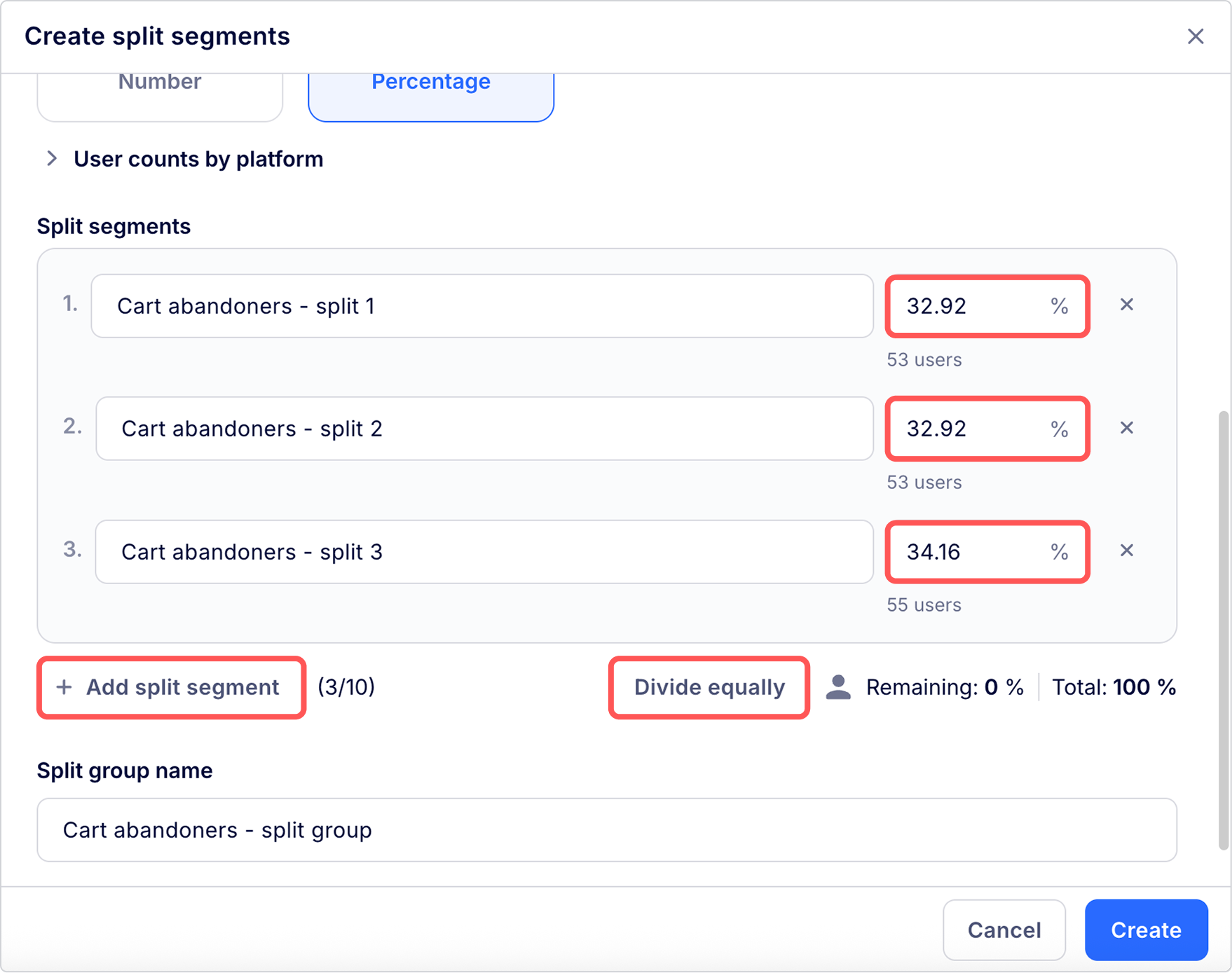
- Click + Add split segment to add a new split segment. You can add up to 10 segments.
- Enter the number or percentage of users to allocate to each split segment. To divide users evenly across all segments, click Divide equally.
4. Finish creating the split segment group
Enter a name for the split segment group, then click Create.
In the segment list, a new group containing all the split segments will appear.
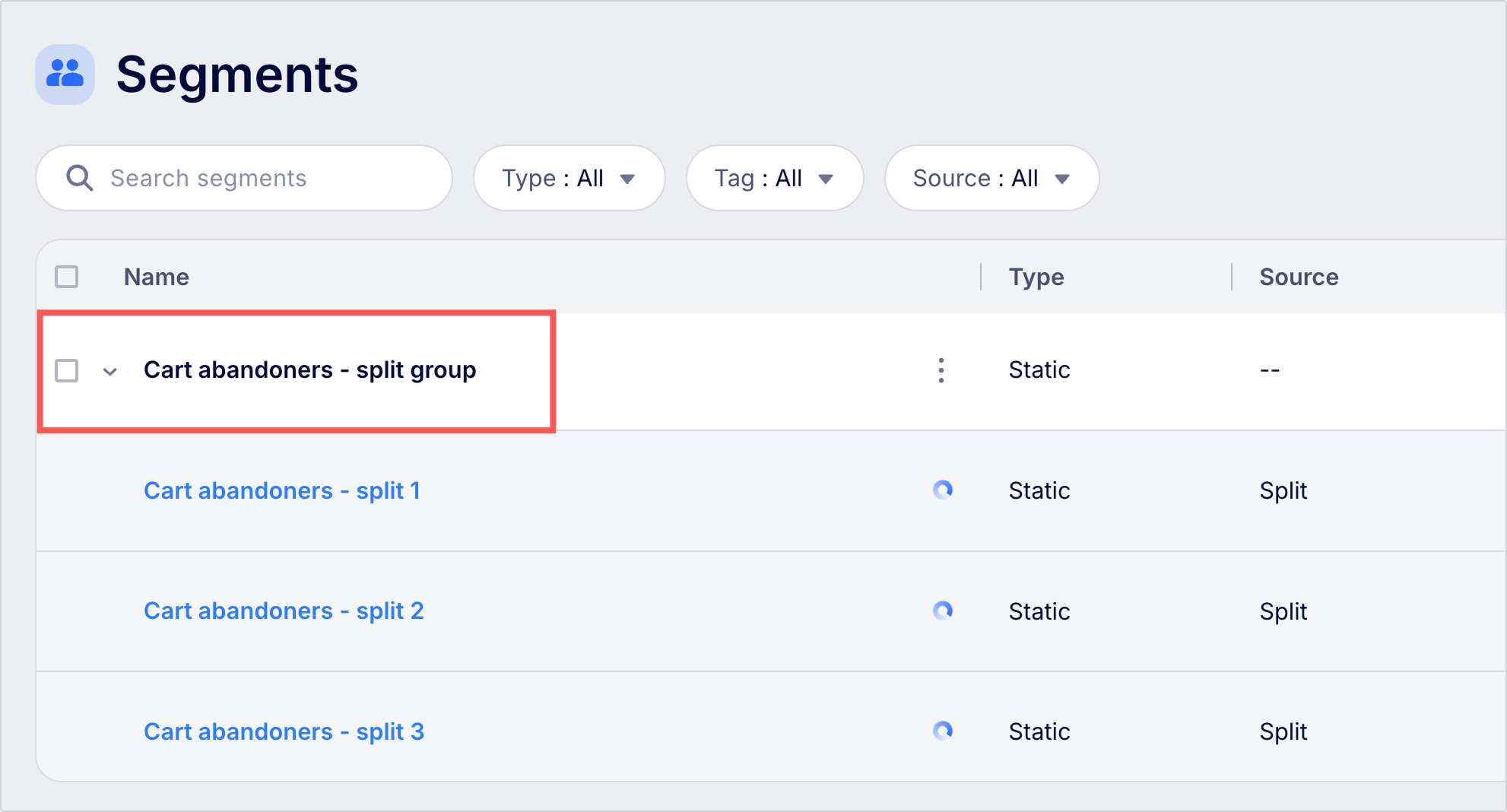
Deleting split segment groupsYou can delete the entire split segment group, but individual split segments can't be deleted.
Updated 8 months ago
Did this page help you?