
Frequency Cap
Control how often users receive your campaign notifications.
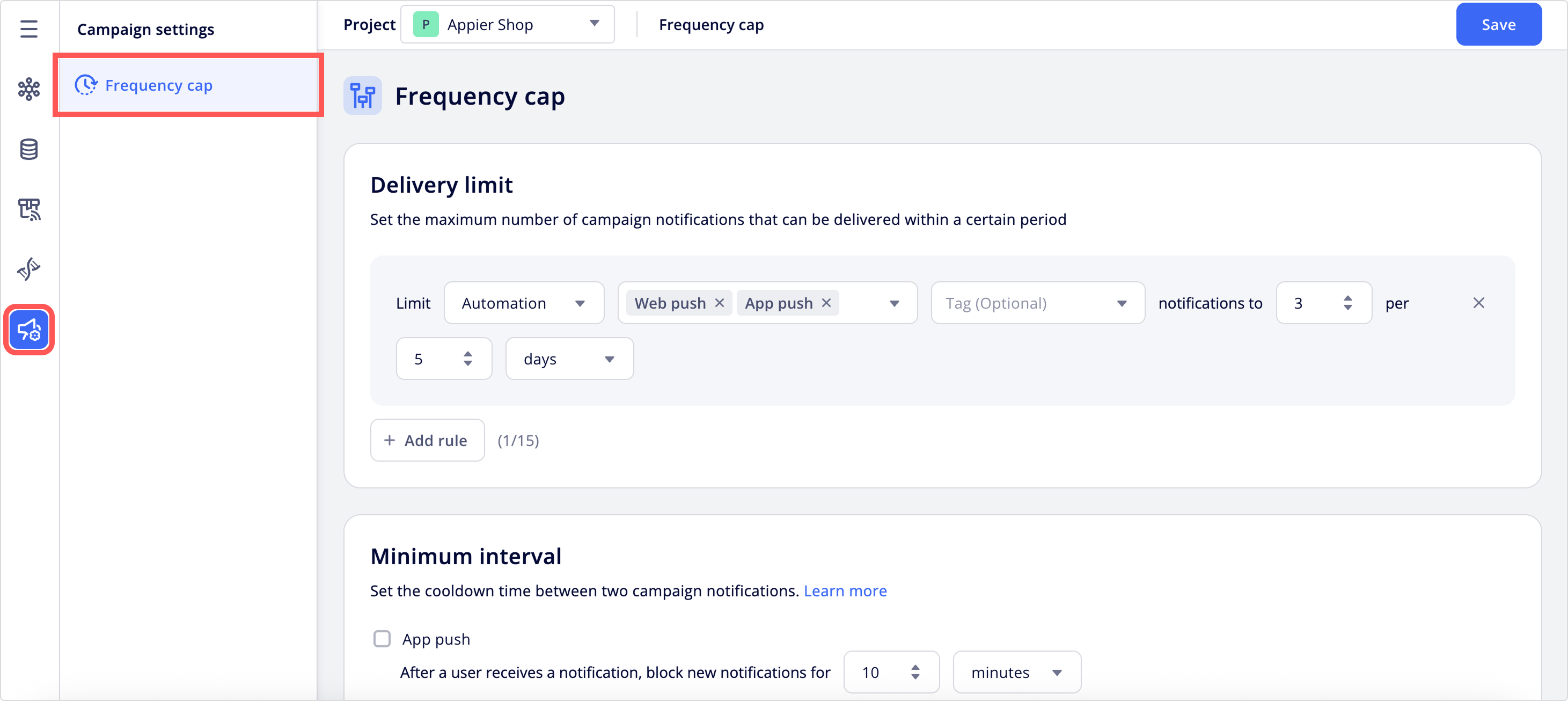
Set limits on how often campaign notifications reach a single user across all of your campaigns and journey maps. In Campaign settings > Frequency cap:
- Delivery limit: Caps the total number of notifications a user can receive within a certain period.
- Minimum interval: Sets a cooldown time between two notifications on the same channel.
Both controls are user-based, so they apply to a single user no matter how many devices, email addresses, or phone numbers that user has. Notifications sent via the Send test creative button don't consume the delivery limit quota or reset the minimum interval cooldown.
Before you begin
To control the frequency cap on a per-user basis, contact your customer success manager.
NoteFrequency cap applies to marketing channels set up in AIQUA only.
Delivery limit
Set the maximum number of campaign notifications a user can receive within a certain period. Under Delivery limit, click + Add rule to configure a delivery limit rule. You can configure up to 15 rules in total.
- Select which campaign types this rule applies to.
- All types: Applies to all campaign types.
- Regular: Applies only to regular campaigns.
- Automation: Applies to trigger campaigns and message nodes in journey maps.
- Select one or more channels. If you select multiple channels, the rule counts notifications across all selected channels combined toward the same quota.
- (Optional) Select a tag to scope this rule to campaigns using that tag. Only tags applied to at least one Regular or Automation campaign appear in the list.
- Tags used only on In-web or In-app campaigns aren't included.
- If you haven't created any tags yet, the dropdown doesn't appear.
- Enter the maximum number of notifications, then enter a duration and select the unit (up to 30 days).
- Click Save to apply the changes.

Behavior
The following behaviors apply when setting a delivery limit:
- Notifications count toward the delivery limit at the moment they're sent, not when the user opens or receives them.
- The delivery limit is counted per campaign ID.
- For regular push campaigns, all targeted platforms (Android, iOS, and web) share one campaign ID, so a multi-platform send consumes one notification count.
- For automation campaigns (trigger campaigns or message nodes in journey maps), each targeted platform is treated as a separate campaign, so a multi-platform send consumes one notification count per platform.
- If you select a tag along with campaign types or channels, the rule counts only notifications from campaigns that match all of the selected criteria.
- If you add a tag to a campaign that's already running, that campaign's past notifications aren't retroactively counted against the tag-scoped rule.
- When a user is covered by multiple delivery limit rules, the rule with the smallest remaining quota applies. For example, if you've set an All types rule limiting all channels to 6 notifications per day and a separate rule limiting email to 2 per day, an email send is blocked once the user has received 2 email notifications that day, even if the all-types daily total hasn't been reached.
- Changes to delivery limit rules apply differently depending on campaign type:
- For regular campaigns that are already running, the change doesn't take effect until a new campaign starts after the change is saved.
- For automation campaigns (trigger campaigns and message nodes in journey maps), the change takes effect shortly after it's saved.
- If sending a notification would exceed an active delivery limit, that notification isn't delivered.
Minimum interval
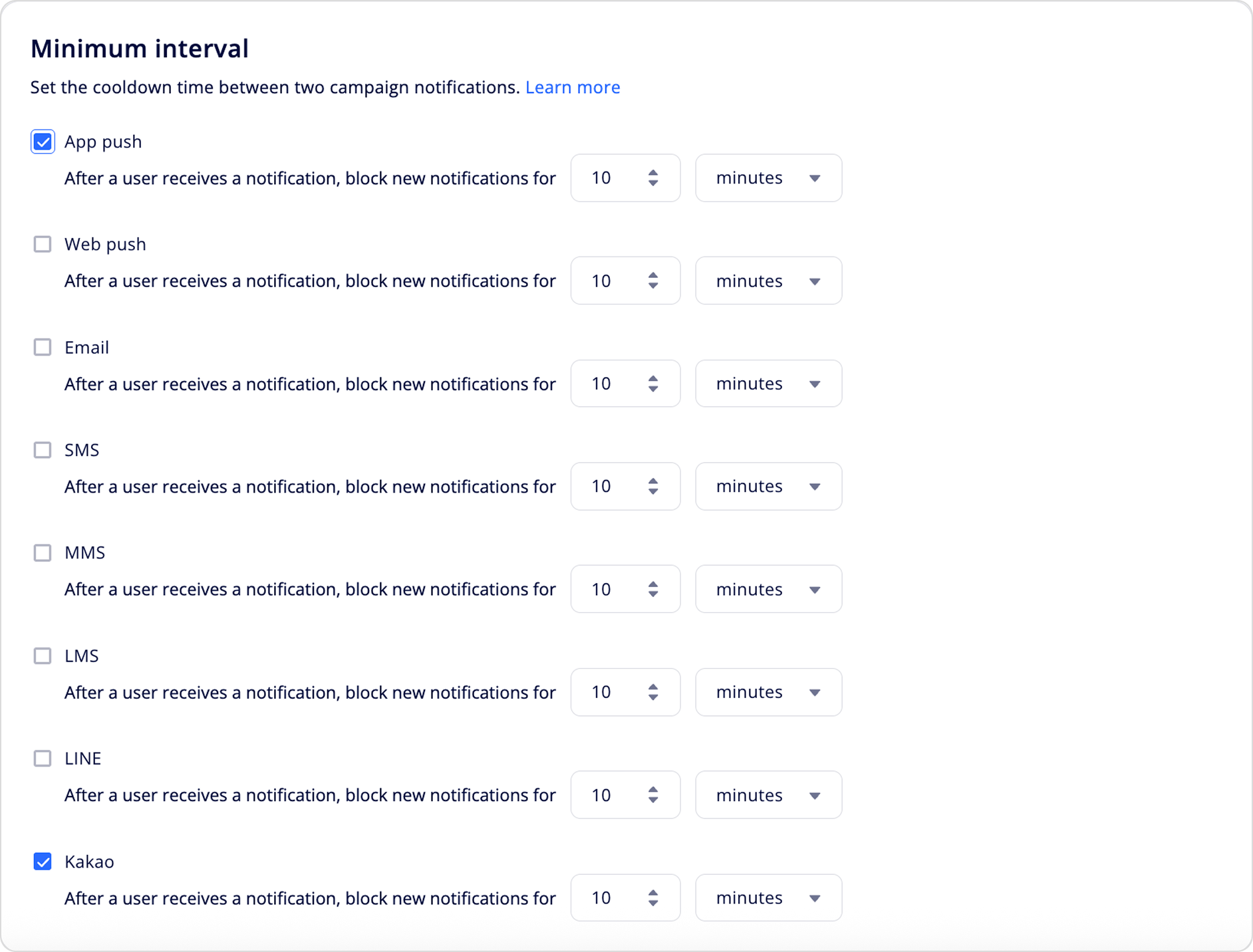
Set the cooldown time between two campaign notifications on each channel. Under Minimum interval:
- Select the checkbox next to each channel you want to enable.
- For each enabled channel, enter a value and select the unit. The cooldown can range from 1 second to 60 minutes.
- Click Save to apply the changes.
Behavior
The following behaviors apply when setting the cooldown time between two campaign notifications:
- The cooldown is based on when the notification is sent to each user, not when the campaign starts sending or when delivery is confirmed.
- After a user receives a notification on an enabled channel, that user won't receive any further notifications on the same channel until the cooldown expires.
- When sending a multi-platform push campaign, the time interval counts differently depending on campaign type.
- For regular push campaigns, a user might receive notifications from all targeted platforms (Android, iOS, and web) within the same interval window.
- For automation campaigns (trigger campaigns or message nodes in journey maps), the user might receive a notification from only one targeted platform; notifications from the other platforms could be blocked because each platform is treated as a separate campaign and triggers its own cooldown.
Bypass frequency capIndividual campaigns and message nodes in journey maps can be set to skip Delivery limit and Minimum interval checks. Notifications sent from these bypassed campaigns and nodes don't consume the delivery limit quota. Use this for messages that need to reach users regardless of frequency limits, such as shipping updates or account notifications.
To enable bypass, go to Bypass frequency cap setting in the message campaign's settings or in Journey settings.
Updated about 2 months ago