
Product Feed
Onboard and manage a product feed in Appier.
Premium featureProduct feed is a premium feature. Contact your customer success manager to activate it. This onboarding flow currently supports recommendation campaigns; for feed-triggered campaigns, see Product Data Feed Onboarding.
Create one product feed that Appier's marketing solutions and agents can share for product titles, descriptions, links, prices, and inventory availability.
A product feed is a CSV file that lists your products and their product information. Once you onboard a feed, the same feed is reused anywhere product data is needed, so you only need to set it up once.
To onboard a product feed, work through these sections:
Prepare your product feed file
You can deliver your product feed to Appier in one of two ways: upload a CSV file or host the file on your own server and provide a URL in the Appier console. If you plan to use a URL source, make sure the file is hosted and accessible on your server.
Both methods follow the format and encoding requirements below.
- File format: CSV
- File encoding: UTF-8 without BOM. Don't use UTF-8 with BOM or other encodings.
- File size:
- File upload: up to 100 MB per file.
- URL source: up to 275 MB per URL.
Field specifications
Refer to the table below for the fields to include in your product feed file. These rules apply to every field:
- Field names
- Field names are case-sensitive.
- Don't use non-alphabetical characters in field names.
- Use the field names listed in the table where possible. If your product feed uses different names, you can match each column to an Appier system field in Step 2: Map fields.
- Keep column names stable after you finish field mapping. Appier saves and reuses the mapping for future syncs. If you rename a mapped column, the sync may fail or that field may go unmapped.
- Required fields
- Add every required column to your product feed.
- Give every product a non-empty value for each required field.
- Escaping commas and double quotes
-
Wrap fields that contain commas or double quotes in double quotes. For example:
Extra Virgin Olive Oil,ID002173,"Organic and natural, cold-pressed, 500ml". -
To include a double quote inside a quoted field, escape it with another double quote. For example:
Extra Virgin Olive Oil,ID002173,"Organic and natural, ""cold-pressed"", 500ml".
-
Sample fileFor a reference example, see the sample product feed file.
| System field | Description | Syntax and specifications | Required? |
|---|---|---|---|
Product ID id | The unique ID that represents the product. Example: b14s001-8100 | • String • Max 32 bytes (equivalent to 32 characters in ASCII encoding). • Use only characters within the ASCII range 0x21 to 0x7e. | Required |
Title title | The name of the product. Example: Lemon Herbal Tea | • String • Max 100 bytes (equivalent to 100 characters in ASCII encoding) | Required |
URL link | The URL that links to the product details page. | • String • Must start with http:// or https://. • Relative paths (for example, /product/123) and app deep links (for example, mycomp://) aren't supported. | Required |
Image image_link | The URL that links to the product image. • Use the same image size across all products. • Use clear images that help users recognize the product. • Remove visual noise, such as watermarks or discount tags. | • String • Must start with http:// or https://. • Image format: PNG, GIF, JPG/JPEG, or WebP. • Relative paths and app deep links aren't supported. | Required if using the Similar Images recommendation model. |
Description description | The product's description. • Use informative descriptions that help recommendation models understand each product. • Avoid repetitive descriptions so users can recognize and remember your products. | • String • Max 5000 bytes (equivalent to 5000 characters in ASCII encoding). | Required if using the Similar Product Attributes recommendation model. |
Category google_product_category | The category IDs or names from your product taxonomy. Example: L0 > L1 > L2 > L3 > L4, or Category_A > Category_B, Category_C. • For better recommendations, avoid generic categories such as "toy" and categories unrelated to product attributes, such as "on-sale". | • String • Use > (with a space before and after) to separate category levels. • Use , (comma) to separate multiple category hierarchies. | Required if using the Similar Product Attributes, Similar Images, or Repurchase recommendation model. |
Price Currency currency | The price currency. Example: JPY, KRW, TWD. | • String • Use the standard 3-letter code from ISO-4217. • Don't use currency symbols. | Required |
Current Price price_value | The current price, including the discount. Example: 800, 149.9. | • Float | Required |
Retail Price sale_price_value | The retail price, excluding the discount. Example: 1000, 199.9. | • Float | Required |
Availability availability | The product's availability. | • String • Use 1 / 0 or in stock / out of stock. • Binary scheme to indicate whether the product is available. | Required |
Android URL android_url | The deep link that redirects to the in-app page on Android. | • String | Required if you have an Android app and want to use deep links. |
iOS URL ios_url | The deep link that redirects to the in-app page on iOS. | • String | Required if you have an iOS app and want to use deep links. |
Custom custom_label_0, custom_label_1, custom_label_2, custom_label_3, custom_label_4 | If your product feed includes other fields not listed in this table, you can map them as custom labels. | • String, float, or boolean. • Max 5000 bytes (equivalent to 5000 characters in ASCII encoding). | Optional |
Host the product feed file (URL source only)
If you use a URL source, host your product feed file on your own server so that Appier can fetch it on a configurable schedule.
- Provide a direct HTTP or HTTPS URL.
- If your server requires authentication, you can embed the username and password in the URL. For example:
https://username:[email protected]/<DATA_FEED_FILE_NAME>.csv. - If you use an allowlist to manage permissions for your product feed file, allow the following IP addresses so Appier can access it:
61.216.8.10461.216.8.10313.229.23.413.0.119.15535.185.163.2935.189.177.5234.84.107.180/3234.84.45.228/3234.146.255.182/3234.146.231.181/3234.84.32.103/3234.85.109.182/3235.187.213.241/3234.84.94.6/32111.235.224.78/32111.235.224.79/32111.235.224.80/32
URL-embedded credentialsURL-embedded credentials are permitted but not recommended. You're responsible for managing your own data access rights and should avoid embedding more sensitive information than the feed access requires.
Add your product feed
Go to Common settings > Product feed, then complete the following steps:
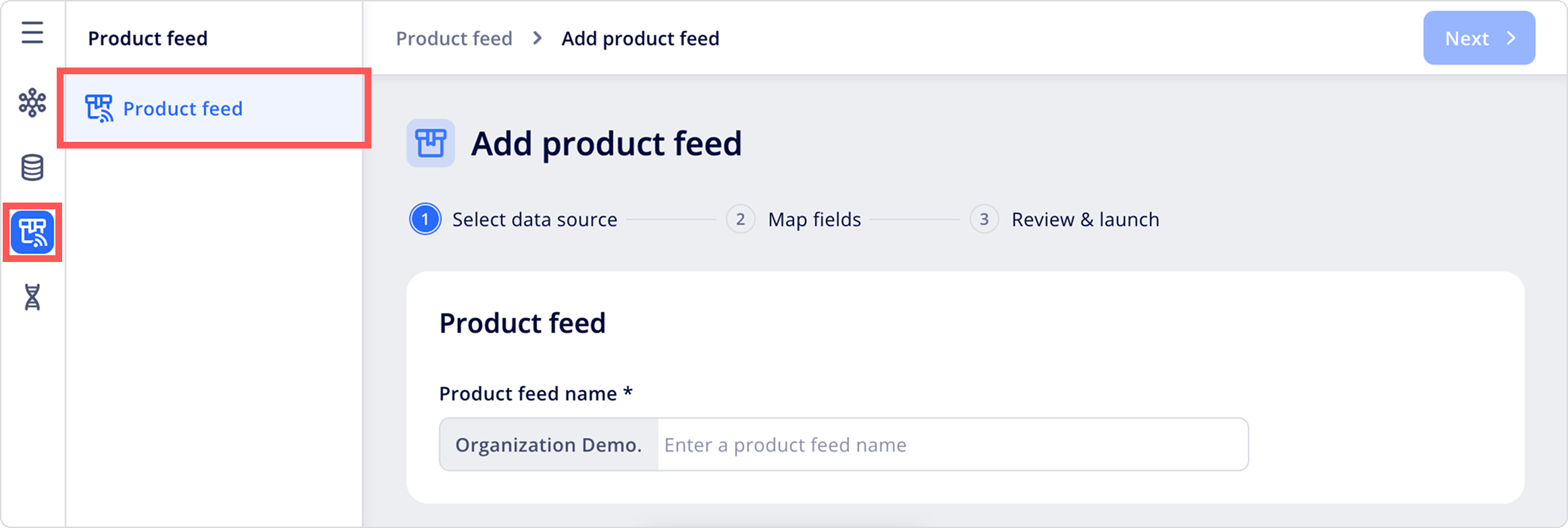
Step 1: Select data source
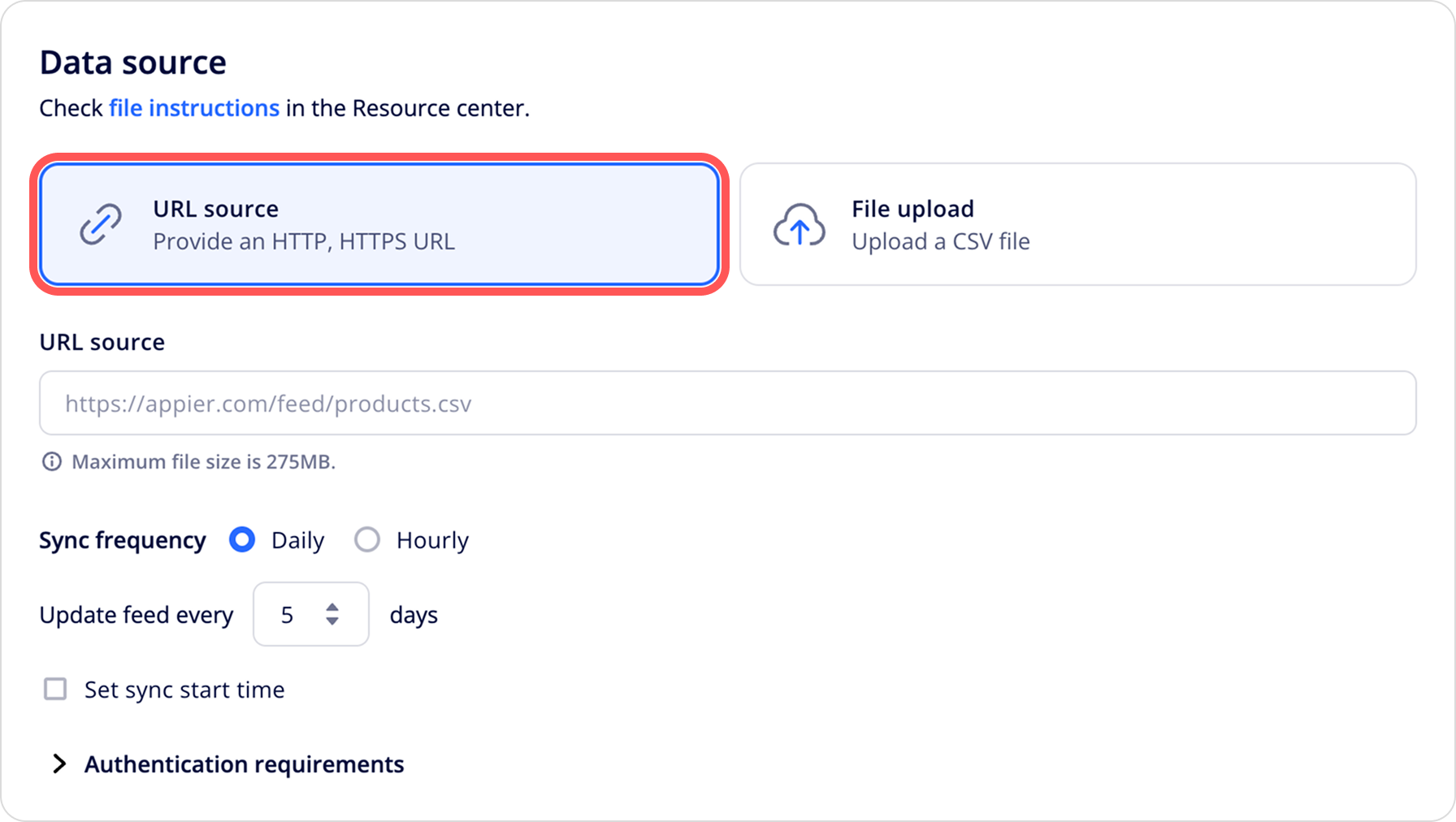
Enter your product feed name, then choose how you'll provide your product feed.
| Data source | Description |
|---|---|
| URL source | Provide an HTTP or HTTPS URL for a CSV file. Appier fetches and syncs the file on your schedule. Use this option if your product feed changes often. |
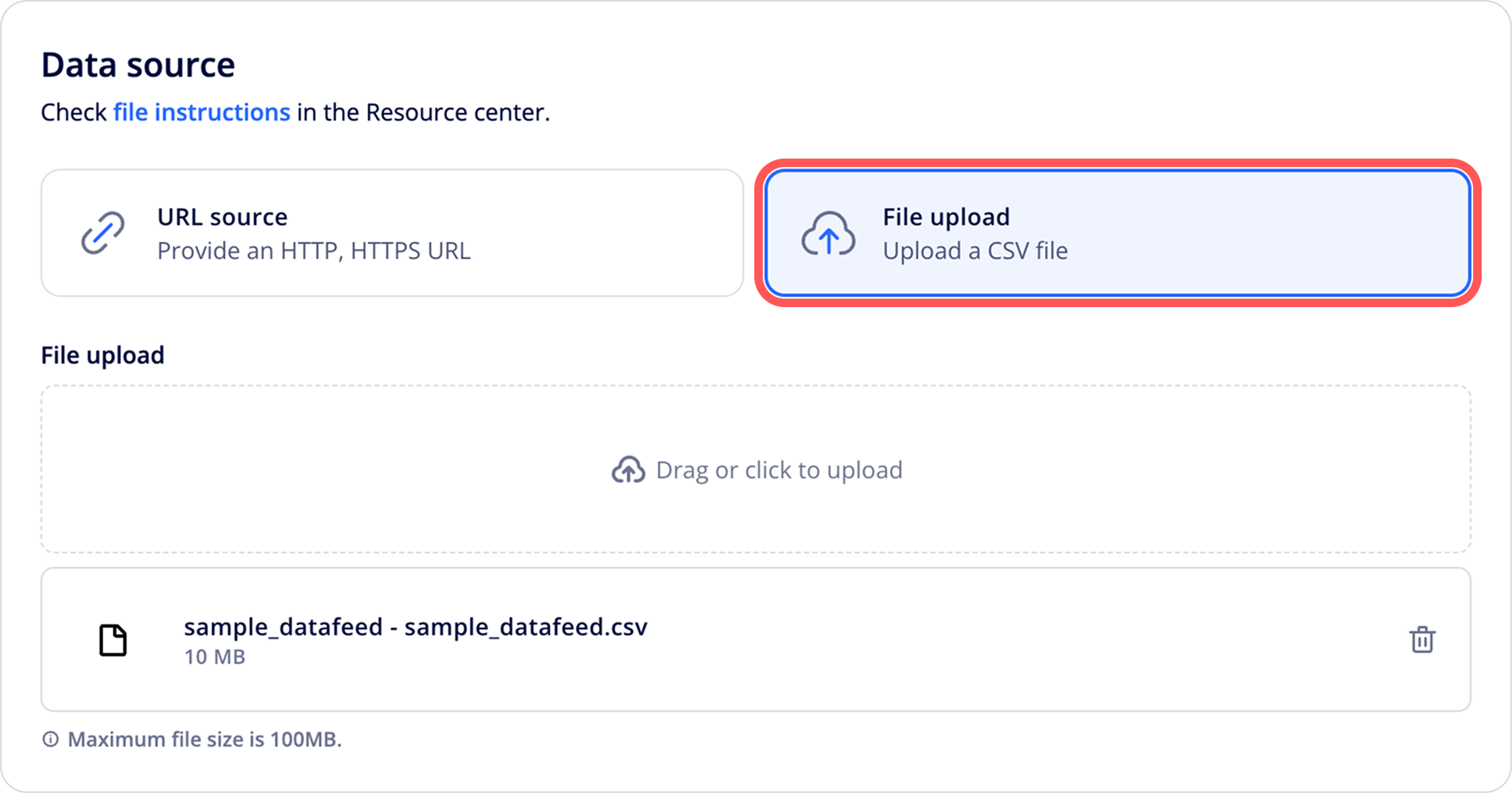
| File upload | Upload a CSV file directly. The file is uploaded once and doesn't sync automatically. To update it later, click Update source and upload a new file. |
Provide a URL source
Enter the direct HTTP or HTTPS URL in the URL source field. The maximum file size is 275 MB.
- Sync frequency: Choose how often Appier fetches your feed.
- Daily: Enter the number of days between syncs.
- Hourly: Enter the number of hours between syncs. The minimum update interval is 6 hours.
- Select the Set sync start time checkbox to choose the time of day the sync begins.
- Authentication requirements: Expand this section for guidance on accessing protected feeds.
- If your product feed requires authentication, embed credentials in the URL.
- Ensure your server's allowlist includes all of Appier's IP addresses.
Upload a file
Drag your CSV file into the upload area or click to browse. Maximum file size is 100 MB.
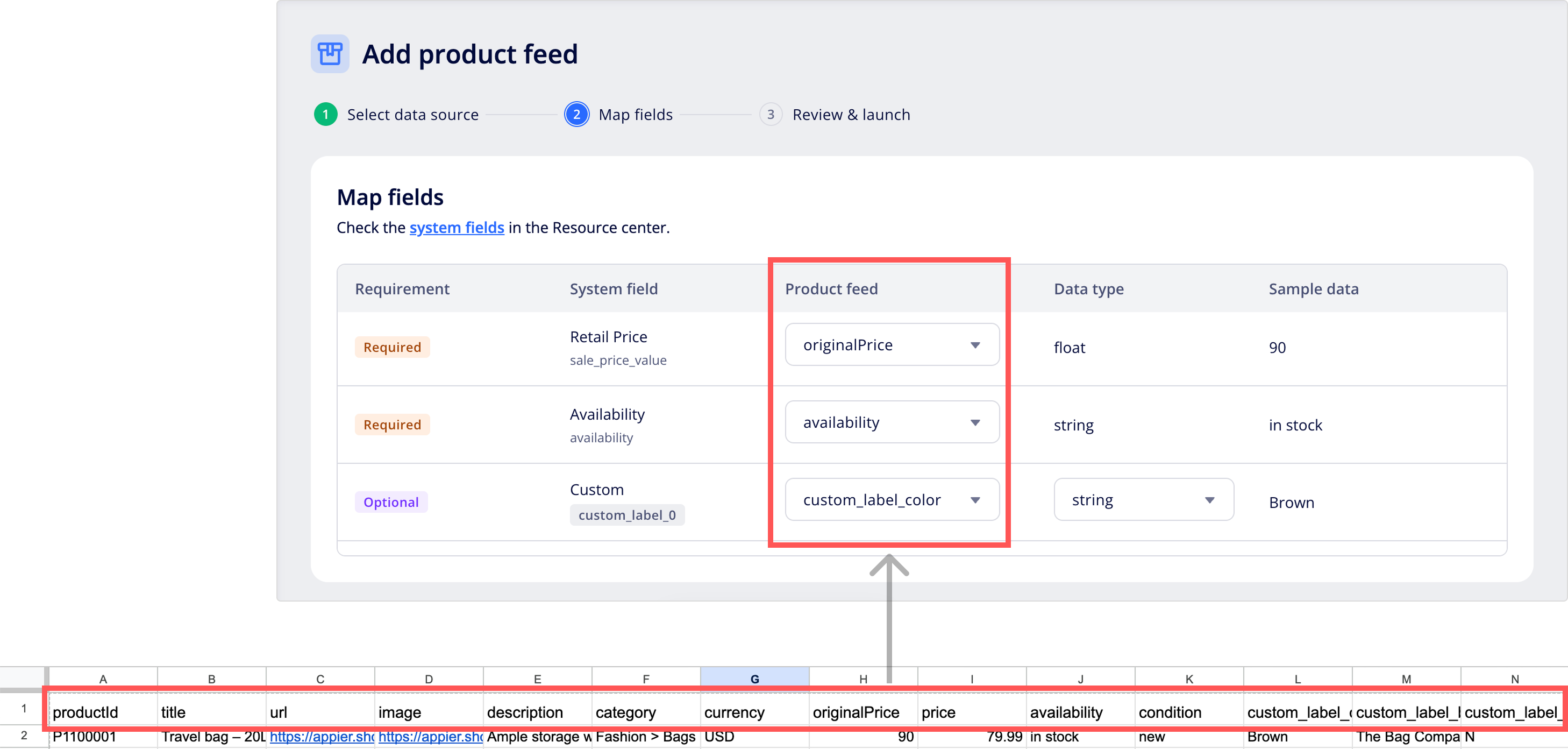
Step 2: Map fields
For each system field, select the matching column from your product feed file in the dropdown. Required system fields must be mapped before you can continue. Optional fields can be left unmapped.
| Column | Description |
|---|---|
| Requirement | Whether the system field is required or optional. |
| System field | The system field name shown in Appier, along with its internal key (for example, product_id). |
| Product feed | The dropdown where you select the matching column from your product feed source. |
| Data type | The expected data type for the system field, for example, string or float. |
| Sample data | An example value to help you confirm the right column from your product feed. |
Step 3: Review & launch
Appier validates the first 700 rows of your product feed and shows the results so you can review them before launching.
- Summary: Shows the number of valid items and the number of rows that need attention. If a row has data issues, Appier flags it so you can fix the source file.
- Row level issues: Lists the row, field, value, and issue type for each detected problem, for example,
Price field contains text instead of numbersorRequired field is empty. Click Download report to download the full issue list.
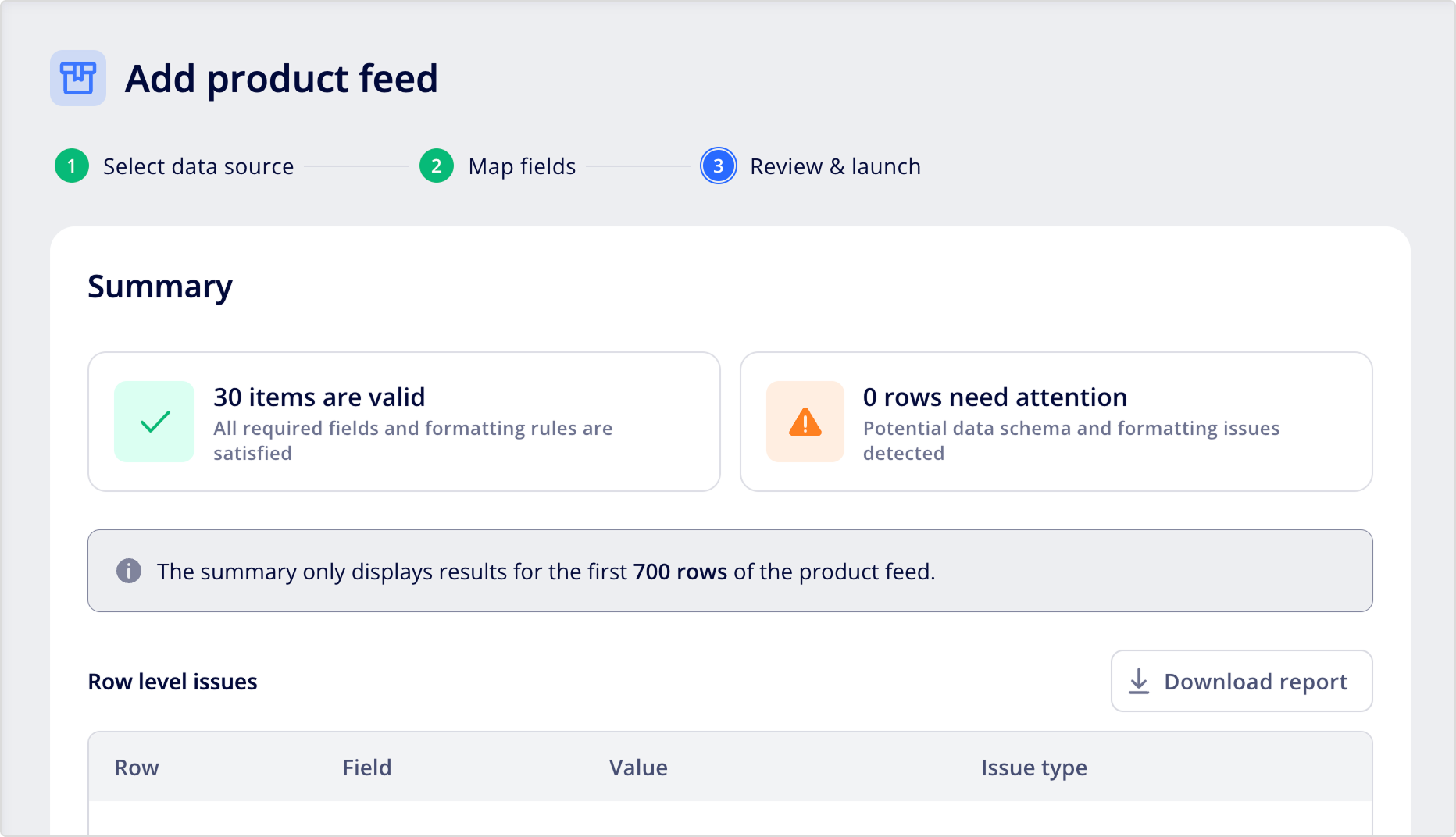
You can still launch the product feed even if Appier flags rows with issues, but it's best to fix the source file and re-run validation first. You can fix issues in two ways:
- Update the source file or the file behind your URL, then re-run the validation.
- Launch the feed as-is and fix issues later through Update source.
When you're ready, click Save to launch the feed.
Manage your product feed
After you launch your feed, it may take some time to be fully processed and available to use. Monitor your feed status, browse products, and update your data source when it's needed.
Overview
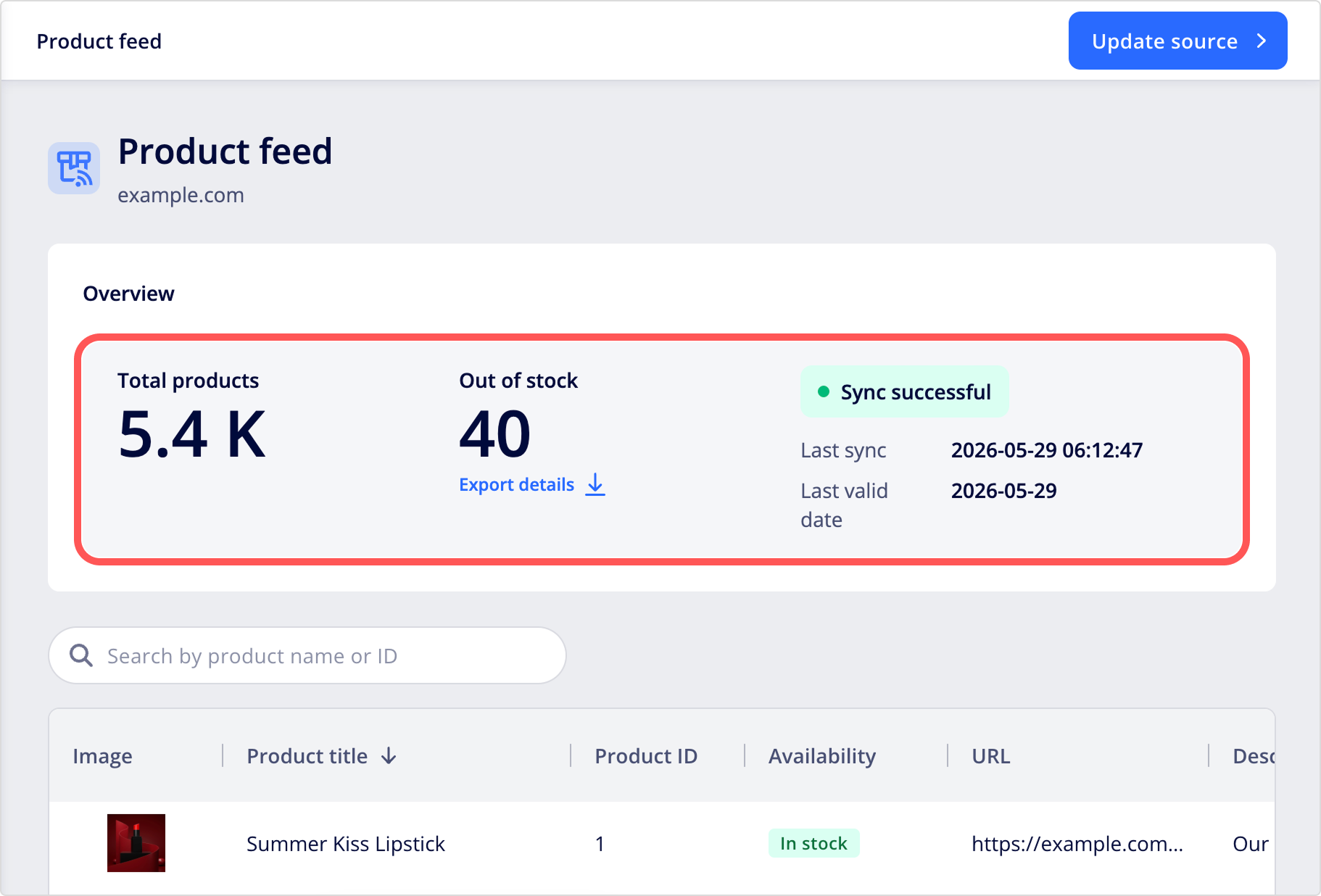
The Overview section shows the current status of your feed:
| Metric | Description |
|---|---|
| Total products | The total number of products in your feed. |
| Out of stock | The number of products marked as out of stock. Click Export details to download the list of out-of-stock products. |
| Upload status | The most recent sync result and the last successful feed syncing time. |
Browse products
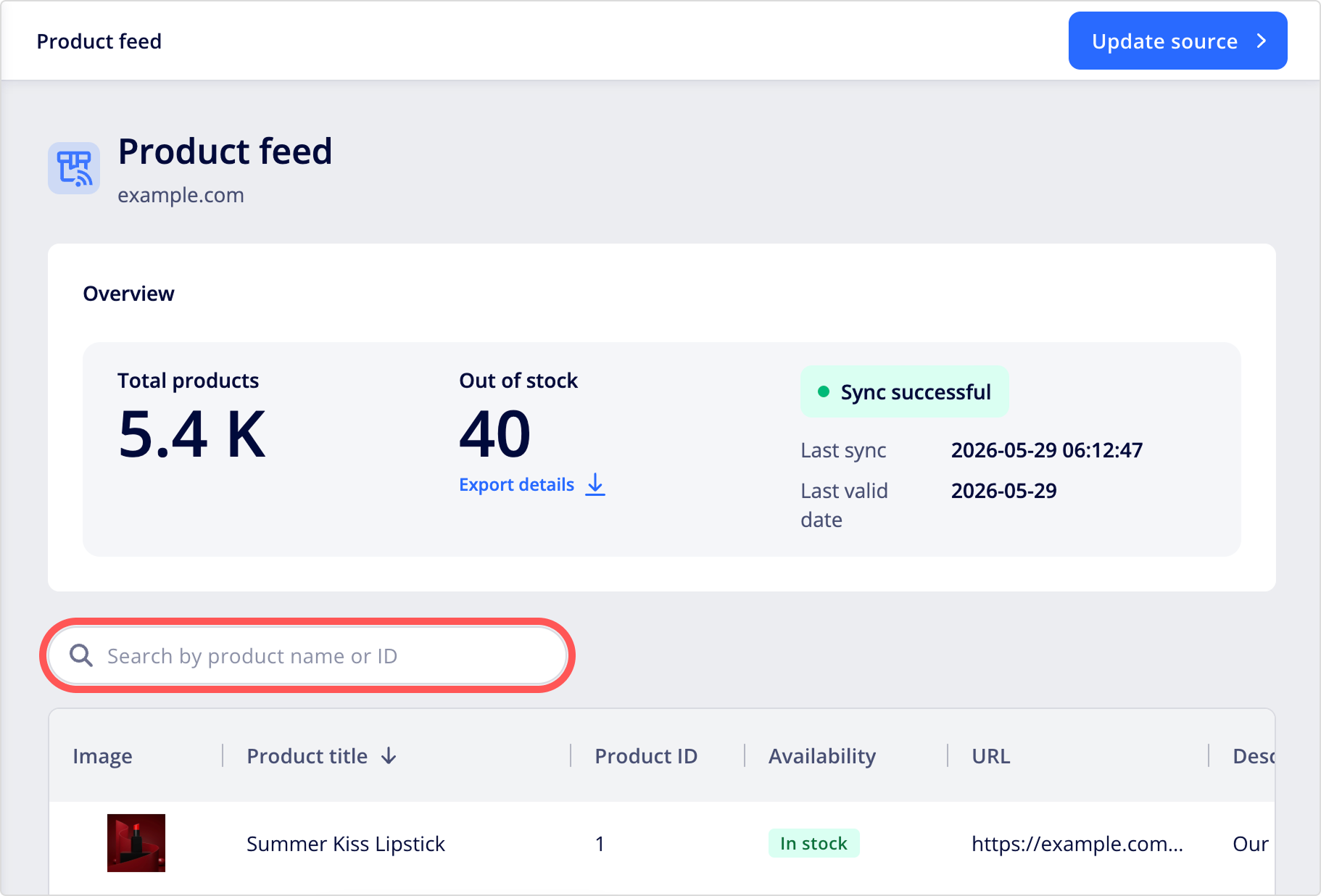
The product list shows all products in your feed. You can:
- Search by product name or product ID.
- View product details across columns, including image, product title, product ID, availability, URL, and description.
- Use pagination at the bottom of the list to navigate through your products.
Update source
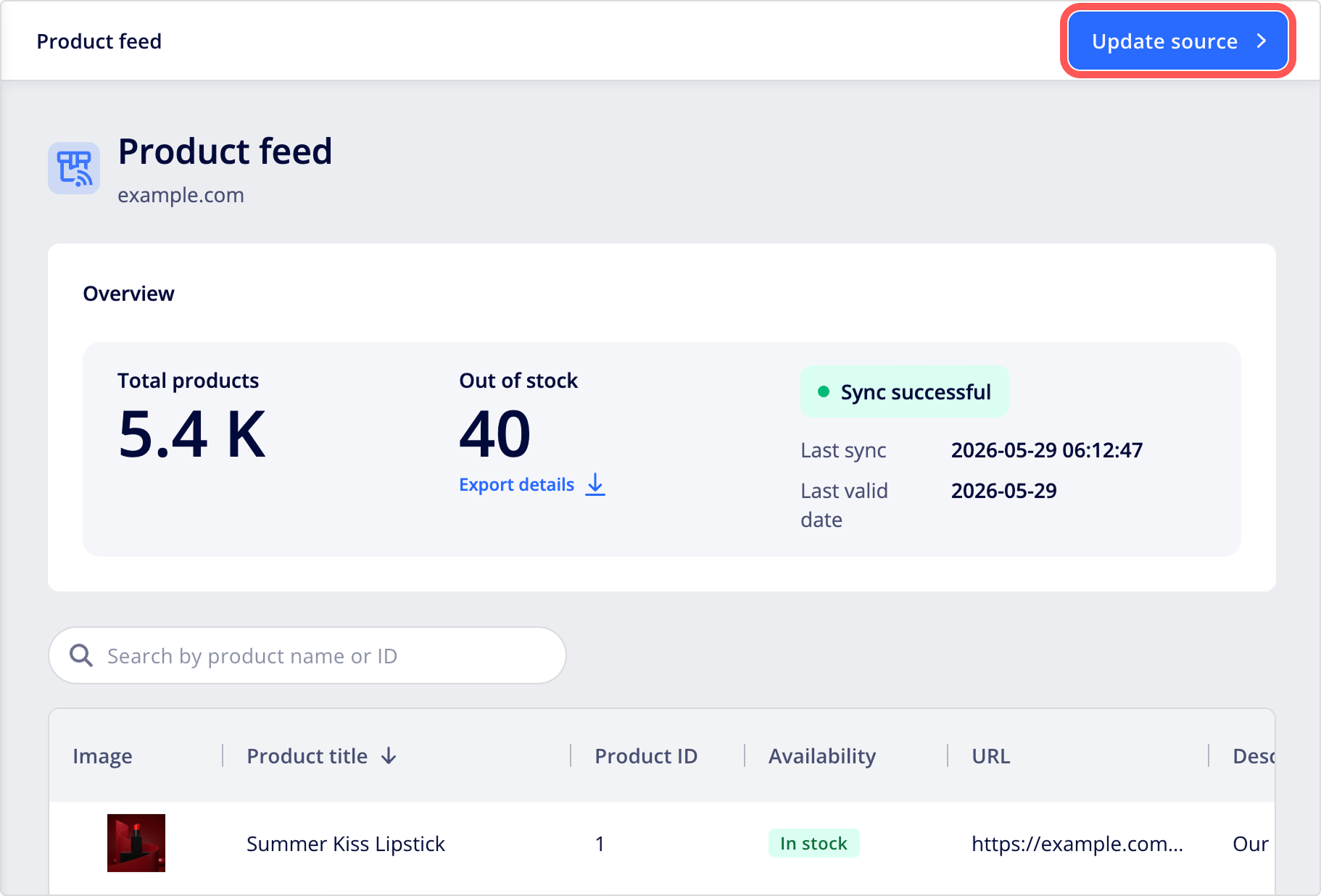
To change your data source, fix a sync failure, or update your field mappings, click Update source to restart the feed setup flow. Allow a few minutes for changes to take effect before making further updates.
- If you change the data source, field mapping starts over and Appier validates the first 700 rows of the new source.
- Your current live feed keeps running until the new feed passes validation. Your campaigns and other features keep working during this process.
If a sync failsIf a scheduled sync fails, your most recent successful feed continues to serve your recommendation campaigns without interruption. Automatic sync pauses to prevent repeated failures. Contact your customer success manager to investigate the issue and resume syncing.
FAQs
What product data should I include in the product feed?
Start with all the required fields, which give Appier the minimum data needed to identify, display, and price your products. Add optional fields that match what you want to do with your feed:
- For better recommendations, dynamic content, or campaign personalization, include rich
descriptionvalues and clean, completecategoryvalues. - For visual similarity recommendations, include
imagefor every product. - If you have product attributes that aren't covered by the standard fields, such as a "bestseller" tag, a seasonal grouping, or an internal SKU, map them to
custom_label_0throughcustom_label_4.
How often should I update my product data?
It depends on how often your product information changes. For most catalogs, daily updates are enough. Update more often if your catalog changes throughout the day, especially if you run flash sales, manage limited stock, or adjust prices frequently.
The minimum sync interval is 6 hours, so real-time updates aren't supported. If your business needs more frequent updates, contact your customer success manager to discuss options.
To change your sync frequency or your data source, click Update source on the Product feed page.
- If you use a URL source, adjust the Sync frequency settings.
- If you use a file upload, upload a new file whenever you want to refresh the feed.
Updated 3 days ago