
Event Schemas
Event schemas define how Appier reads, displays, and processes tracked events. Each event schema describes an action and its properties, ensuring your data is consistent across all reports, segments, and user profiles.
NoteFor accounts with AIRIS enabled, see System Event Schema for the full list of pre-built schemas.
To view and manage your event schemas, go to Common settings > Data management, then select Event schema.
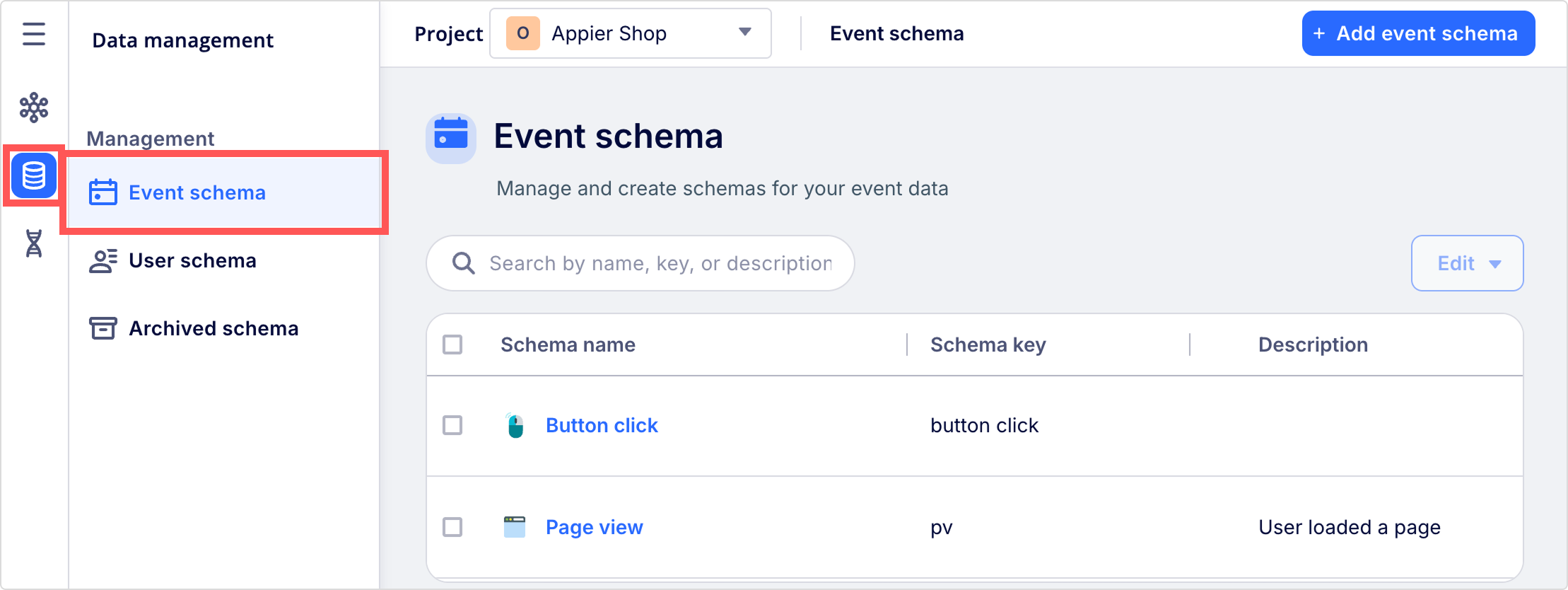
Create an event schema
You can modify an existing schema to rename a schema, update its description, or modify its properties at any time. If none of the system event schemas cover your tracking needs, you can wait for auto-generation from your incoming data or follow these steps to create a custom event schema.
PrerequisiteCreating and editing schemas requires Admin permission. Contact your customer support manager if you don't have access.
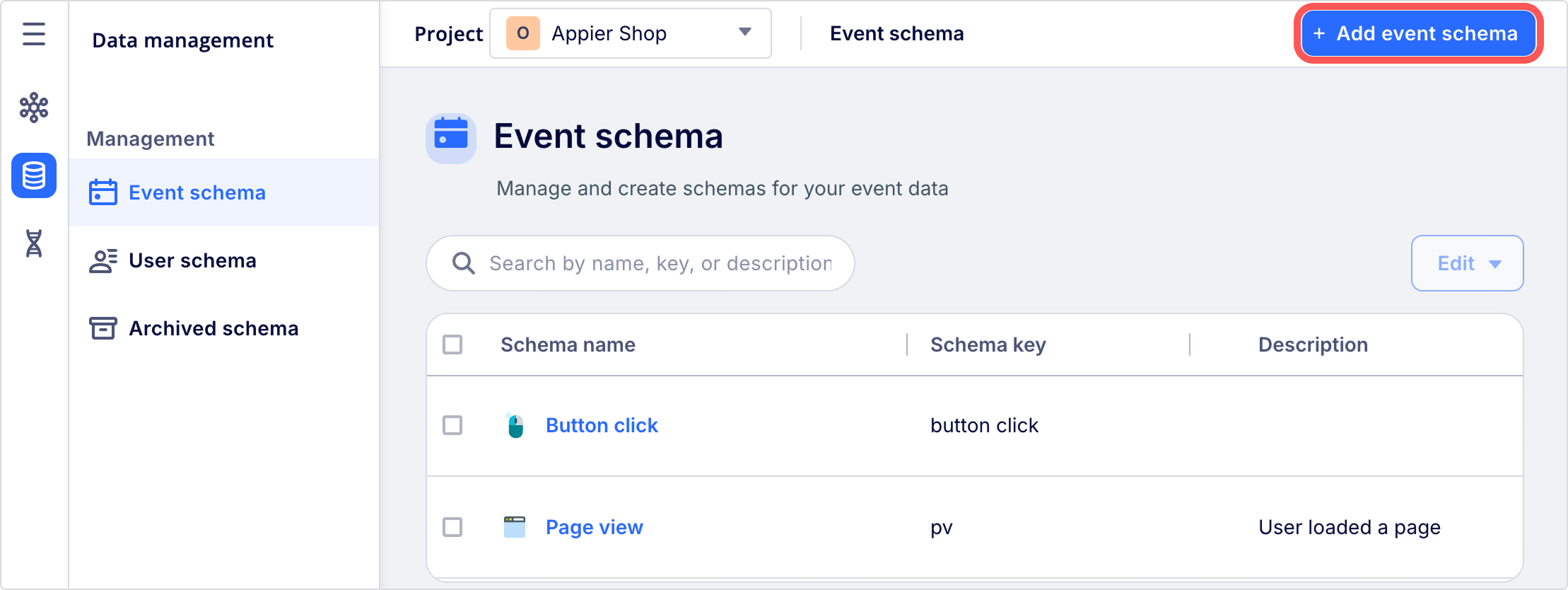
- In the Common settings > Data management > Event schema, click + Add event schema.
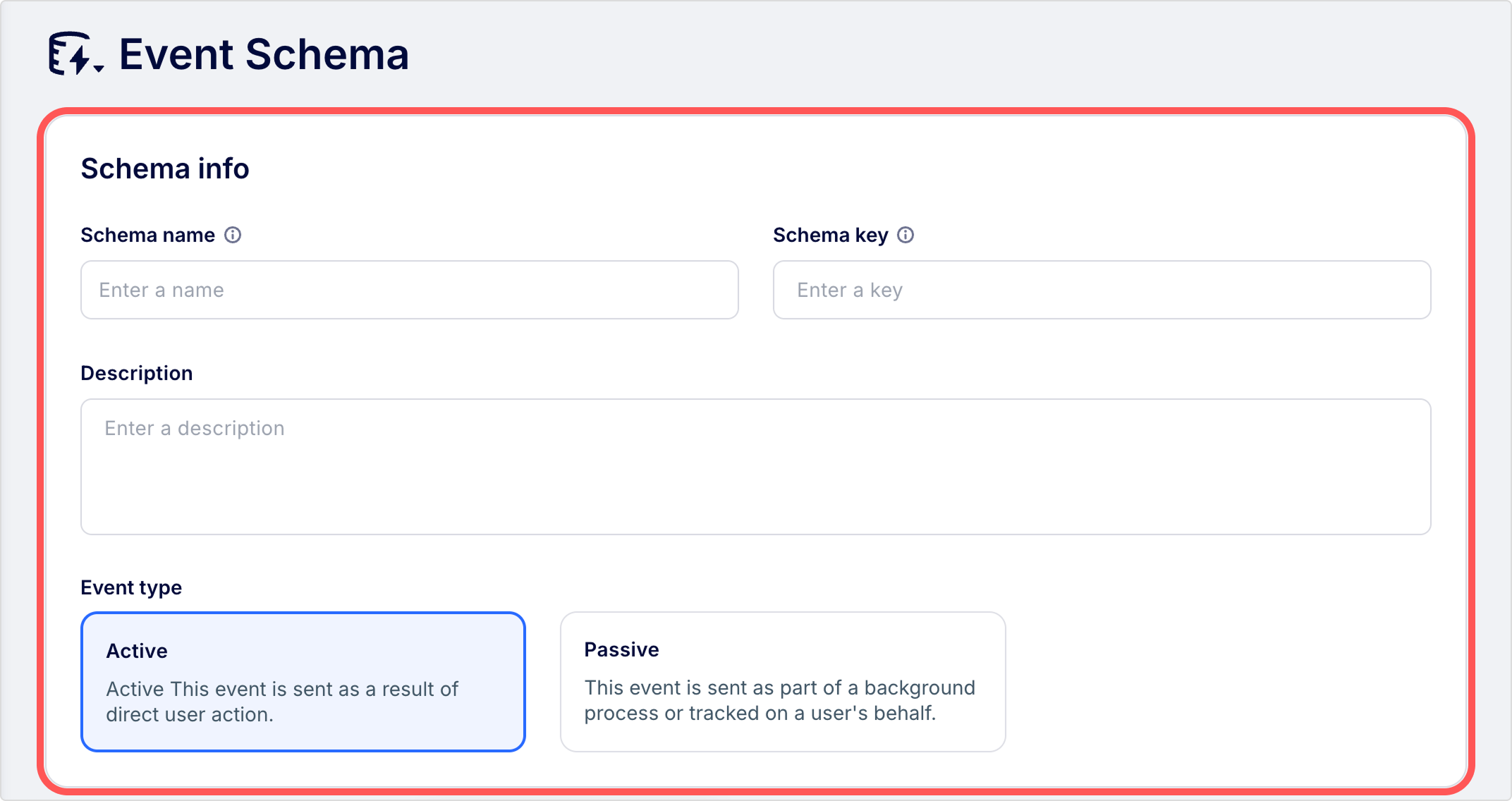
- In the Schema info section, enter the schema and select an Event type.
- In the Event properties section, expand the New property panel, then click + Add property for each additional property. You can optionally toggle the Formula and Sensitive information.
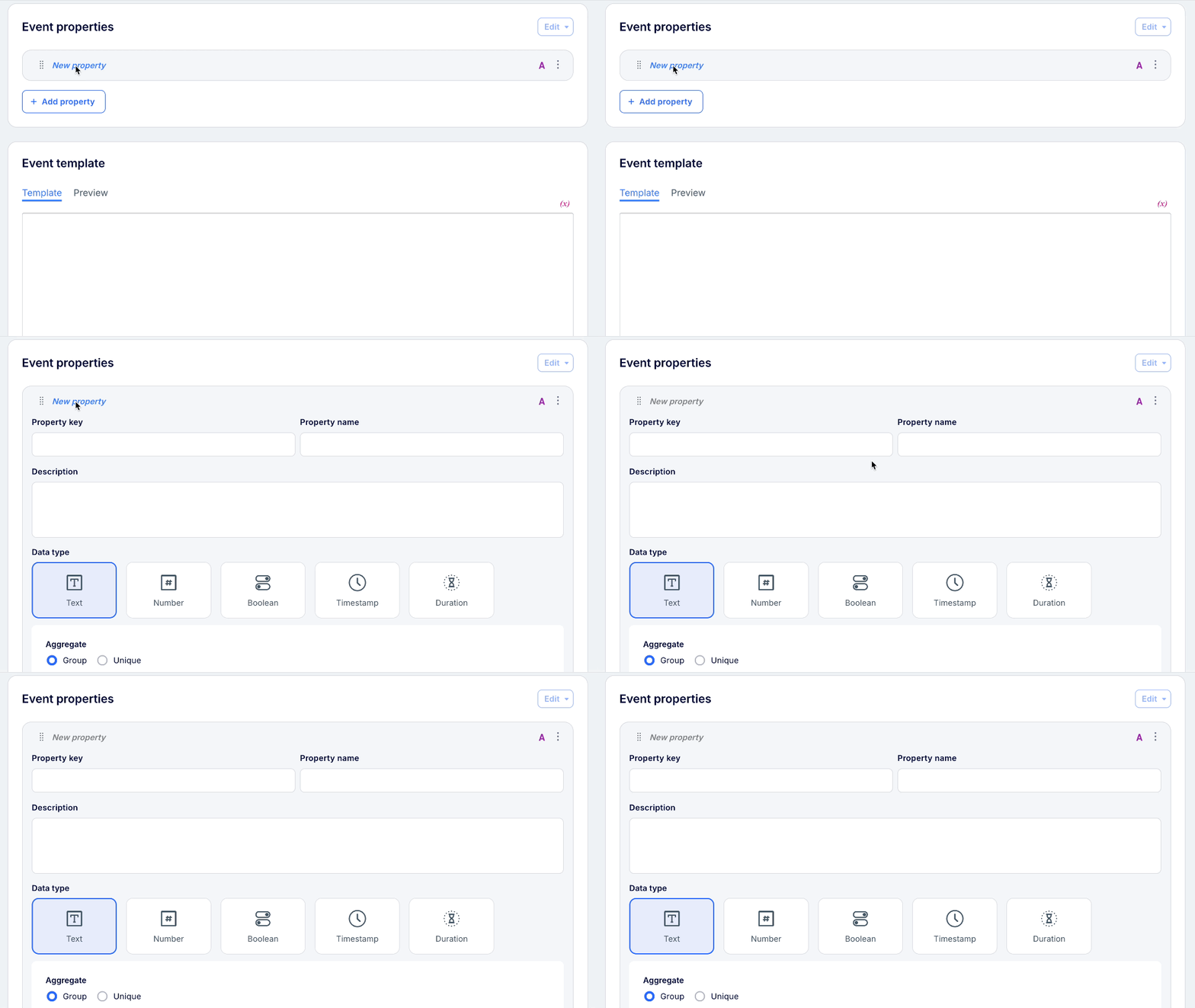
- In the Event template section, create a readable sentence with dynamic variables that populate automatically when you view an individual user's timeline or event history.
- Click Create to save the schema.
Schema info
Use the Schema info section to define the schema-level details of the event itself.
- Event schema keys are case-sensitive. Accepted characters are uppercase and lowercase letters, numbers, underscores, dashes, and spaces.
- After you enter a key, click the AI icon on the placeholders of the schema name and description fields to generate human-readable metadata automatically. These semantic hints help your team quickly understand how the field can be used for segmentation and reporting without needing technical interpretation.
| Field | Description |
|---|---|
| Schema name | The event name displayed in the console, such as in reports and user profiles. Use a name that helps your team understand what the event represents. |
| Schema key | The event name is sent from your tracking code. This value comes directly from your SDK or integration and should match exactly. Avoid changing this value. If you need to rename the event, change the Schema name to prevent duplicate events in your schemas. |
| Description | A description of the event. Providing a clear description helps all team members understand the purpose of this event, especially those who were not involved in the SDK integration. |
| Event type | Defines how the event appears in user profiles. • Active: The event was triggered by a direct user action. • Passive: The event was triggered by a background process or tracked on the user's behalf. |
ImportantUse caution when updating the Schema key value of an existing event schema. Changing it without updating the code will create duplicate events in your schemas.
Event properties
Use the Event properties section to define the individual data points collected when the event occurs. Configure the following fields for each property within a schema.
| Field | Description |
|---|---|
| Property key | The property name as it is sent from your tracking code, for example amount. |
| Property name | The property name is displayed in the console, such as in reports and segments. |
| Description | A description of the event property. Use this information to help your team understand what this property represents and how it is tracked. |
| Data type | The format of the property value, such as Text, Number, or Boolean. See the data type for a full list of types and formatting options. |
| Aggregation | Defines how the property is summarized in reports and segments. See Aggregations to learn about Group, Unique, and Amount settings. |
| Buckets | Groups a numerical property into defined ranges for use in trend reports. See Buckets for setup instructions. |
| Formula (AIRIS) | Defines a custom formula to calculate the value of this property. |
| Sensitive information (AIRIS) | Toggle on to mark this property as sensitive data. |
Updated 4 months ago